Downloading Application Backup
Learn how to download your KloudBean application backups to your local machine for additional backup copies, compliance requirements, or local storage.
Why Download Application Backups?
Downloading application backups to your local machine provides several important benefits:
- Additional Backup Copies: Create redundant backup copies stored locally, providing an extra layer of protection beyond cloud backups
- Compliance Requirements: Meet regulatory or organizational requirements that mandate local backup storage
- Offline Access: Access your backups even when internet connectivity is limited or unavailable
- Migration and Transfer: Easily transfer backups between servers or environments
- Long-term Archival: Store backups locally for long-term archival purposes
- Disaster Recovery: Maintain local backup copies as part of a comprehensive disaster recovery strategy
- Data Control: Have complete control over your backup files on your local machine
Prerequisites
Before downloading an application backup, ensure you have:
- An Active KloudBean Application: Your application must be created and running
- Onsite Backup Created: You must have taken an on-demand backup with the onsite backup option selected
- Appropriate Permissions: You need appropriate permissions to access backups and FileManager in your KloudBean account
Step 1: Create Onsite Backup
To download a backup, you first need to make sure that you have taken an on-demand backup with the onsite backup option selected. If you haven't taken a backup yet, follow these steps to create one:
Navigate to Backups Section
- Navigate to Application Administration: Log in to your KloudBean dashboard and open the application administration page for your desired application.
- Go to the "Backups" section in the application settings menu.
- In the Backups section, locate the "Backup Application" section and click on "Backup Application Now" to initiate an on-demand backup.
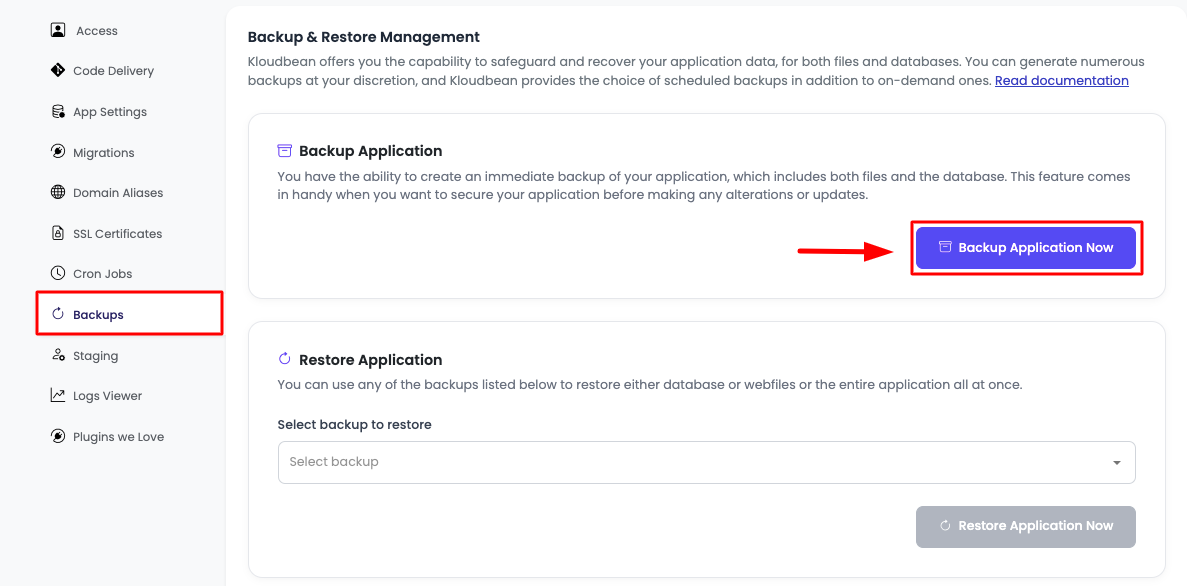
Enable Onsite Backup Option
- Once you click "Backup Application now", a confirmation prompt will open.
- On this prompt, make sure to check (select) the option "Create an onsite downloadable backup as well".
- After checking the onsite backup option, click "Proceed" to start the backup process.
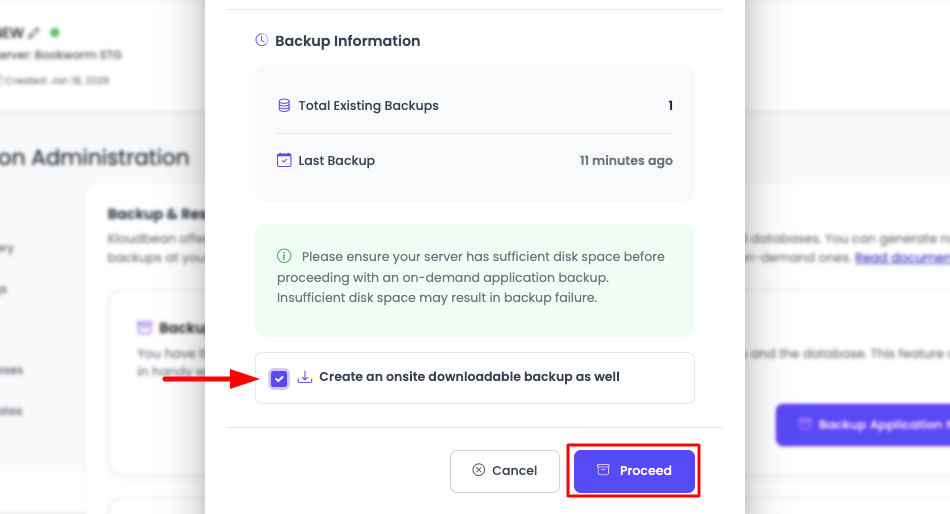
The onsite backup option creates a downloadable backup file (.tgz format) that will be stored in your application's root directory, making it accessible through FileManager for download.
Wait for Backup Completion
-
Monitor Backup Process: Wait for the backup process to complete. The duration depends on:
- Size of your application files
- Database size
- Server performance
- Network speed
-
Verify Backup Completion: Once the backup is completed, you can proceed to download it using FileManager.
Step 2: Access FileManager
To download your onsite backup, you need to access the FileManager:
- In your application administration page, go to "Code Delivery" section.
- Click on "FileManager" and then click "Launch FileManager" to open the file management interface.
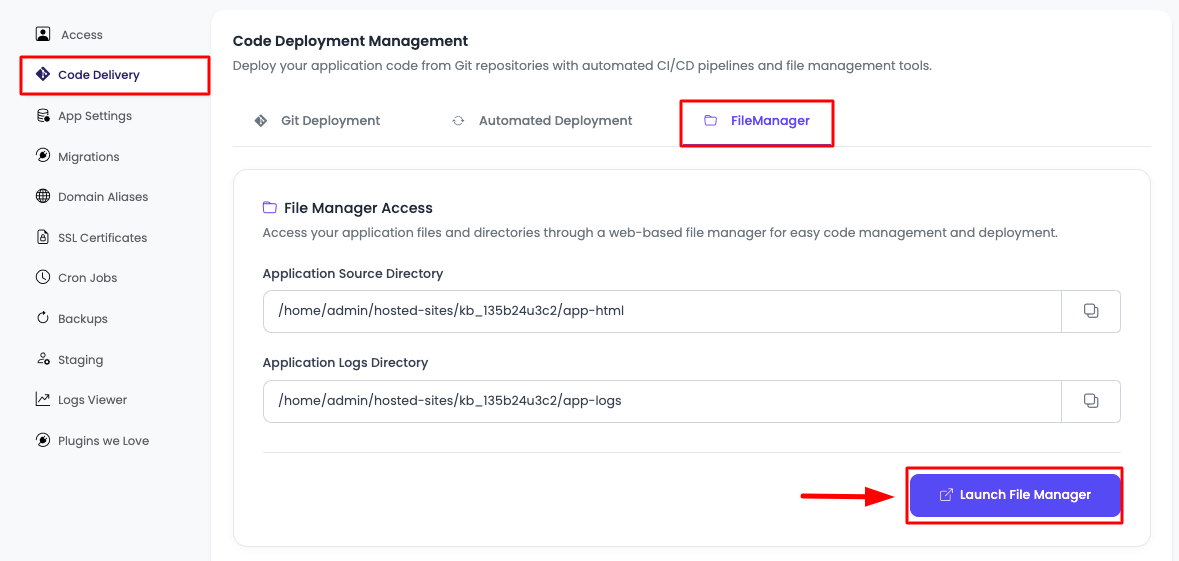
Step 3: Navigate to Onsite Backups Folder
Once FileManager is open, navigate to the onsite backups folder:
- Inside FileManager, navigate 2 steps back to reach the application root directory.
- In the application root directory, you will see a folder named "onsite_backups".
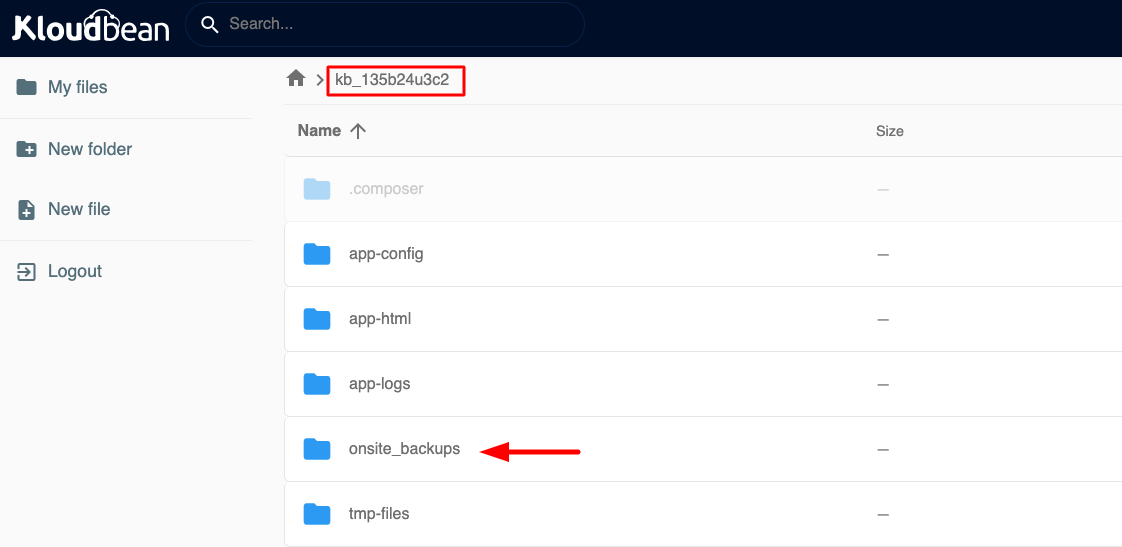
The "onsite_backups" folder contains all your downloadable backup files. Each backup is stored as a .tgz (tar gzip) file with a filename backup.tgz.
Step 4: Download Backup File
- Click on the "onsite_backups" folder to open it.
- Inside the folder, you will see the recently taken backup file with a
.tgzextension. The filename typically includes a timestamp indicating when the backup was created.
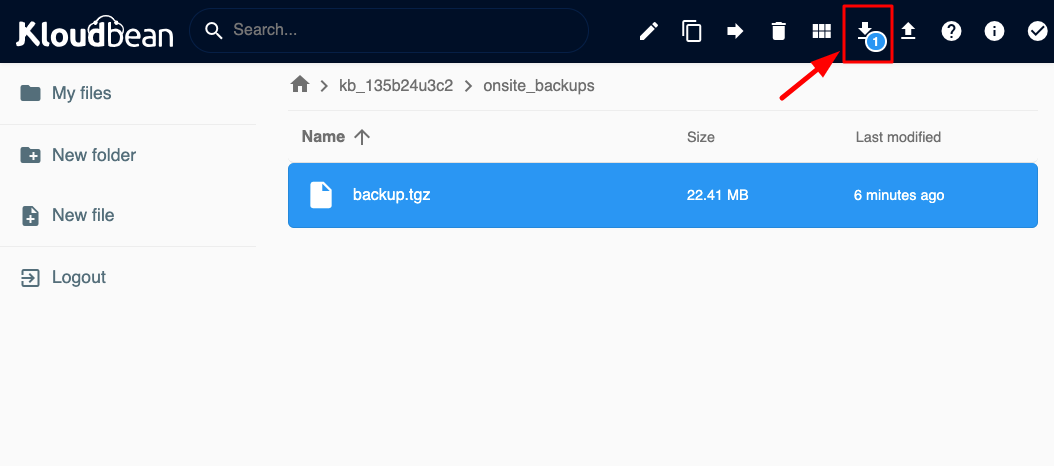
- Click on the backup file (
.tgzfile) to select it. - Click the "Download" button. Your backup download will start immediately.
The backup file is typically large, so download time will depend on:
- Backup file size
- Your internet connection speed
- Server network performance
Understanding Backup Files
Backup File Format
- File Extension:
.tgz(tar gzip compressed archive) - File Contents: Contains all application files and database backup
- Compression: Files are compressed to reduce download size and storage requirements
Best Practices
- Regular Downloads: Periodically download backups to maintain local copies
- Verify Downloads: Always verify that downloaded backup files are complete and not corrupted
- Secure Storage: Store downloaded backups in a secure location with appropriate access controls
- Organize Backups: Maintain a clear naming convention for downloaded backups on your local machine
- Test Restorations: Periodically test restoring from downloaded backups to ensure they work correctly
- Storage Management: Monitor local storage space when maintaining multiple backup copies
- Backup Retention: Establish a retention policy for downloaded backups based on your needs
Troubleshooting
Backup File Not Found
- Verify Onsite Backup: Ensure you selected the "Create an onsite downloadable backup as well" option when creating the backup
- Check Backup Completion: Verify that the backup process completed successfully
- Folder Location: Confirm you're in the correct "onsite_backups" folder in the application root directory
Download Issues
- File Size: Large backup files may take significant time to download. Be patient and ensure a stable internet connection
- Browser Compatibility: Try a different browser if downloads are failing
- Network Issues: Check your internet connection and try again if the download fails
- File Permissions: Ensure you have appropriate permissions to download files from FileManager
Backup File Corruption
- Re-download: If a downloaded backup file appears corrupted, try downloading it again
- Verify Backup: Check that the original backup on the server is complete and not corrupted
- Create New Backup: If issues persist, create a new onsite backup and download it
Important Considerations
Before Downloading
- Sufficient Local Storage: Ensure you have enough disk space on your local machine to store the backup file
- Stable Internet Connection: A stable connection is important for successful downloads, especially for large files
- Backup Age: Consider downloading recent backups to ensure you have the latest application state
After Downloading
- Verify File Integrity: Check that the downloaded file is complete and matches the expected size
- Secure Storage: Store the backup file in a secure location with appropriate access controls
- Document Backup: Keep notes about what the backup contains and when it was created
- Test Restoration: Periodically test restoring from downloaded backups to ensure they work correctly
Next Steps
After successfully downloading your application backup:
- Learn about Managing and Restoring Application Backups to restore from backups
- Explore Managing Application Files to work with application files
- Review Managing Server Backups to configure backup schedules