Viewing Invoices
Learn how to view and download invoices for your KloudBean subscriptions and services. Access all your historical invoices and manage your billing records.
Overview
Invoices provide detailed records of your payments, subscriptions, and service charges. You can access, view, and download all your invoices from your KloudBean account. This section helps you get to know your current and old invoices as well as download any invoice for your records.
Accessing Invoices
- Log in to your KloudBean account
- Navigate to My Account → Invoices
- You'll see a list of all your invoices
Viewing Invoice List
Invoice Overview
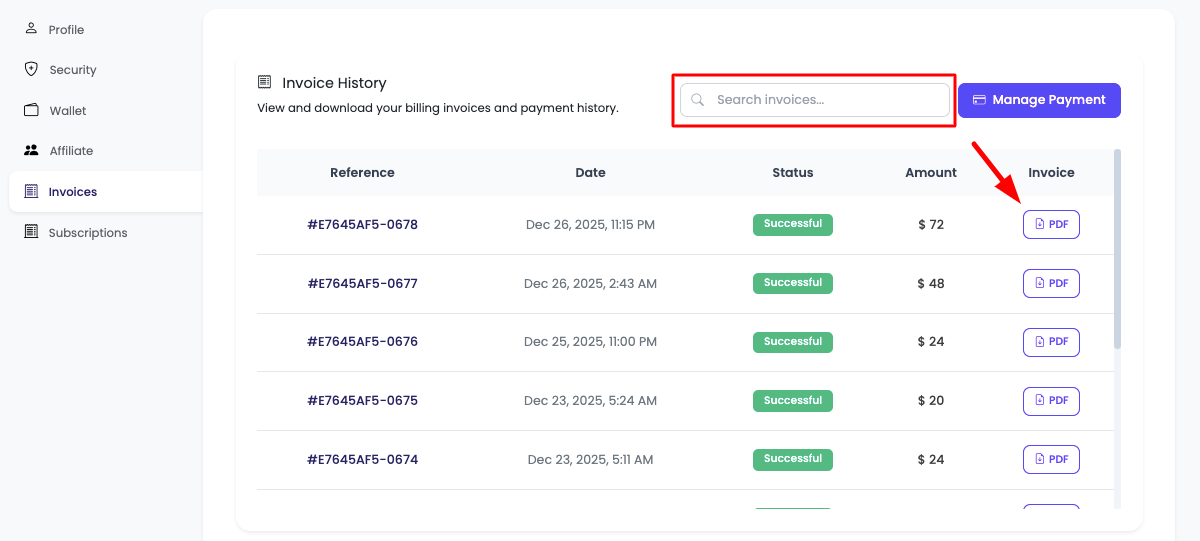
In the Invoices section, you will see:
- All Historical Invoices: Complete list of all your past and current invoices
- Search Functionality: Option to search for specific invoices
- Invoice Details: Quick view of invoice information
- Download Options: Ability to download any invoice
Invoice List Features
The invoice list displays:
- Invoice Number: Unique identifier for each invoice
- Date: Invoice date and due date
- Amount: Total amount charged
- Status: Paid, Pending, Overdue, or Cancelled
- Service: Associated service or subscription
Searching Invoices
- Search Box: Use the search box to find specific invoices
- Search by:
- Invoice number
- Date range
- Amount
- Service name
- Status
- Quick Results: Get instant search results as you type
Viewing Invoice Details
Opening Invoice Details
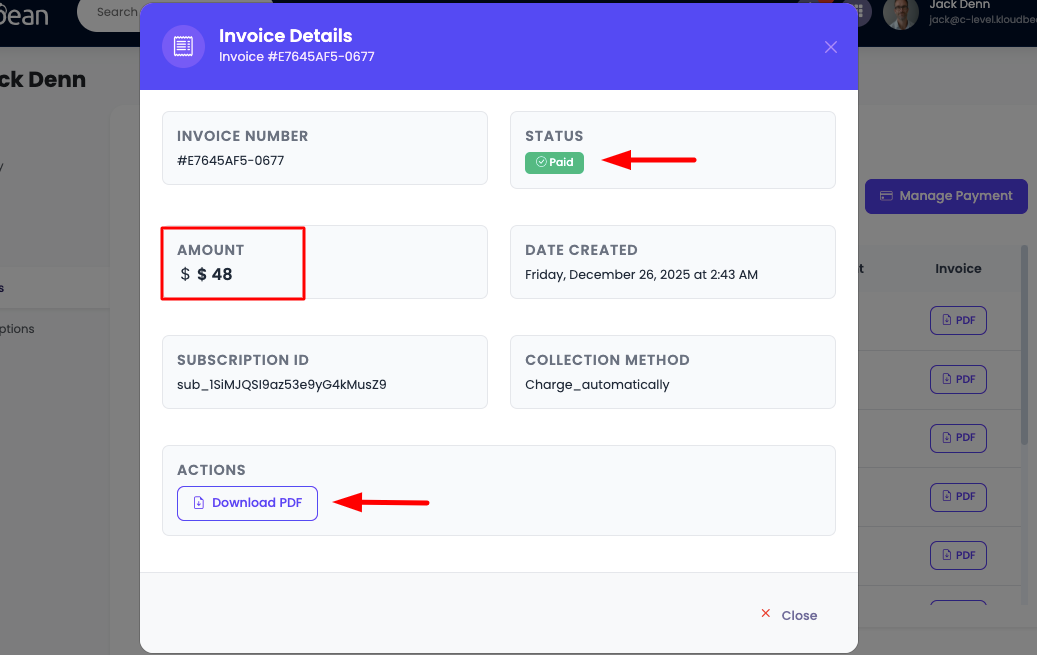
In order to see the detail of an invoice, you can click on a particular invoice to open its detail view.
Invoice Detail Information
On the invoice detail page, you will see:
-
Invoice Amount:
- Total amount of the invoice
- Breakdown of charges
- Subtotal, taxes, and discounts
- Final amount due
-
Invoice Status:
- Current payment status (Paid, Pending, Overdue, etc.)
- Payment date (if paid)
- Due date information
-
Download Button:
- Click to download the invoice as a PDF
- Save the invoice for your records
- Use for accounting and tax purposes
Additional Invoice Information
The invoice detail page also includes:
- Invoice Number: Unique invoice identifier
- Invoice Date: When the invoice was generated
- Billing Address: Your billing information
- Service Details: Description of services or subscriptions
- Itemized Charges: Breakdown of all charges
- Payment Method: How the invoice was paid
- Transaction Details: Payment transaction information
Managing Subscriptions from Invoice Page
Subscription Management Option
On the invoice detail page, you also have an option to "Manage Subscriptions", but this option is only enabled upon request to KloudBean through chat or email.
Important Note
Important: You are not allowed to remove subscriptions manually using the "Manage Subscription" button unless this feature has been explicitly enabled for your account by KloudBean support.
How to Enable Subscription Management
If you need to manage subscriptions from the invoice page:
-
Contact KloudBean Support:
- Reach out via chat or email
- Request access to the subscription management feature
- Explain why you need this functionality
-
Support Review:
- KloudBean support will review your request
- They may enable the feature if appropriate
- You'll be notified when the feature is enabled
-
Alternative Methods:
- You can always manage subscriptions through:
- My Account → Subscriptions section
- Contact support for subscription changes
- Use the subscription management page directly
- You can always manage subscriptions through:
Why This Restriction Exists
- Prevent Accidental Cancellations: Protects against accidental subscription removals
- Account Security: Ensures proper authorization for subscription changes
- Support Assistance: Allows support to help with subscription management
- Proper Documentation: Ensures all changes are properly documented
Downloading Invoices
Download Individual Invoice
- Open Invoice: Click on the invoice you want to download
- Click Download: Click the "Download" button on the invoice detail page
- Save PDF: The invoice will be downloaded as a PDF file
- Save for Records: Keep the invoice for your accounting and tax records
Invoice Status
Understanding Invoice Status
- Paid: Invoice has been successfully paid
- Pending: Payment is being processed
- Overdue: Payment is past due date
- Cancelled: Invoice has been cancelled
- Refunded: Payment has been refunded
Payment Actions
- Pay Now: For pending or overdue invoices
- View Payment: See payment details for paid invoices
- Request Refund: For eligible invoices
Email Invoices
Receiving Invoices via Email
- Invoices are automatically sent to your registered email
- Check your email inbox for invoice notifications
- Ensure your email address is up to date in your account settings
Best Practices
- ✅ Download Regularly: Download and save invoices for accounting purposes
- ✅ Organize by Date: Keep invoices organized by date or service type
- ✅ Review for Accuracy: Review invoices regularly for accuracy
- ✅ Contact Support: Contact support if you notice any discrepancies
- ✅ Maintain Records: Keep invoice records for tax and accounting purposes
- ✅ Use Search: Leverage search functionality to find invoices quickly
Troubleshooting
Invoice Not Showing
- Check Date Range: Ensure you're viewing the correct date range
- Use Search: Try searching for the invoice by number or date
- Refresh Page: Refresh the page to reload invoices
- Check Filters: Verify no filters are hiding the invoice
Cannot Download Invoice
- Check Permissions: Ensure you have permission to download invoices
- Try Different Browser: Use a different browser if download fails
- Contact Support: Reach out to support if download issues persist
Subscription Management Not Available
- Contact Support: Request access via chat or email
- Use Alternative Method: Manage subscriptions through My Account → Subscriptions
- Support Assistance: Contact support for subscription changes
Tax Information
- Invoices include tax information where applicable
- Tax amounts are clearly itemized
- Tax-exempt organizations may need to provide documentation
- Review tax details in invoice breakdown
Next Steps
After viewing your invoices:
- Learn about Viewing Subscriptions
- Explore Managing Wallet
- Review Updating Currency Settings