Updating Currency Settings
Learn how to update your account currency settings on KloudBean to view prices and make payments in your preferred currency.
Overview
Currency settings determine how prices are displayed and which currency is used for billing. Updating your currency settings ensures you see prices and make payments in your preferred currency.
Prerequisites
- An active KloudBean account
- Access to account settings
- No active or pending subscriptions (required for currency change)
Important Restriction
Currency Change Restriction: You cannot change your currency if you have any active subscription or any subscription in pending state.
This restriction is in place to ensure billing consistency and prevent complications with existing subscriptions. Before changing your currency, you must:
- Cancel or complete all active subscriptions
- Resolve all pending subscriptions
- Ensure no subscriptions are in a pending state
Once all subscriptions are resolved, you can proceed with changing your currency settings.
Accessing Currency Settings
Step 1: Navigate to Wallet
- Click on Account from the right side of the top header on the dashboard
- From the dropdown menu, navigate to the Wallet section
- You'll be taken to the wallet management page
Step 2: Access Currency Settings
In the wallet section, click on "Manage Currency" button to access currency settings.
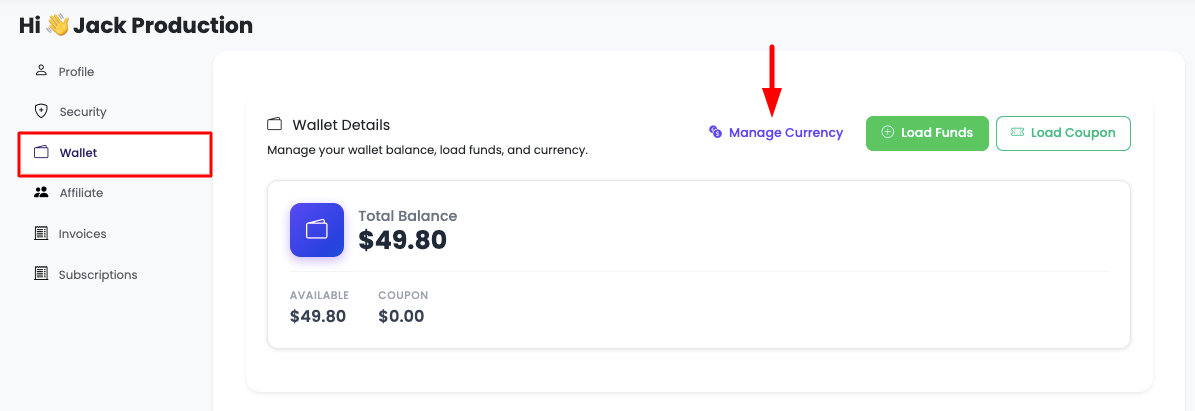
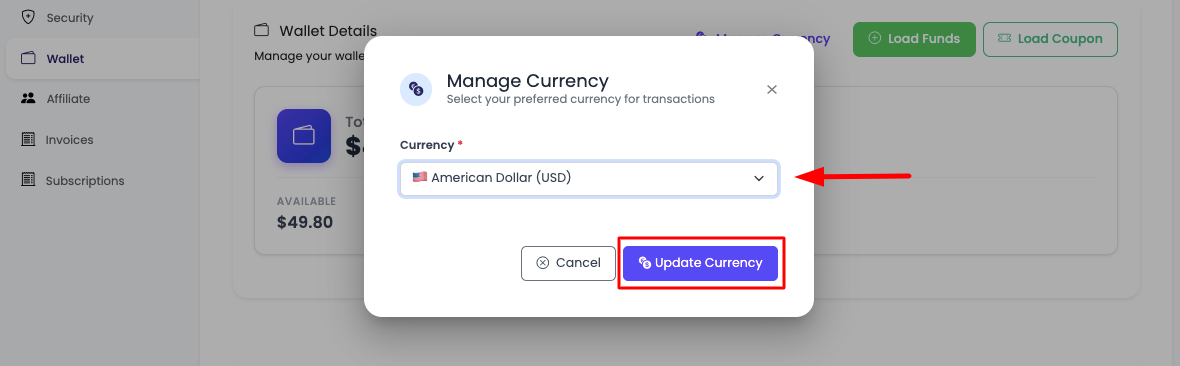
Once you click on "Manage Currency", a prompt will open to select your currency.
Available Currencies
Supported Currencies
KloudBean currently supports the following currencies:
- USD (US Dollar) - $
- EUR (Euro) - €
- INR (Indian Rupee) - ₹
- SAR (Saudi Riyal) - ﷼
Requesting Additional Currencies
If you belong to a different currency region and want to get it enabled for your account, you can reach out to the KloudBean support team. Our support team will review your request and enable the currency if it's available in your region.
Updating Currency
Step 1: Select Currency
- Open Currency Prompt: Click on "Manage Currency" button in the wallet section
- View Available Currencies: The prompt will display all available currencies
- Select Currency: Choose your preferred currency from the list
- Review Selection: Confirm the currency you've selected
Step 2: Save Currency Change
- Confirm Selection: Review your currency selection
- Click Save: Click the "Save" button to apply the currency change
- Confirmation: You'll receive a confirmation that the currency has been updated
- Price Display: All prices will now display in your selected currency
Important: Remember that you cannot change your currency if you have any active subscription or any subscription in pending state. If you encounter an error when trying to change currency, check your subscription status first.
Understanding Currency Change
What Changes
When you update your currency:
- Price Display: All prices throughout the dashboard will display in the new currency
- Billing: Future invoices and charges will be in the new currency
- Wallet Balance: Your wallet balance will be displayed in the new currency
- Service Pricing: All service prices will show in the selected currency
What Doesn't Change
- Historical Invoices: Past invoices remain in their original currency
- Completed Transactions: Previous transactions keep their original currency
- Historical Data: Past billing records maintain their original currency
Currency Conversion
Exchange Rates
- Real-Time Rates: Exchange rates are updated regularly to reflect current market rates
- Transparent Pricing: All prices are converted using current exchange rates
- Rate Display: Current exchange rates are shown when applicable
- Conversion Accuracy: Conversions are calculated accurately based on current rates
Price Conversion
- Base Currency: KloudBean uses USD as the base pricing currency
- Automatic Conversion: Prices are automatically converted to your selected currency
- Rounding: Prices are rounded appropriately for the selected currency
- Consistent Display: All prices maintain consistency across the platform
Payment Method Considerations
Currency Compatibility
- Payment Methods: Most payment methods support multiple currencies
- Card Payments: Credit and debit cards typically support currency conversion
- Automatic Conversion: Payment processors handle currency conversion automatically
- No Additional Fees: Currency conversion is included in the pricing
Payment Processing
- Seamless Processing: Payments are processed seamlessly in your selected currency
- Receipt Currency: Receipts and confirmations show the currency used
- Transaction Records: All transactions are recorded in the currency used
Viewing Prices in New Currency
Price Display
Once you've updated your currency:
- Dashboard: All prices on the dashboard show in your selected currency
- Service Pages: Service pricing displays in your selected currency
- Billing Pages: Billing information shows in your selected currency
- New Invoices: All new invoices will be in your selected currency
Price Accuracy
- Real-Time Rates: Exchange rates are updated regularly
- Consistent Pricing: Prices remain consistent across all pages
- Transparent Display: Currency and conversion details are clearly shown
- Accurate Conversion: All conversions are calculated accurately
Best Practices
- Check Subscriptions First: Verify you have no active or pending subscriptions before changing currency
- Choose Carefully: Select a currency you'll use long-term
- Understand Impact: Understand that historical data won't change
- Contact Support: Reach out if you need a currency that's not currently available
- Review Prices: Review prices after currency change to ensure everything displays correctly
Troubleshooting
Cannot Change Currency
Issue: You're unable to change your currency.
Solutions:
- Check Subscriptions: Verify you have no active or pending subscriptions
- Cancel Subscriptions: Cancel or complete any active subscriptions first
- Resolve Pending: Ensure no subscriptions are in pending state
- Contact Support: Reach out to support if you believe this is an error
Currency Not Available
Issue: Your preferred currency is not in the list.
Solutions:
- Check List: Verify the currency is not already listed (USD, EUR, INR, SAR)
- Contact Support: Reach out to KloudBean support team to request currency enablement
- Alternative Currency: Use an alternative supported currency temporarily
- Support Request: Support team will review and enable if available
Prices Not Updating
Issue: Prices still show in old currency after changing.
Solutions:
- Refresh Page: Refresh your browser page
- Clear Cache: Clear your browser cache
- Check Settings: Verify currency change was saved successfully
- Wait for Sync: Allow a few moments for changes to sync across the platform
- Contact Support: Reach out if prices don't update after refreshing
Payment Issues After Change
Issue: Payment problems after currency change.
Solutions:
- Verify Currency: Confirm your payment method supports the currency
- Check Payment Method: Ensure your payment method is valid
- Review Errors: Check any error messages for specific issues
- Contact Support: Get assistance from 24/7 support team
Next Steps
- Learn about Managing Subscriptions
- Explore Adding Funds to Wallet
- Review Viewing Subscriptions