Creating Your Account
Learn how to create your KloudBean account and get started with the platform.
Overview
Creating a KloudBean account is the first step to deploying and managing your applications on our platform. The signup process is quick and straightforward.
Prerequisites
- Valid email address
- Internet connection
- Browser (Chrome, Firefox, Safari, or Edge)
Creating Your Account
KloudBean offers two convenient ways to create your account: using OTP (One-Time Password) verification or SSO (Single Sign-On) authentication.
Method 1: Registration Using OTP
The OTP-based registration process allows you to sign up using your email address with a verification code.
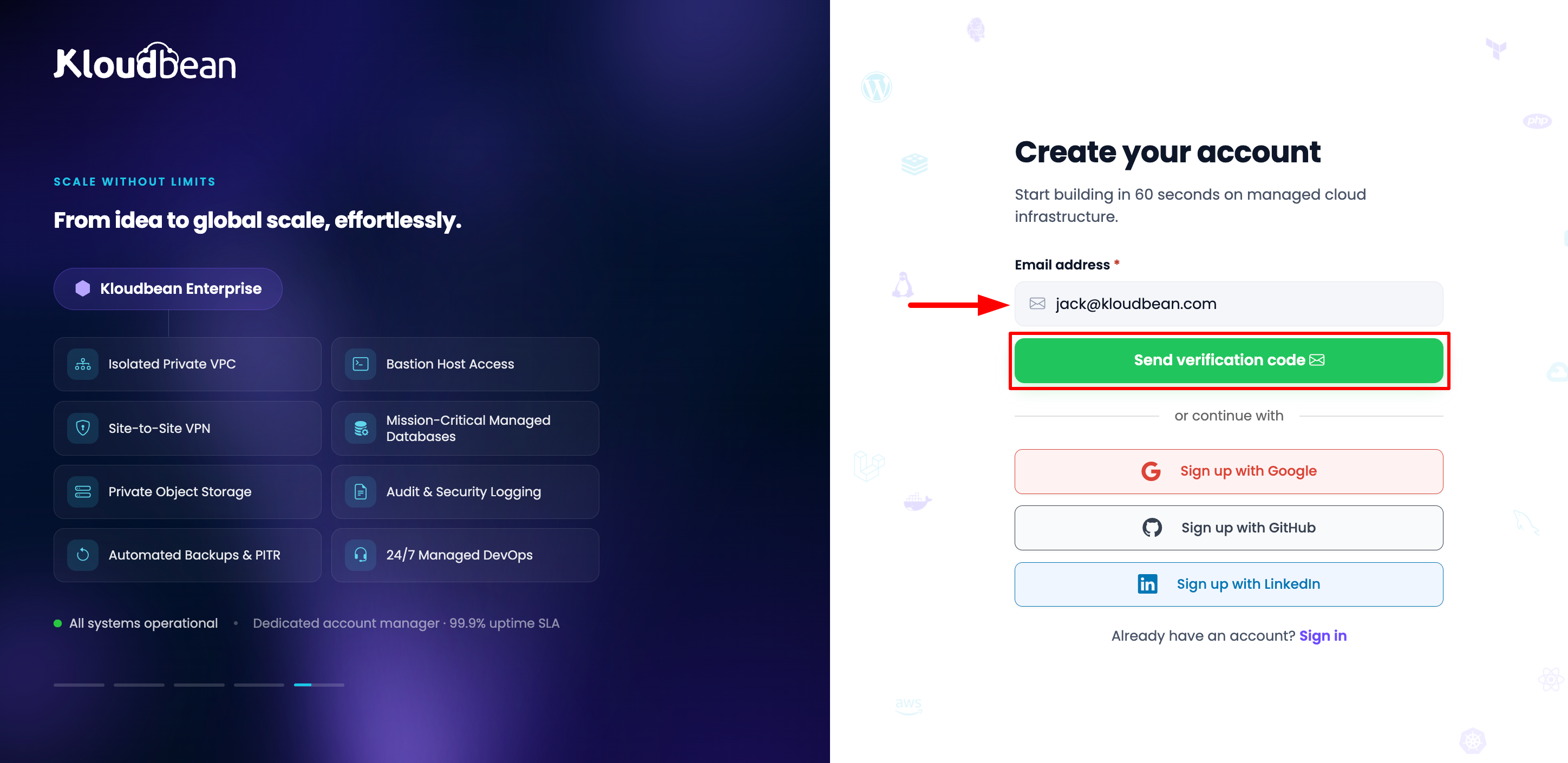
Step 1: Enter Email Address
- Navigate to www.kloudbean.com
- Click Sign Up or Get Started button
- Enter your valid email address
- Click Send OTP
Step 2: Verify OTP
- Check your email inbox for the OTP code
- Enter the OTP code in the verification field
- Click Verify
- If the OTP is correct, email verification will be completed successfully
Step 3: Complete Registration
After successful email verification, provide the following information:
- First Name (mandatory): Enter your first name
- Password: Create a strong password
- Currency: Select your preferred currency
- Click Start Building
That's it! Your account will be created and you'll be ready to start using KloudBean.
Method 2: Registration Using SSO
KloudBean supports Single Sign-On (SSO) registration through popular platforms for a quick and secure signup process.
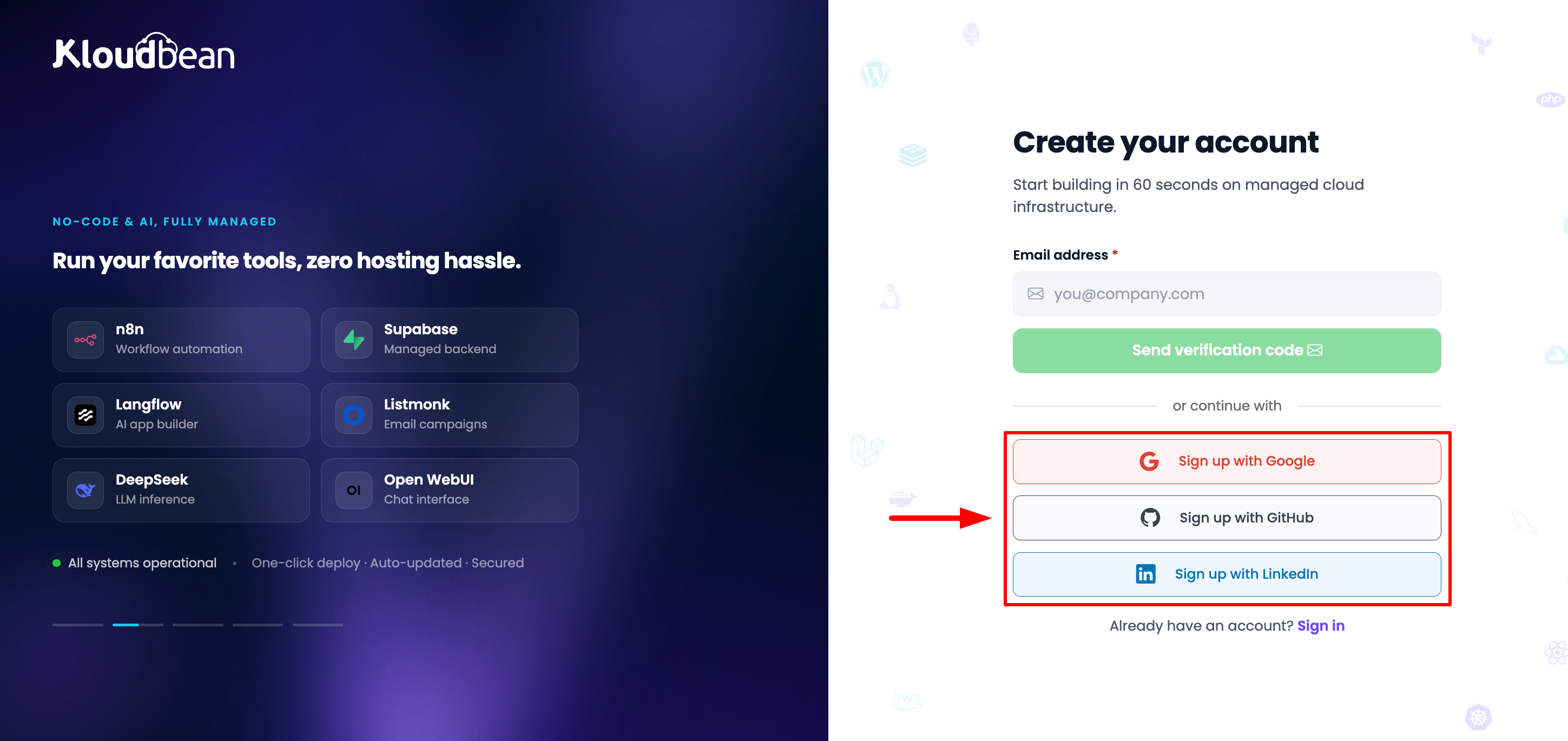
Supported SSO Providers
KloudBean supports three platforms for SSO login and registration:
- Google: Sign up using your Google account
- GitHub: Sign up using your GitHub account
- LinkedIn: Sign up using your LinkedIn account
SSO Registration Steps
- Navigate to www.kloudbean.com
- Click Sign Up or Get Started button
- Click on your preferred SSO provider (Google, GitHub, or LinkedIn)
- Complete the authentication process with your chosen provider
- Once authenticated, you'll be automatically registered with KloudBean
Your account will be created instantly, and you can start building right away!
Account Verification
OTP Verification
- OTP code is sent immediately after clicking "Send OTP"
- Check your spam folder if the email doesn't arrive
- OTP codes typically expire after a few minutes
- You can request a new OTP if the code expires
Resending OTP
If you didn't receive the OTP:
- Click Resend OTP on the registration page
- Check your email inbox again
- Ensure you've entered the correct email address
Setting Up Your Profile
Complete Your Profile
- Log in to your account
- Go to My Account → Profile
- Complete your profile:
- Upload profile picture (optional)
- Update your basic information (optional)
Security Settings
- Navigate to My Account → Security
- Set up:
- Security questions
- Backup email address
- Password recovery options
- Two-Factor Authentication (2FA): Enable 2FA for enhanced account security
Enable 2FA for Better Security: In order to enable 2FA for better account security, navigate to Account → Security section and enable 2FA. KloudBean supports authenticator apps like Google Authenticator - simply scan the QR code displayed during setup with your authenticator app to enable 2FA. This adds an extra layer of protection to your account.
Next Steps
After creating your account:
- Verify Your Email: Complete the On-boarding process
- Start Free Trial: Begin your free trial period
- Explore Dashboard: Familiarize yourself with the interface
- Create Your First Server: Set up your first server
Troubleshooting
Signup Issues
- Email Already Exists: Use password reset if you have an account
- Weak Password: Ensure password meets requirements
- Verification Email Not Received: Check spam folder or resend
- Account Activation Failed: Contact support for assistance
Login Issues
- Forgot Password: Use password reset link
- Account Locked: Contact support to unlock
- Verification Required: Complete email verification first
Best Practices
- Use a strong, unique password
- Verify your email immediately
- Keep your account information updated
- Use a business email for professional accounts
- Enable Two-Factor Authentication (2FA): In order to enable 2FA for better account security, navigate to Account → Security section and enable 2FA
Next Steps
- Learn about Starting Your Free Trial
- Explore Understanding the Dashboard