Updating Your Profile
Learn how to update your profile information and account details in KloudBean. Keep your profile information current for better account management and communication.
Overview
Once you have your account with KloudBean, you can modify your profile settings. Your profile contains your personal information, profile picture, and account preferences. Keeping this information up to date ensures accurate billing, communication, and account management.
Accessing Profile Settings
To access your profile settings:
- Navigate to the header right side from the KloudBean dashboard
- Click on the profile icon where your email and username are displayed
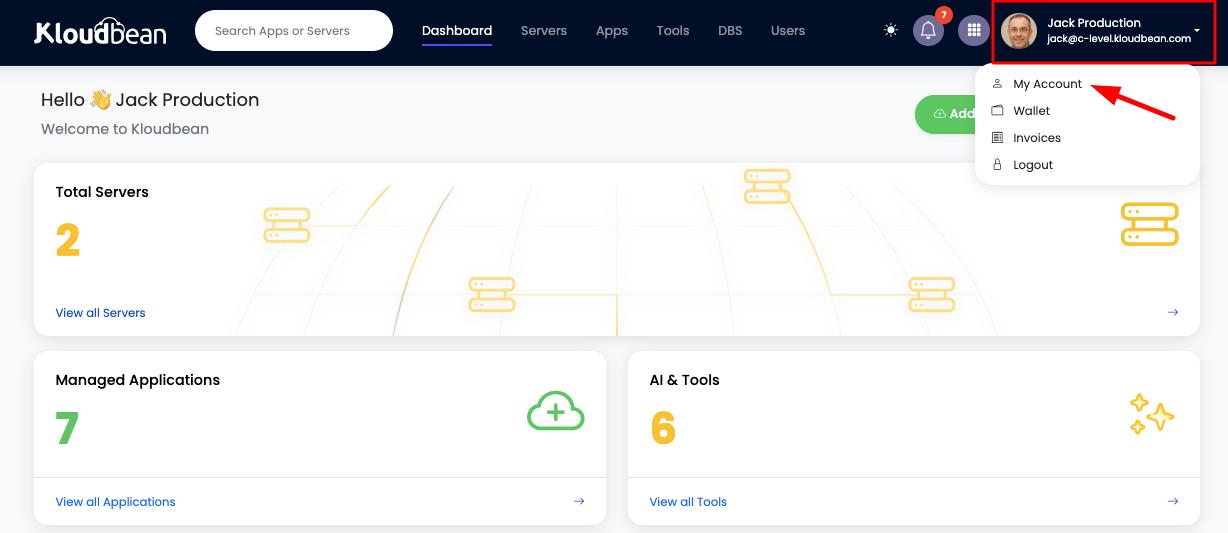
This will take you to the account "Profile" section where you can update various profile information.
Updating Profile Information
1. Update/Add Account Profile Picture
Adding or updating your profile picture helps personalize your account and makes it easier to identify your account in team environments.
Steps to Update Profile Picture
-
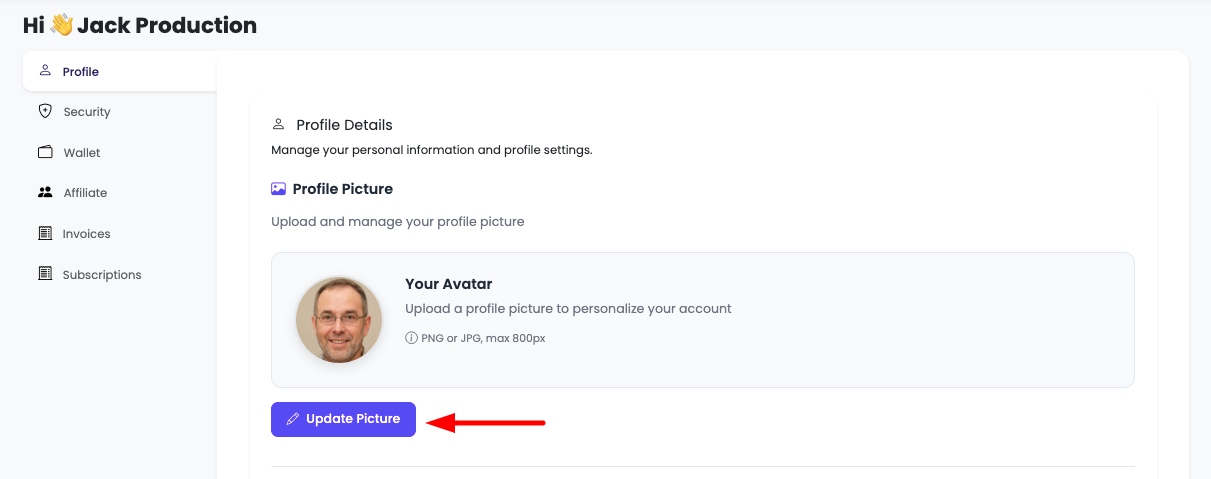
Click Update Picture:
- In the Profile section, locate the profile picture area
- Click on "Update Picture" or the profile picture itself
-
Select Picture from Local Machine:
- A file browser dialog will open
- Navigate to the location of your desired profile picture
- Select the image file from your local machine
- Supported formats typically include: JPG, PNG, GIF
- Recommended size: 200x200 pixels or larger (square images work best)
-
Save Picture:
- After selecting the image, click "Save Picture" or "Save"
- The image will be uploaded and your profile picture will be updated
- You'll see a confirmation message when the update is successful
Profile Picture Best Practices
- Use Clear Images: Choose a clear, well-lit image
- Square Format: Square images display best
- Appropriate Size: Keep file size reasonable (under 2MB recommended)
- Professional: Use a professional image for business accounts
- Recent Photo: Use a current photo that represents you accurately
2. Updating User First Name and Last Name
Keeping your name information current is important for account identification, billing, and communication purposes.
Steps to Update Name Information
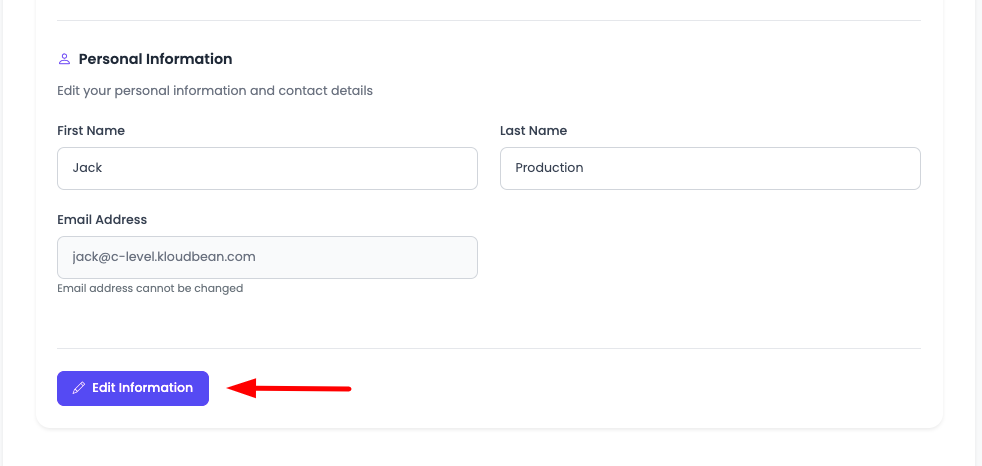
- Navigate to Personal Information Section:
- Scroll down on the same Profile tab
- You will see a section labeled "Personal Information"
- This section contains your first name and last name
-
Edit Information:
- Click "Edit Information" or the edit icon next to the Personal Information section
- The fields will become editable
-
Update Your Information:
- First Name: Enter or update your first name
- Last Name: Enter or update your last name
- Ensure the information is accurate and spelled correctly
-
Save Changes:
- After making your updates, click "Save" or "Save Changes"
- You'll receive a confirmation message when the update is successful
- The changes will be reflected immediately in your profile
Name Information Guidelines
- Use Your Real Name: Use your actual first and last name for account verification
- Consistent Formatting: Use proper capitalization (e.g., "John Smith" not "john smith")
- Legal Name: For business accounts, consider using your legal or business name
- Keep Updated: Update your name if it changes (e.g., after marriage)
Additional Profile Information
While in the Profile section, you may also be able to update:
Email Address
- Your email address is typically used for login and cannot be changed easily
- Contact support if you need to change your primary email address
- Ensure your email is verified for important notifications
Saving Changes
After making your updates:
-
Review Changes:
- Double-check all the information you've entered
- Ensure everything is accurate and spelled correctly
-
Save Changes:
- Click "Save", "Save Changes", or "Update Profile" button
- Wait for the confirmation message
-
Confirmation:
- You'll receive a confirmation message upon successful update
- The changes will be reflected immediately
- Your updated information will be visible throughout the platform
Profile Update Best Practices
- ✅ Keep Information Current: Update your profile whenever information changes
- ✅ Use Professional Images: Use appropriate profile pictures, especially for business accounts
- ✅ Verify Accuracy: Double-check all information before saving
- ✅ Regular Reviews: Periodically review your profile to ensure everything is up to date
- ✅ Consistent Formatting: Use consistent formatting for names and other information
- ✅ Privacy Considerations: Be mindful of what information you share in your profile
Troubleshooting
Profile Picture Not Uploading
- File Format: Ensure the image is in a supported format (JPG, PNG, GIF)
- File Size: Check that the file size is within limits (typically under 2MB)
- Browser Issues: Try refreshing the page or using a different browser
- Permissions: Ensure you have permission to upload files
Name Changes Not Saving
- Required Fields: Ensure all required fields are filled
- Format Validation: Check that names meet format requirements
- Browser Cache: Try clearing your browser cache
- Contact Support: If issues persist, contact KloudBean support
Profile Section Not Accessible
- Permissions: Verify you have permission to edit your profile
- Account Status: Ensure your account is in good standing
- Browser Issues: Try refreshing or using a different browser
- Contact Support: Reach out to support if you cannot access profile settings
Next Steps
After updating your profile:
- Learn about Updating Account Security
- Explore Managing Wallet
- Review Viewing Subscriptions