Viewing Subscriptions
Learn how to view and manage your active KloudBean subscriptions. Access all your subscription information, including status, billing details, and subscription history.
Overview
Subscriptions represent your active services and recurring payments on KloudBean. You can view all your subscriptions, their details, billing cycles, and manage them from your account. This section provides a comprehensive view of all your subscription information.
Accessing Subscriptions
- Log in to your KloudBean account
- Navigate to My Account → Subscriptions
- You'll see a list of all your active and past subscriptions
Viewing Subscription List
Subscription Overview
In the Subscriptions section, you can see:
- All Active Subscriptions: Complete list of all your currently active subscriptions
- Subscription Amount: The cost of each subscription per billing cycle
- Subscription Status: Current status of each subscription (Active, Cancelled, Expired, etc.)
- Date of Enabled: When each subscription was enabled or activated
- Search Option: Option to search for specific subscriptions
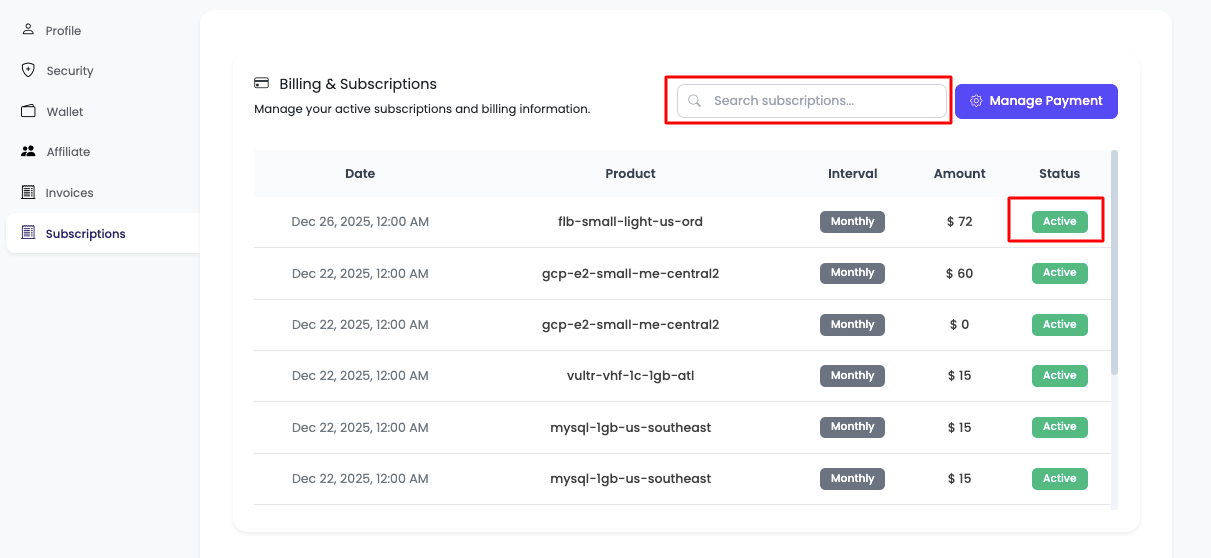
Subscription List Information
The subscription list displays:
- Service Name: Name of the subscribed service (server, application, database, etc.)
- Plan: Subscription plan or tier
- Status: Active, Cancelled, Expired, or Suspended
- Billing Cycle: Monthly, Quarterly, or Annual
- Next Billing Date: When the next payment is due
- Amount: Subscription cost per billing cycle
- Date Enabled: When the subscription was first activated
Searching Subscriptions
You have the option to search subscriptions:
- Search Box: Use the search box to find specific subscriptions
- Search by:
- Service name
- Subscription ID
- Status
- Date range
- Amount range
- Quick Results: Get instant search results as you type
- Filter Results: Combine search with filters for precise results
Filtering Subscriptions
- Use filters to find specific subscriptions:
- Status: Filter by active, cancelled, expired, suspended
- Service Type: Filter by server, application, database, etc.
- Billing Cycle: Filter by monthly, quarterly, annual
- Date Range: Filter by subscription date or enabled date
Sorting Subscriptions
- Sort by name (A-Z or Z-A)
- Sort by status
- Sort by next billing date
- Sort by amount
- Sort by date enabled
Viewing Subscription Details
Opening Subscription Details
You can click on any particular subscription to view its detail.
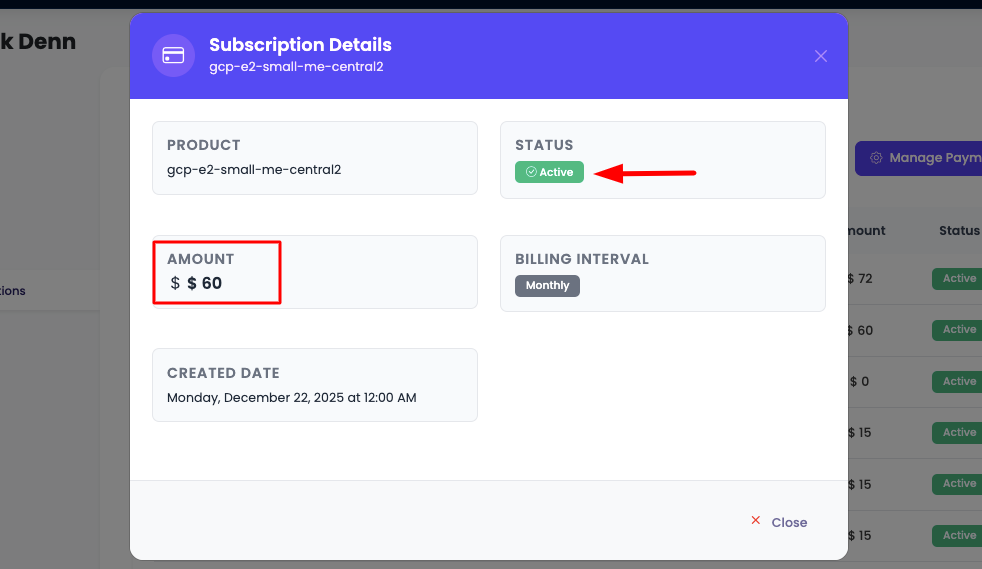
Subscription Detail Information
Once you click on a subscription, you will see its detail including:
-
Status:
- Current subscription status (Active, Pending, Cancelled, Expired, Suspended)
- Status history and changes
- Status change dates
-
Amount:
- Subscription cost per billing cycle
- Total amount paid
- Next billing amount
- Billing history
Additional Subscription Details
The subscription detail page also includes:
- Service Details: What service you're subscribed to
- Plan Information: Features and resources included in the plan
- Billing Information:
- Billing cycle (Monthly, Quarterly, Annual)
- Payment method
- Next billing date
- Billing history
- Renewal Date: When subscription renews
- Date Enabled: When the subscription was first activated
- Usage Statistics: Resource usage and limits
- Subscription History: Timeline of subscription changes
Subscription Status
Understanding Status
- Active: Subscription is active and services are available
- Pending: Subscription is being set up or activated
- Cancelled: Subscription has been cancelled (may still be active until end of billing period)
- Expired: Subscription has expired and services may be suspended
- Suspended: Subscription is temporarily suspended (usually due to payment issues)
Status Indicators
- Color Coding: Status is often color-coded for quick identification
- Status Badges: Visual indicators show subscription status clearly
- Status History: View when and why status changed
Billing Information
Payment Method
- View current payment method in subscription details
- Update payment method if needed
- Ensure payment method is valid for renewals
Billing History
- View all billing transactions for the subscription
- See payment history and dates
- Download invoices for each billing cycle
- View billing amount history
Best Practices
- ✅ Review Regularly: Review subscriptions regularly to ensure they meet your needs
- ✅ Monitor Billing Dates: Keep track of upcoming billing dates
- ✅ Update Payment Methods: Keep payment methods up to date
- ✅ Understand Policies: Understand cancellation and refund policies
- ✅ Track Usage: Monitor usage to optimize plan selection
- ✅ Set Reminders: Set calendar reminders for renewal dates
- ✅ Use Search: Leverage search functionality to find subscriptions quickly
Auto-Renewal
Automatic Renewal
- Subscriptions automatically renew at the end of billing cycle
- Ensure sufficient funds or valid payment method
- You'll receive email notification before renewal
- Amount will be charged automatically
Troubleshooting
Subscription Not Showing
- Check Filters: Ensure no filters are hiding the subscription
- Use Search: Try searching for the subscription
- Refresh Page: Refresh the page to reload subscriptions
- Check Status: Verify subscription status
Cannot View Details
- Click Subscription: Ensure you're clicking on the subscription name/card
- Check Permissions: Verify you have permission to view subscription details
- Contact Support: Reach out to support if details don't load
Status Issues
- Pending Status: Contact support if subscription stays pending too long
- Suspended Status: Check payment method and contact support
- Expired Status: Renew subscription or contact support
Next Steps
After viewing your subscriptions:
- Learn about Managing Subscriptions
- Explore Adding Funds to Wallet
- Review Setting Up Subscription