Account Recovery
Learn how to recover your KloudBean account if you have lost access. Account recovery is done using the forgot password method, which allows you to reset your password and regain access to your account.
Overview
If you have accidentally lost your password or forgotten it, this guide will help you recover your account. KloudBean provides a secure account recovery process using the forgot password method that allows you to reset your password and regain access to your account.
Account Recovery Method: Account recovery is done using the forgot password method. This secure process verifies your identity through your registered email address and allows you to set a new password.
Account Recovery Process
The account recovery process uses the forgot password method and consists of the following steps:
Step 1: Access Forgot Password Page
-
Go to KloudBean Login Page:
- Navigate to the KloudBean login page
- You can access it from the main website or dashboard
-
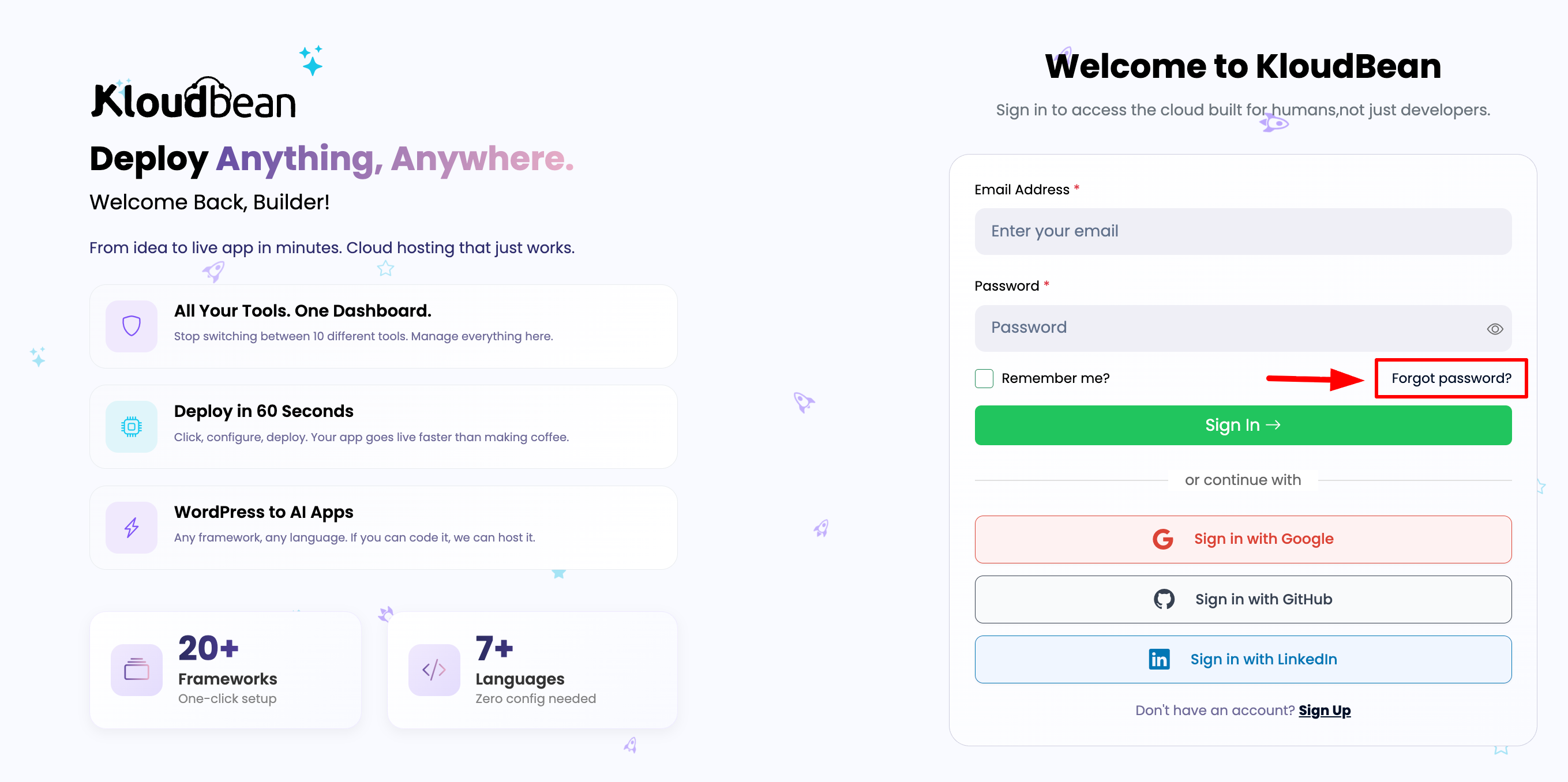
Click Forgot Password:
- On the login page, click on "Forgot Password" or "Reset Password" link
- This link is typically located below the login form
- This initiates the account recovery process using the forgot password method
Step 2: Enter Your Email Address
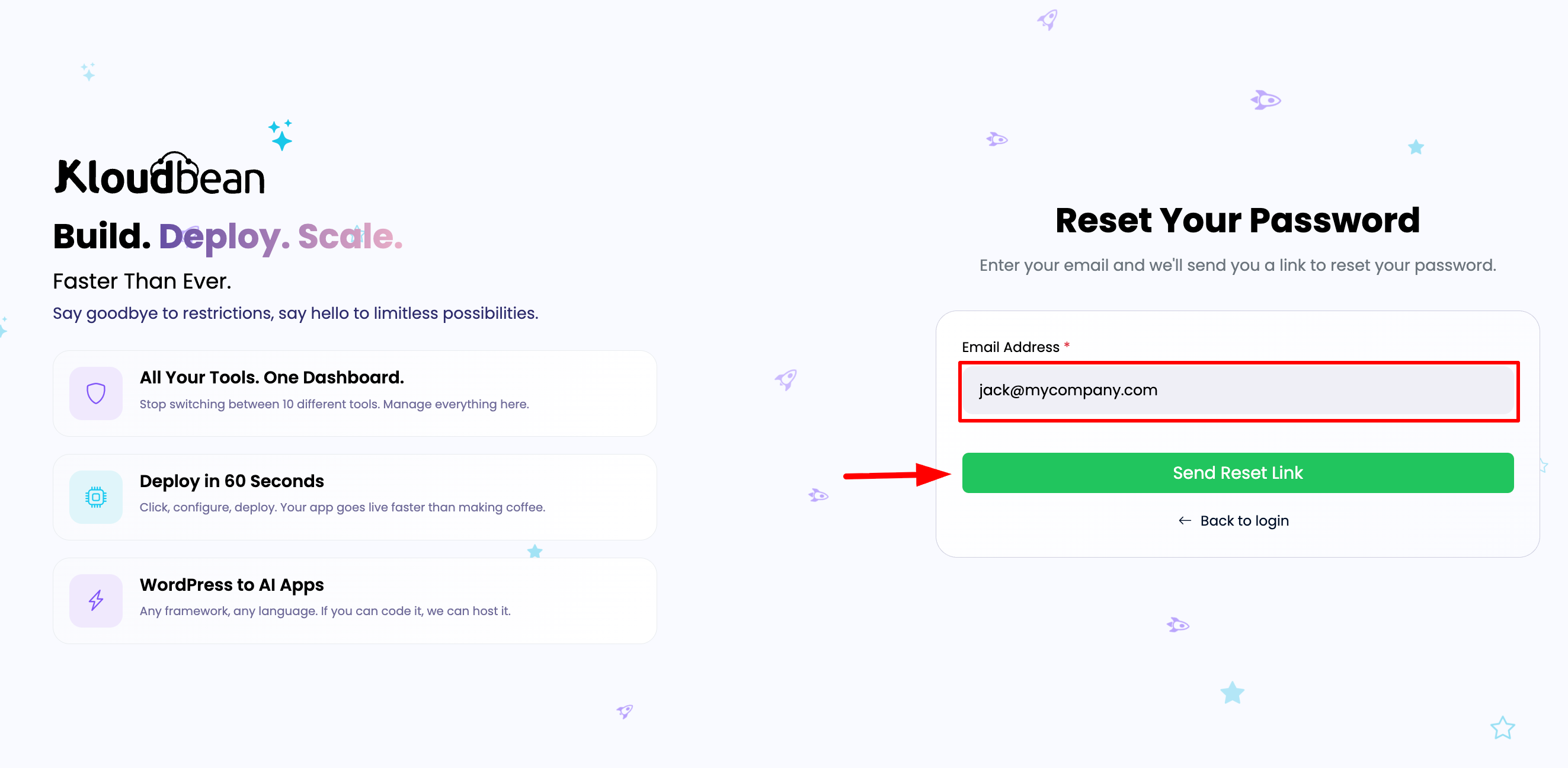
Once you click on "Forgot Password", you will be redirected to the confirm email page. This is part of the account recovery process.
-
Enter Email Address:
- This is where you have to give the email address which you used to create your account
- Enter the exact email address associated with your KloudBean account
- Make sure the email address is spelled correctly
-
Email Validation:
- If your email address is valid and registered with KloudBean, a password reset email will be sent
- If the email is not found, you may see an error message (for security reasons, the system may not reveal if an email exists)
-
Submit Request:
- Click "Send Reset Link" or "Submit" button
- Wait for the confirmation message
Step 3: Check Your Email
The next step is to open your email box and view the password reset email from KloudBean.
-
Check Your Inbox:
- Open the email inbox for the address you provided
- Look for an email from KloudBean with the subject line about password reset
- Check Spam Folder: If you don't see it in your inbox, check your spam or junk folder
-
Email Content:
- The email will contain a password reset link
- It may also include security information
- The link is typically valid for a limited time (usually 24 hours)
-
Email Not Received:
- Wait a few minutes and check again
- Verify you entered the correct email address
- Check spam/junk folder
- Contact support if email doesn't arrive after 10-15 minutes
Step 4: Reset Your Password
-
Click the Reset Link:
- Click the link provided in the email
- This will take you to the password reset URL/page
-
Enter New Password:
- You will be asked to enter a new password
- Make sure to follow password requirements:
- 1 uppercase letter
- 2 lowercase letters
- 1 special symbol
- 2 numeric characters
- Minimum 8 characters, maximum 30 characters
-
Confirm Password:
- Re-enter your new password in the confirm password field
- Both password fields must match exactly
-
Change Password:
- Click "Change Password" or "Reset Password" button
- Your password will be updated
Step 5: Login with New Password
Now you should be able to login with your new password.
-
Return to Login Page:
- Go back to the KloudBean login page
- Enter your email address
- Enter your new password
-
Successful Login:
- You should now be able to access your account
- Your password has been successfully reset
- Account recovery is complete
Password Requirements
When setting your new password during account recovery, ensure it meets these requirements:
- 1 Uppercase Letter: At least one uppercase letter (A-Z)
- 2 Lowercase Letters: At least two lowercase letters (a-z)
- 1 Special Symbol: At least one special character (!, @, #, $, %, etc.)
- 2 Numeric Characters: At least two numbers (0-9)
- Length: Minimum 8 characters, maximum 30 characters
Security Best Practices
Password Security Tips
- ✅ Use Strong Passwords: Follow all password requirements
- ✅ Don't Reuse Passwords: Use a unique password for KloudBean
- ✅ Keep Password Private: Never share your password with anyone
- ✅ Change Regularly: Consider changing your password periodically
- ✅ Use Password Manager: Consider using a password manager for secure storage
Account Security
- Monitor Account Activity: Check for any suspicious activity after password reset
- Keep Email Secure: Ensure your email account is secure since it's used for account recovery
- Enable Two-Factor Authentication (2FA): In order to enable 2FA for better account security, navigate to Account → Security section and enable 2FA. This adds an extra layer of protection and helps prevent unauthorized access to your account
Troubleshooting
Email Not Received
- Check Spam Folder: Password reset emails sometimes go to spam
- Wait a Few Minutes: Email delivery can take a few minutes
- Verify Email Address: Ensure you entered the correct email address
- Request Again: Try requesting a new password reset email
- Contact Support: If email still doesn't arrive, contact KloudBean support
Reset Link Expired
- Request New Link: Password reset links typically expire after 24 hours
- Request Again: Go back to the forgot password page and request a new link
- Use Latest Email: Always use the most recent password reset email
Cannot Access Email
- Check Email Account: Ensure you can access the email account
- Recovery Email: If you have a backup email, try using that
- Contact Support: Reach out to KloudBean support for assistance
- Account Verification: Support may require additional verification
Password Reset Not Working
- Check Requirements: Ensure new password meets all requirements
- Password Match: Verify both password fields match exactly
- Clear Browser Cache: Try clearing browser cache and cookies
- Try Different Browser: Test in a different browser
- Contact Support: Reach out to support if issues persist
Important Notes
Security Considerations
- Link Expiration: Password reset links expire after a certain period (typically 24 hours)
- One-Time Use: Reset links are usually single-use only
- Email Verification: Only the email address on file can request account recovery
- Account Protection: This process helps protect your account from unauthorized access
What to Do After Account Recovery
- Login Successfully: Verify you can login with your new password
- Review Account: Check your account for any suspicious activity
- Update Security: Consider enabling additional security measures
- Save Password Securely: Store your new password securely (use a password manager)
Prevention Tips
To avoid needing account recovery in the future:
- Use Password Manager: Store passwords securely
- Set Reminders: Set reminders to update passwords periodically
- Enable 2FA: Add two-factor authentication for extra security
- Keep Email Updated: Ensure your email address is current in your account
- Document Securely: If you must write down passwords, keep them in a secure location
Next Steps
After recovering your account:
- Learn about Updating Account Security
- Explore Updating Your Profile
- Review Managing Wallet