Updating Account Security
Learn how to update your account password and manage security settings in KloudBean. Keep your account secure with strong passwords and proper security configurations.
Overview
Account security is crucial for protecting your applications, data, and resources. KloudBean provides comprehensive security options to help you secure your account. One of the most important security measures is maintaining a strong password and enabling two-factor authentication (2FA).
Accessing Security Settings
In order to update your account password and manage security settings, navigate to the Security section of account settings:
- Log in to your KloudBean account
- Navigate to Account → Security
- You'll see the Security section with all available security options, including password management and two-factor authentication (2FA)
Changing Your Password
Accessing Password Update Section
In the Security section, you will see a section labeled "Security & Password" where you can update your password.
Steps to Update Password
To update your password, you need to provide your old password for verification:
-
Add Old Password:
- Enter your current password in the "Old Password" or "Current Password" field
- Important: The old password must match your current password exactly
- This verification step ensures that only authorized users can change the password
-
Add New Password:
- Enter your new password in the "New Password" field
- Make sure to follow all password requirements (see below)
-
Confirm Password:
- Re-enter your new password in the "Confirm Password" field
- This ensures you've typed your new password correctly
- Both new password fields must match exactly
-
Save Changes:
- Click "Save" or "Update Password" button
- Your password will be updated if all requirements are met
- You'll receive a confirmation message upon successful update
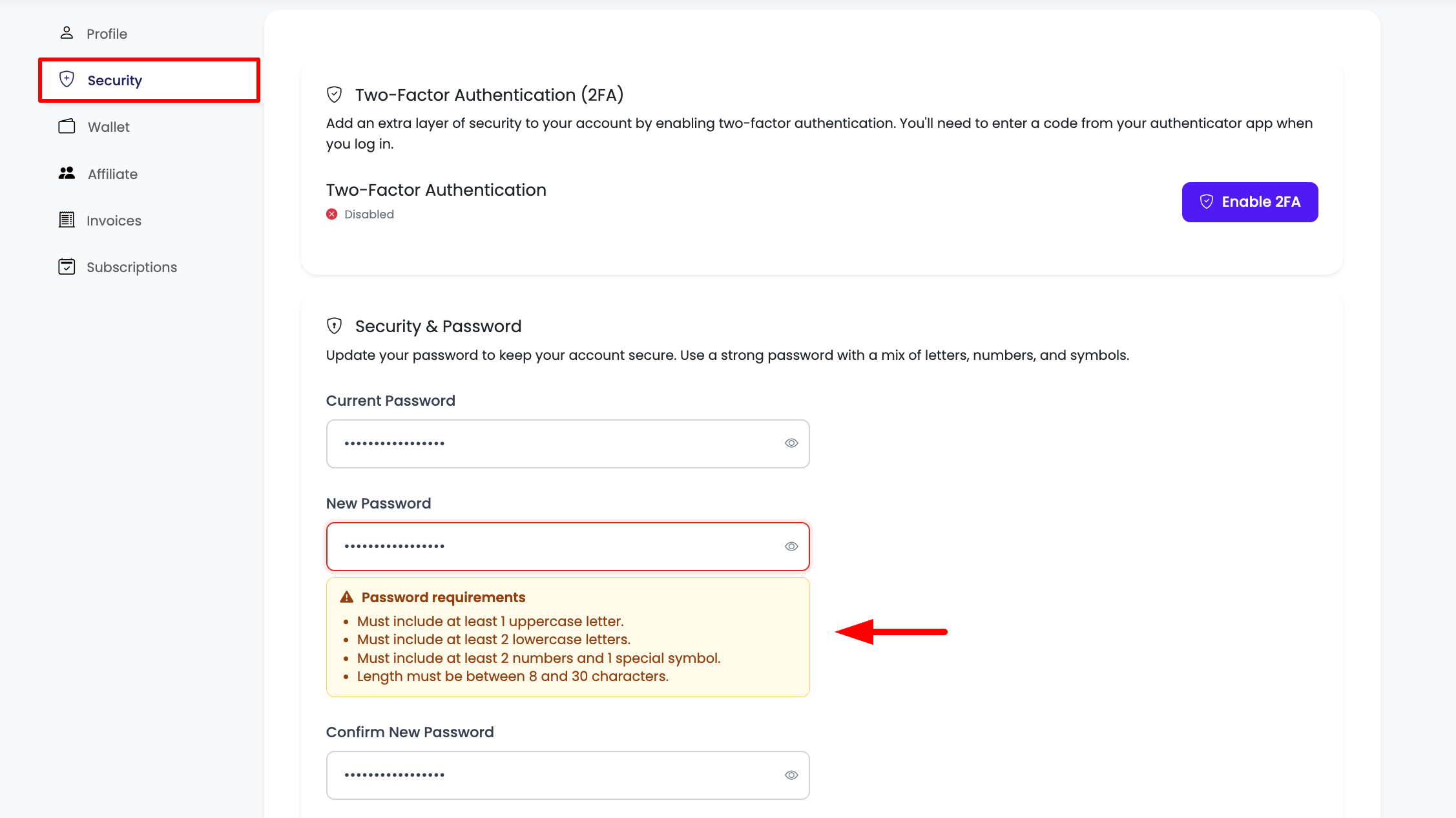
Password Requirements
To add a new password, make sure it meets the following requirements:
Password Complexity Requirements:
- 1 Upper Letter: Must contain at least one uppercase letter (A-Z)
- 2 Lower Letters: Must contain at least two lowercase letters (a-z)
- 1 Special Symbol: Must contain at least one special character (e.g., !, @, #, $, %, &, *)
- 2 Numeric Words: Must contain at least two numbers (0-9)
Password Length Requirements:
- Minimum: 8 characters
- Maximum: 30 characters
Example of Valid Passwords:
- ✅
MyPass123!(1 upper, 2 lower, 2 numbers, 1 special) - ✅
SecureP@ss45(1 upper, 2 lower, 2 numbers, 1 special) - ✅
KloudBean2024!(1 upper, 2 lower, 2 numbers, 1 special)
Example of Invalid Passwords:
- ❌
password(no uppercase, no numbers, no special characters) - ❌
PASSWORD123(no lowercase, no special characters) - ❌
Pass1!(too short, only 1 number) - ❌
MyPassword!(only 1 number, needs 2 numbers)
Password Best Practices
- ✅ Use Unique Passwords: Don't reuse passwords from other accounts
- ✅ Mix Character Types: Use a combination of uppercase, lowercase, numbers, and symbols
- ✅ Avoid Common Words: Don't use dictionary words or common phrases
- ✅ Don't Use Personal Information: Avoid using names, birthdays, or other personal info
- ✅ Change Regularly: Update your password periodically (every 3-6 months)
- ✅ Use Password Manager: Consider using a password manager to generate and store strong passwords
- ✅ Don't Share Passwords: Never share your password with anyone
What Happens After Password Update
- Immediate Effect: Your new password takes effect immediately
- Email Notification: You'll receive an email notification about the password change
- Session Continuity: You may need to log in again with your new password
- Security Alert: KloudBean will notify you of the password change for security purposes
Troubleshooting Password Issues
Old Password Not Matching
- Check Caps Lock: Ensure Caps Lock is not enabled
- Verify Current Password: Make sure you're entering your current password correctly
- Reset Password: If you've forgotten your current password, use the "Forgot Password" option
- Contact Support: Reach out to KloudBean support if you're unable to update your password
New Password Not Meeting Requirements
- Check Requirements: Review all password requirements carefully
- Use Password Generator: Consider using a password generator tool
- Verify Each Requirement: Ensure you have:
- At least 1 uppercase letter
- At least 2 lowercase letters
- At least 1 special symbol
- At least 2 numbers
- Between 8 and 30 characters
Password Confirmation Mismatch
- Re-enter Carefully: Type the new password again in the confirm field
- Check for Typos: Ensure there are no typing errors
- Copy-Paste Carefully: If copying, ensure the entire password is copied
Enabling Two-Factor Authentication (2FA)
Two-Factor Authentication (2FA) adds an extra layer of security to your KloudBean account by requiring a second form of verification in addition to your password. This significantly enhances your account security and protects against unauthorized access.
What is 2FA?
2FA requires two forms of identification:
- Something you know: Your password
- Something you have: A verification code from your authenticator app (like Google Authenticator) or device
KloudBean supports authenticator apps such as Google Authenticator and other compatible authenticator applications. The setup process uses a QR code that you scan with your authenticator app to enable 2FA.
Benefits of 2FA
- Enhanced Security: Protects your account even if your password is compromised
- Prevents Unauthorized Access: Requires physical access to your device for login
- Industry Standard: Follows security best practices recommended by security experts
- Peace of Mind: Adds an extra layer of protection for your applications and data
Supported Authenticator Apps
KloudBean supports authenticator apps that are compatible with TOTP (Time-based One-Time Password) standard, including:
- Google Authenticator: Most popular authenticator app
- Authy: Multi-device authenticator app
- Microsoft Authenticator: Microsoft's authenticator solution
- Other TOTP-compatible apps: Any authenticator app that supports QR code scanning
Recommended: Google Authenticator is the most widely used and recommended authenticator app for KloudBean 2FA setup.
How to Enable 2FA
In order to enable 2FA for better account security, navigate to Account → Security section and enable 2FA:
-
Access Security Settings:
- Log in to your KloudBean account
- Navigate to Account → Security
-
Find 2FA Section:
- Look for the "Two-Factor Authentication" or "2FA" section
- Click on Enable 2FA or Set Up 2FA
-
Scan QR Code with Authenticator App:
- KloudBean will display a QR code on your screen
- Open your authenticator app (Google Authenticator, Authy, or other compatible app) on your mobile device
- In your authenticator app, tap the "+" or "Add Account" button
- Select "Scan QR Code" or "Scan QR Code"
- Point your device's camera at the QR code displayed on your KloudBean screen
- The authenticator app will automatically capture and add your KloudBean account
-
Verify Setup:
- After scanning the QR code, your authenticator app will generate a 6-digit verification code
- Enter this verification code in the KloudBean security settings
- Click Verify or Confirm to complete the setup
-
Save Backup Codes:
- KloudBean will provide backup codes after successful setup
- Save these backup codes in a secure location
- These codes can be used to access your account if you lose access to your authenticator device
Using 2FA
Once 2FA is enabled:
- Login Process: After entering your password, you'll be prompted for a 2FA code
- Enter Code: Open your authenticator app and enter the 6-digit code
- Access Granted: Once verified, you'll have access to your account
Managing 2FA
You can manage your 2FA settings at any time:
- Disable 2FA: If needed, you can disable 2FA from the Security settings
- Regenerate Backup Codes: Generate new backup codes if needed
- Change Authenticator Device: Update your 2FA device if you get a new phone
2FA Best Practices
- ✅ Use Authenticator Apps: Use dedicated authenticator apps like Google Authenticator or other TOTP-compatible apps instead of SMS
- ✅ Install Authenticator App First: Make sure you have Google Authenticator or another compatible authenticator app installed on your mobile device before starting the setup
- ✅ Scan QR Code Carefully: Ensure good lighting and steady hands when scanning the QR code to avoid setup errors
- ✅ Save Backup Codes: Store backup codes in a secure password manager or safe location
- ✅ Keep Device Secure: Protect the device that has your authenticator app
- ✅ Don't Share Codes: Never share your 2FA codes or QR code with anyone
- ✅ Test Regularly: Periodically verify that your 2FA is working correctly by logging in
Security Alerts
KloudBean will notify you via email for:
- Password changes
- New login from unknown device
- Security settings modifications
- Suspicious activity detected
Best Practices
- ✅ Use Strong Passwords: Follow all password requirements
- ✅ Change Passwords Regularly: Update your password periodically
- ✅ Enable Two-Factor Authentication (2FA): In order to enable 2FA for better account security, navigate to Account → Security section and enable 2FA
- ✅ Enable Security Questions: Add an extra layer of security
- ✅ Add Backup Email: Provide a secondary email for account recovery
- ✅ Review Active Sessions: Regularly check for unauthorized access
- ✅ Log Out from Shared Devices: Always log out from public or shared computers
- ✅ Monitor Security Alerts: Pay attention to security notifications
Next Steps
After updating your account security:
- Learn about Managing Wallet
- Explore Updating Your Profile
- Review Managing Team Members