Setting Up Subscription
Learn how to set up your subscription on KloudBean through the Stripe payment session. This guide covers the complete subscription setup process from server selection to payment confirmation.
Overview
When you select the required server size on the server provision page and click on "Launch Now", you are redirected to a Stripe payment session page where you need to add your card information to complete the subscription setup. This process enables your server and sets up automatic billing for your KloudBean services.
Prerequisites
- An active KloudBean account
- Selected cloud provider, location, and server size
- Valid credit or debit card
- Correct currency selected for your account
Before Proceeding: Currency Selection
Important: Select Correct Currency
Before proceeding to the payment session, make sure you have selected the correct currency for your card. This is crucial because:
- Stripe Amount Display: The amount shown in Stripe will be according to the currency you have selected
- Card Currency Match: Your card should support the selected currency
- Single Currency Policy: A user can have only one currency with their account
- Payment Processing: Using the correct currency ensures smooth payment processing
Changing Your Currency
If you need to change your currency before proceeding:
👉 To change your currency settings, check the documentation: Billing & Subscriptions → Updating Currency Settings
The currency settings guide will help you:
- Understand how to change your account currency
- Learn about currency selection options
- Know when and how to update currency settings
- Ensure your currency matches your payment method
Stripe Payment Session
After clicking "Launch Now" on the server provision page, you'll be redirected to the Stripe payment session.
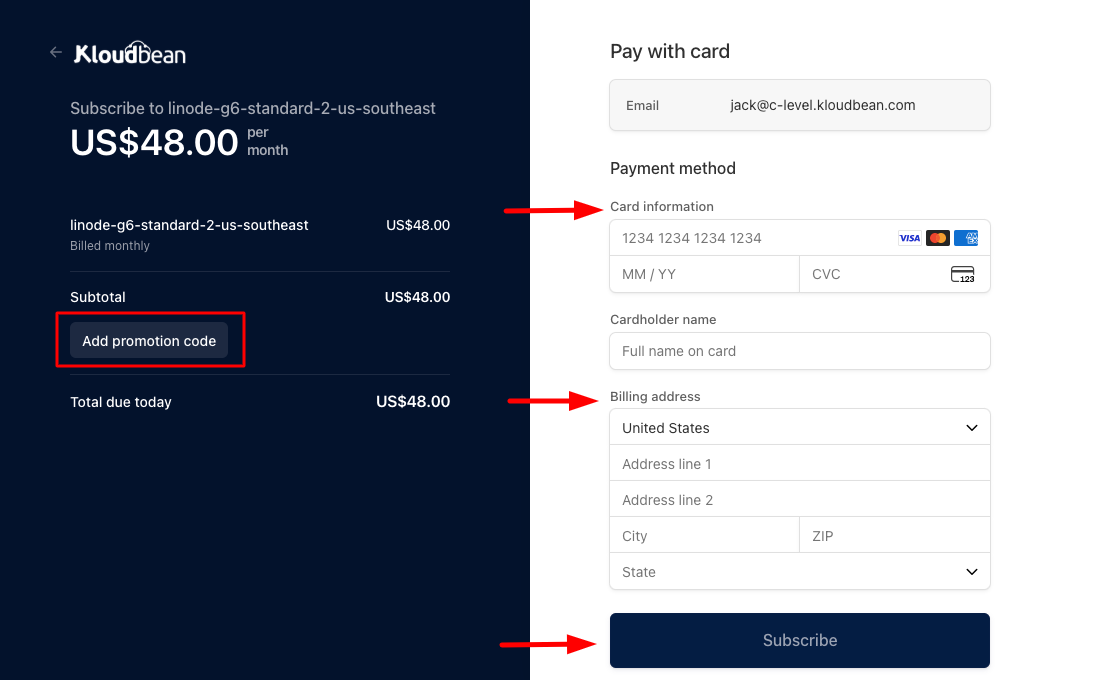
Payment Session Overview
The Stripe payment session provides a secure, PCI-compliant environment for entering your payment information. This is a standard Stripe checkout interface that ensures your payment details are handled securely.
Completing the Payment Process
Step 1: Add Coupon Code (Optional)
If you already have any discount or promotion code:
- Locate Coupon Field: Look for the coupon or promotion code field on the Stripe session page
- Enter Code: Enter your discount or promotion code
- Apply Code: Click Apply or Redeem to apply the discount
- Verify Discount: Confirm that the discount has been applied to your total
- Proceed: Continue with the payment process
- Coupon codes are case-sensitive
- Some codes may have expiration dates
Step 2: Enter Card Details
Enter your payment card information:
-
Card Number:
- Enter your 16-digit card number
- Supported cards: Visa, Mastercard, American Express, Discover
- Card number is validated in real-time
-
CVV (Card Verification Value):
- Enter the 3-digit CVV (4 digits for American Express)
- Located on the back of your card (front for Amex)
- This is a security measure to verify card ownership
-
Expiry Date:
- Enter the month and year your card expires
- Format: MM/YY (e.g., 12/25)
- Ensure your card is not expired
Step 3: Add Billing Details
Billing details are important and must be accurate:
-
Billing Name:
- Enter the name as it appears on your card
- This should match your cardholder name
-
Billing Address:
- Street Address: Your complete street address
- City: Your city name
- State/Province: Your state or province
- Postal/ZIP Code: Your postal or ZIP code
- Country: Select your country from the dropdown
-
Email Address:
- Enter the email address where you want to receive receipts
- This should be a valid, accessible email address
- You'll receive payment confirmation and invoices here
Why Billing Details Matter:
- Payment Verification: Helps verify your payment method
- Invoice Generation: Used for generating accurate invoices
- Tax Compliance: Required for tax calculations in some regions
- Fraud Prevention: Helps prevent fraudulent transactions
- Record Keeping: Important for your financial records
Step 4: Review and Proceed to Subscription
-
Review Information:
- Double-check all entered information
- Verify card details are correct
- Confirm billing address is accurate
- Check that coupon code (if used) is applied
-
Review Amount:
- Confirm the subscription amount
- Verify currency is correct
- Check for any applied discounts
-
Proceed to Subscription:
- Click Subscribe, Pay, or Complete Payment button
- This will process your payment and enable your subscription
Subscription Activation
Payment Processing
Once you proceed to subscription:
-
Payment Processing:
- Stripe processes your payment securely
- Card is validated and charged
- Payment authorization is verified
-
Automatic Subscription Enablement:
- If the card is successful, your subscription will be automatically enabled
- No manual activation required
- Subscription becomes active immediately
-
Confirmation:
- You'll receive a payment confirmation
- Subscription details will be available in your dashboard
- Email confirmation will be sent to your registered email
What Happens After Successful Payment
- Subscription Active: Your subscription is immediately active and available
- Server Access: You can now access and use your server
- Billing Cycle Starts: Your billing cycle begins from this date
- Automatic Renewal: Subscription will automatically renew based on your billing cycle
- Invoice Generated: An invoice will be generated and sent to your email
Payment Troubleshooting
If You're Facing Trouble with Card or Payment
If you encounter any issues with your card or payment:
-
Contact KloudBean Support:
- 24/7 Availability: Support is available around the clock
- Live Chat: Access live chat from your dashboard
- Email Support: Send an email to support team
- Support Ticket: Create a support ticket for assistance
-
Common Issues and Solutions:
- Card Declined: Check card details, available funds, and card status
- Payment Failed: Verify card information and try again
- Currency Mismatch: Ensure your card supports the selected currency
- Billing Address Issues: Verify billing address matches card records
- Expired Card: Use a card that is not expired
-
Support Assistance:
- Support team can help troubleshoot payment issues
- They can verify payment status
- They can assist with alternative payment methods
- They can help resolve billing discrepancies
Payment Security
- PCI Compliance: Stripe is PCI-DSS compliant, ensuring secure payment processing
- Encrypted Transmission: All payment data is encrypted during transmission
- No Storage: KloudBean does not store your full card details
- Secure Processing: Payments are processed through Stripe's secure infrastructure
Subscription Management
After Subscription is Active
Once your subscription is active:
-
View Subscription:
- Go to My Account → Subscriptions
- View your active subscription details
- See billing cycle and next payment date
-
Manage Subscription:
- Update payment method if needed
- View billing history
- Download invoices
- Manage subscription settings
-
Monitor Usage:
- Track your resource usage
- Monitor server performance
- Review billing information
Best Practices
- ✅ Verify Currency: Always verify currency before proceeding to payment
- ✅ Check Card Details: Double-check all card information before submitting
- ✅ Accurate Billing Info: Ensure billing details are accurate and complete
- ✅ Save Receipts: Keep payment confirmations and receipts for records
- ✅ Monitor Subscriptions: Regularly review your subscription status
- ✅ Keep Card Updated: Ensure your payment method remains valid
- ✅ Contact Support: Don't hesitate to contact support for assistance
Important Notes
Currency Policy
- Single Currency: Each account can have only one currency
- Currency Change: Changing currency may require support assistance
- Payment Matching: Card must support the selected currency
- Invoice Currency: All invoices will be in your selected currency
Subscription Terms
- Automatic Renewal: Subscriptions automatically renew based on billing cycle
- Payment Timing: Payment is processed at the beginning of each billing cycle
- Cancellation: You can cancel subscriptions, but they remain active until the end of the billing period
- Refunds: Review KloudBean's refund policy for details
Next Steps
After setting up your subscription:
- Learn about Viewing Subscriptions
- Explore Viewing Invoices
- Review Managing Wallet
- Understand Billing & Subscriptions