Understanding the Dashboard
Learn how to navigate and use the KloudBean dashboard effectively. The KloudBean dashboard is designed with user-friendliness and ease of use as top priorities, making cloud infrastructure management accessible to everyone.
Overview
The KloudBean dashboard is your central control panel for managing all your cloud infrastructure needs. KloudBean provides the best user-friendly and easy-to-use UI, with the ambition of reducing the complexity that other platforms or cloud providers have created. Even a naive user can understand and use the KloudBean platform with a very low learning curve.
KloudBean's Design Philosophy
Simplicity Over Complexity:
- KloudBean believes cloud infrastructure management shouldn't require extensive technical knowledge
- The dashboard is designed to be intuitive and self-explanatory
- Complex operations are simplified into easy-to-understand steps
- Visual indicators and clear labels guide users through every action
User-Centric Design:
- Every feature is designed with the end-user in mind
- Navigation is logical and follows natural workflows
- Information is presented clearly without overwhelming users
- Helpful tooltips and guidance are available throughout
Low Learning Curve:
- New users can start using the platform immediately
- No extensive training or documentation reading required
- Common tasks are accessible with minimal clicks
- Intuitive interface reduces the need for support
Prerequisites
- An active KloudBean account
- Logged into your KloudBean account
- Basic web browser knowledge
Dashboard Overview
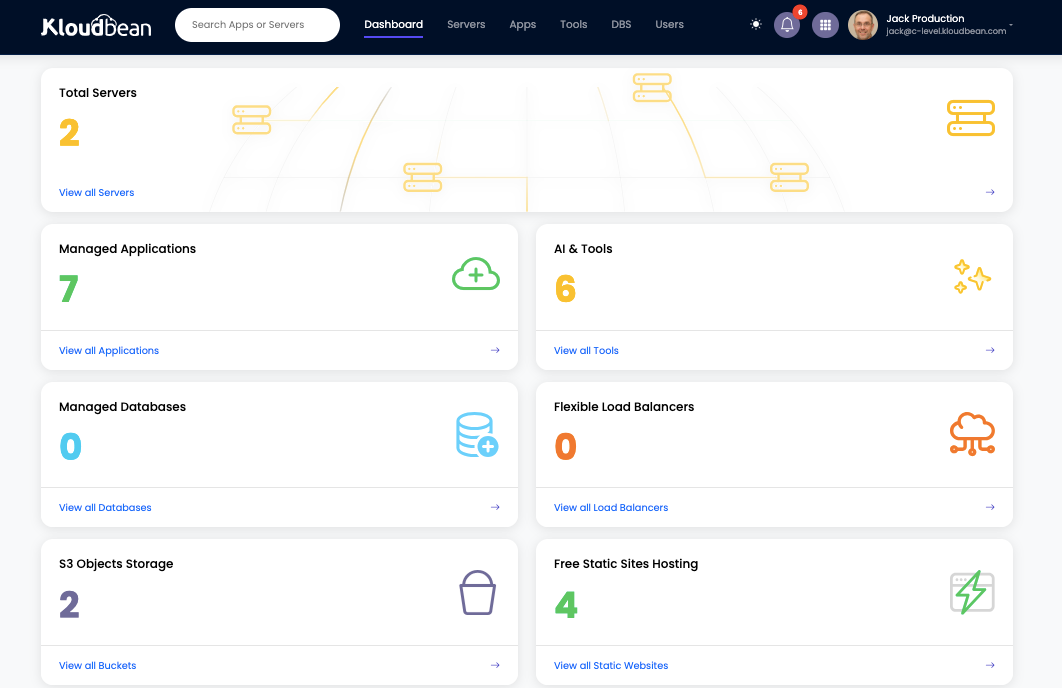
Here's a visual overview of the KloudBean dashboard:
Understanding the Header
The header is your primary navigation hub, providing quick access to all major sections and features of the KloudBean platform.
Main Navigation Options
In the header, you have options to navigate to:
Servers
- Purpose: Manage all your servers
- Access: Click "Servers" in the header menu
- Features: View, create, manage, and monitor all your servers
- Quick Actions: Create new servers, access server details, manage server settings
Apps
- Purpose: Manage all your applications
- Access: Click "Apps" in the header menu
- Features: View deployed applications, deploy new apps, manage application settings
- Quick Actions: Add new applications, view application logs, configure domains
DBS (Databases)
- Purpose: Manage all your databases
- Access: Click "DBS" in the header menu
- Features: View database instances, create new databases, manage database connections
- Quick Actions: Launch new databases, access database management tools, configure backups
Users
- Purpose: Manage team members and user access
- Access: Click "Users" in the header menu
- Features: View team members, add users, manage permissions
- Quick Actions: Invite team members, manage roles and permissions
User Profile Button
While clicking on the user profile button, you have a quick dropdown menu to navigate to:
Account Settings
- Access: Profile dropdown → Account Settings
- Features: Update profile information, manage account details
- Quick Access: Personal information, preferences, account configuration
Security
- Access: Profile dropdown → Security (or Account → Security)
- Features: Manage password, security questions, two-factor authentication (2FA)
- Quick Access: Security settings, active sessions, backup email, 2FA configuration
- 2FA Setup: In order to enable 2FA for better account security, navigate to Account → Security section and enable 2FA
Wallet
- Access: Profile dropdown → Wallet
- Features: Manage account wallet, view transactions, add funds
- Quick Access: Wallet balance, transaction history, payment methods
Affiliate
- Access: Profile dropdown → Affiliate
- Features: Manage affiliate program, view commissions, get affiliate links
- Quick Access: Affiliate dashboard, referral statistics, earnings
Subscription
- Access: Profile dropdown → Subscription
- Features: View subscriptions, manage billing, update payment methods
- Quick Access: Active subscriptions, billing history, payment methods
Notifications Icon
There is a quick icon to review notifications where you can:
-
View Notifications:
- Click the notifications icon (bell icon) in the header
- See all your recent notifications at a glance
- View important alerts and updates
-
Navigate to Notification Detailed Page:
- Click "View All" or the notification icon to see detailed notifications
- Access comprehensive notification history
- Manage notification preferences
- Filter notifications by type or date
Notification Types:
- Server status updates
- Application deployment status
- Billing and payment notifications
- Security alerts
- System updates and maintenance notices
Quick Menu Button
There is a quick menu button which, upon click, will give you options to navigate to main features quickly:
- Quick Access: Fast navigation to frequently used features
- Main Features: Direct links to servers, applications, databases, and more
- Shortcuts: Quick actions for common tasks
- Helpful Navigation: Streamlined access to all platform features
This menu is designed to save you time and clicks, making common tasks accessible with minimal navigation.
Search Box
There is a search box which allows you to:
- Search Servers: Quickly find servers by name, IP, or tags
- Search Apps: Find applications by name, type, or domain
- Global Search: Search across all your resources
- Quick Results: Get instant search results as you type
- Filter Results: Refine search results by resource type
Search Features:
- Real-time search suggestions
- Search history for quick access
- Advanced search filters
- Search across multiple resource types
Dashboard Highlights
On the dashboard, you'll see highlights and quick access to:
Servers
- Overview: Quick view of all your servers
- Status: Server health and status at a glance
- Quick Actions: Create new server, access server details
- Statistics: Total servers, active servers, resource usage
Applications
- Overview: List of all deployed applications
- Status: Application health and deployment status
- Quick Actions: Deploy new application, manage existing apps
- Statistics: Total applications, active applications, deployment history
AI and Tools
- Overview: AI tools and development platforms
- Available Tools: n8n, Supabase, Langflow, Listmonk, GitLab, OpenWebUI
- Quick Actions: Deploy AI tools, manage tool instances
- Statistics: Active tools, tool usage, resource consumption
DBS (Databases)
- Overview: All database instances
- Status: Database health and connection status
- Quick Actions: Launch new database, access database tools
- Statistics: Total databases, active databases, storage usage
FLB (Flexible Load Balancers)
- Overview: Load balancer instances
- Status: Load balancer health and configuration
- Quick Actions: Create load balancer, manage configurations
- Statistics: Active load balancers, traffic distribution
S3 Buckets
- Overview: S3-compatible object storage buckets
- Status: Bucket status and storage usage
- Quick Actions: Create new bucket, manage bucket settings
- Statistics: Total buckets, storage used, objects stored
Static Site
- Overview: Static website hosting
- Status: Site deployment status
- Quick Actions: Deploy static site, manage domains
- Statistics: Active static sites, total deployments
Recently Added Apps
- Overview: Your most recently added applications
- Quick Access: Fast access to recently deployed apps
- Status: Quick view of recent deployment status
- Actions: Quick actions for recent applications
User-Friendly Navigation
Why KloudBean's Dashboard is Easy to Use
Intuitive Layout:
- All important features are visible and accessible
- Logical grouping of related features
- Clear visual hierarchy guides your attention
- Consistent design patterns throughout
Reduced Complexity:
- Complex cloud operations simplified into easy steps
- No need to understand underlying infrastructure
- Visual indicators show status and actions clearly
- Helpful guidance at every step
Quick Access:
- Everything you need is within 1-2 clicks
- No deep navigation required for common tasks
- Quick actions available throughout the interface
- Search functionality for instant access
Clear Information:
- Status indicators are clear and color-coded
- Important information is highlighted
- Tooltips provide context when needed
- Helpful error messages guide problem resolution
Benefits of KloudBean's User-Friendly Design
For Beginners
- No Prior Experience Required: Start using immediately without training
- Self-Explanatory Interface: Everything is labeled and explained
- Visual Guidance: Icons and indicators guide you through processes
- Helpful Support: 24/7 support available when you need assistance
For Experienced Users
- Efficiency: Complete tasks faster with streamlined workflows
- Less Cognitive Load: Focus on your work, not the interface
- Quick Access: Everything you need is easily accessible
- Time Savings: Reduced time spent navigating and searching
For Teams
- Easy Onboarding: New team members can start immediately
- Consistent Experience: Everyone uses the same intuitive interface
- Reduced Training: Minimal training required
- Lower Support Burden: Fewer support requests due to clarity
Overall Dashboard Benefits
All these items on the dashboard are helpful for users to navigate to the whole UI with ease:
- Centralized Access: Everything you need in one place
- Quick Navigation: Fast access to all features
- Status Overview: See everything at a glance
- Efficient Workflow: Complete tasks without unnecessary navigation
- Reduced Learning Curve: Intuitive design means less learning required
- Increased Productivity: Spend less time navigating, more time working
Best Practices
- ✅ Explore the Dashboard: Take time to familiarize yourself with all sections
- ✅ Use Search: Leverage search functionality for quick access
- ✅ Check Notifications: Regularly review notifications for important updates
- ✅ Utilize Quick Actions: Use quick actions for common tasks
- ✅ Bookmark Favorites: Bookmark frequently used pages
- ✅ Customize Your View: Arrange dashboard to match your workflow
- ✅ Use Profile Dropdown: Access account settings quickly from profile menu
Getting Help
If you need assistance navigating the dashboard:
- 24/7 Support: Contact KloudBean support anytime
- Tooltips: Hover over icons for helpful information
- Documentation: Refer to comprehensive documentation
- Video Tutorials: Watch video guides for visual learning
- Community: Join the KloudBean community for tips and help
Next Steps
Now that you understand the dashboard:
- Learn about Creating Your Account
- Explore Starting Your Free Trial
- Review Creating a New Server
- Understand Adding Application to Server