Change Billing Card
Learn how to update your payment card attached to your subscription when you're experiencing payment issues or need to change to a different card.
Overview
If you're having issues with your current payment card, experiencing payment failures, or need to switch to a different card, you can update your billing card through your subscription settings. This guide explains how to modify your payment card securely.
When to Change Your Billing Card
You may need to update your billing card in the following situations:
- Payment Failures: Your current card is being declined or payment is failing
- Card Issues: Your current card has expired, been lost, or stolen
- Card Replacement: You've received a new card from your bank
- Switch Cards: You want to use a different payment card
- Card Updates: Your card details have changed (expiration date, security code, etc.)
Prerequisites
- An active KloudBean account
- An active subscription
- Access to subscription management (may require support enablement)
- A valid payment card ready to use
Important: Access Enablement Required
Important: By default, updating your billing card is disabled for security reasons.
When you click on "Manage Payment", you may encounter an error message:
"You are not authorized to update subscription"
This error appears because card update access is not enabled by default and is not allowed without explicit permission.
Enabling Card Update Access
To enable card update access:
- Contact KloudBean Support: Reach out to KloudBean support team
- Request Access: Request them to enable subscription modification access
- Support Channels: Contact via:
- Live Support: Available 24/7 through the dashboard
- Email: Send an email to the support team
- Access Enabled: Once support enables the access, you'll be able to modify your card
Support will review your request and enable access if appropriate. This security measure helps protect your account from unauthorized changes.
Accessing Subscription Card Settings
Step 1: Navigate to Subscriptions
- Log in to your KloudBean dashboard
- Click on Account from the right side of the top header
- From the dropdown menu, navigate to Subscription section
- You'll see your subscription details
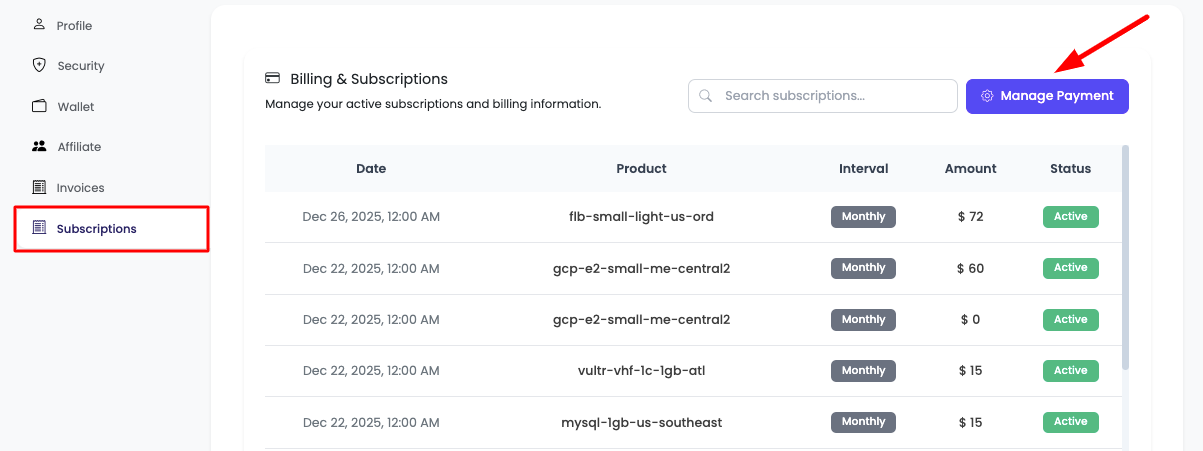
Step 2: Access Manage Payment
- Find Manage Payment Button: Look for "Manage Payment" button
- Click Manage Payment: Click on "Manage Payment" button
Updating Your Payment Card
Step 1: Stripe Update Card Session
Once you click on "Manage Payment", in the happy case (when access is enabled), it will take you to a Stripe update card session where you can modify your card securely.
Step 2: Important Precautions
Critical: On the Stripe session, make sure to:
- Only Update Card: Only make changes to your payment card
- Don't Modify Subscriptions: Do not make any changes to your current subscriptions
- Don't Delete Anything: Do not delete any subscriptions or services
- Focus on Card Only: Only update the card information
Step 3: Enter New Card Details
In the Stripe session, you'll be able to:
- Enter Card Number: Add your new card number
- Update Expiration Date: Enter the new expiration date
- Update Security Code: Enter the CVV/CVC code
- Update Cardholder Name: Enter the cardholder name
- Update Billing Address: Update billing address if needed
Step 4: Save Changes
- Review Information: Double-check all card details are correct
- Save Card: Click Save or Update Card button
- Confirmation: You'll receive confirmation that the card has been updated
- Return to Dashboard: You'll be redirected back to your KloudBean dashboard
Security and Safety
Secure Process
- Stripe Security: The card update process uses Stripe's secure payment system
- Encrypted: All card information is encrypted and secure
- PCI Compliant: Stripe is PCI DSS compliant for secure card handling
- No Storage: KloudBean doesn't store your full card details
What to Avoid
- ❌ Don't Modify Subscriptions: Only update the card, don't change subscription settings
- ❌ Don't Delete Services: Don't delete any subscriptions or services
- ❌ Don't Change Plans: Don't modify subscription plans or features
- ✅ Only Update Card: Focus only on updating your payment card information
Troubleshooting
Error: "You are not authorized to update subscription"
Issue: You see this error when clicking "Manage Payment".
Cause: Card update access is disabled by default.
Solution:
- Contact Support: Reach out to KloudBean support team
- Request Access: Request them to enable subscription modification access
- Wait for Enablement: Support will enable access for your account
- Try Again: Once enabled, try accessing "Manage Payment" again
Cannot Access Stripe Session
Issue: You're not redirected to Stripe session.
Solutions:
- Check Access: Verify that support has enabled access for you
- Check Browser: Ensure pop-ups are not blocked
- Try Different Browser: Try using a different web browser
- Contact Support: Reach out if you continue to have issues
Card Update Fails
Issue: Card update is not successful.
Solutions:
- Check Card Details: Verify all card information is correct
- Check Card Validity: Ensure the card is not expired or blocked
- Check Funds: Verify the card has sufficient funds or credit limit
- Contact Bank: Contact your bank to ensure the card is active
- Try Different Card: Try using a different card
- Contact Support: Reach out to KloudBean support for assistance
Payment Still Failing After Update
Issue: Payments continue to fail after updating the card.
Solutions:
- Verify Update: Confirm the card was updated successfully
- Check Card Status: Ensure the new card is active and valid
- Check Billing Address: Verify billing address matches card records
- Contact Bank: Check with your bank for any restrictions
- Contact Support: Reach out to KloudBean support for payment assistance
Best Practices
- Update Before Expiration: Update your card before it expires
- Keep Card Active: Ensure your payment card remains active
- Monitor Payments: Regularly check that payments are processing successfully
- Contact Support Early: Reach out to support as soon as you need access enabled
- Secure Information: Never share your card details with anyone
- Verify Updates: Confirm card updates were successful
- Backup Payment Method: Consider having a backup payment method if possible
Important Reminders
Before Updating Card
- ✅ Contact Support First: If access is not enabled, contact support to enable it
- ✅ Have Card Ready: Have your new card details ready before starting
- ✅ Check Card Validity: Ensure your new card is active and valid
- ✅ Understand Process: Understand that you should only update the card, not modify subscriptions
During Update
- ✅ Only Update Card: Focus only on updating card information
- ✅ Don't Modify Subscriptions: Do not make changes to subscription settings
- ✅ Don't Delete Anything: Do not delete subscriptions or services
- ✅ Verify Details: Double-check all card details before saving
After Update
- ✅ Verify Success: Confirm the card was updated successfully
- ✅ Monitor Payments: Watch for successful payment processing
- ✅ Check Billing: Verify billing is working correctly with new card
- ✅ Contact Support: Reach out if you encounter any issues
Next Steps
- Learn about Viewing Subscriptions to see your subscription details
- Explore Managing Subscriptions to understand subscription management
- Review Adding Funds to Wallet for wallet management