Enabling SSH Access for Application Users
Learn how to enable SSH/SFTP access for isolated application users on KloudBean. This guide walks you through creating dedicated application-specific users with restricted access, allowing team members to work on specific applications without accessing the entire server.
Overview
KloudBean allows you to create isolated SSH/SFTP users for individual applications, providing secure and restricted access to specific application directories. This feature is essential when you have multiple developers working on different applications hosted on the same server and need to grant restricted access to only specific applications.
Benefits of Isolated Application Users
Isolated application users provide several key advantages:
- Application-Specific Access: Users can only access the specific application they're assigned to, not the entire server
- Enhanced Security: Restricts access to application directories, preventing accidental modifications to other applications or server configurations
- Team Collaboration: Allows you to grant access to team members or developers for specific applications without compromising server security
- Multi-Application Servers: Perfect for servers hosting multiple applications where you want to give different developers access to different apps
- Deployment Control: Enables application-specific deployments without requiring full server access
- Audit Trail: Isolated users make it easier to track who made changes to which application
Prerequisites
Before enabling SSH access for application users, ensure you have:
- An Active KloudBean Application: Your application must be created and running on KloudBean
- Essential Access: You need appropriate access to your KloudBean account to configure SSH settings
- SSH Client or SFTP Tool: Install an SSH client (like OpenSSH, PuTTY) or an SFTP tool (like FileZilla, WinSCP) on your local machine to connect to the server
Enabling SSH/SFTP Access for Application Users
Step 1: Navigate to SSH/SFTP Access Management
To enable SSH/SFTP access for an isolated application user:
- Navigate to Application Administration: Log in to your KloudBean dashboard and open the application administration page for your desired application.
- Access Application Settings: Click on "App Settings" in the application menu.
- Open General Settings: Navigate to the "General" tab within App Settings.
- Locate SSH/SFTP Access Management: Scroll down to find the "SSH/SFTP Access Management" section.
Step 2: Enable Application User SFTP Access
In the SSH/SFTP Access Management section:
- View Current Status: You will see that "App User SFTP Access" is disabled by default for security reasons.
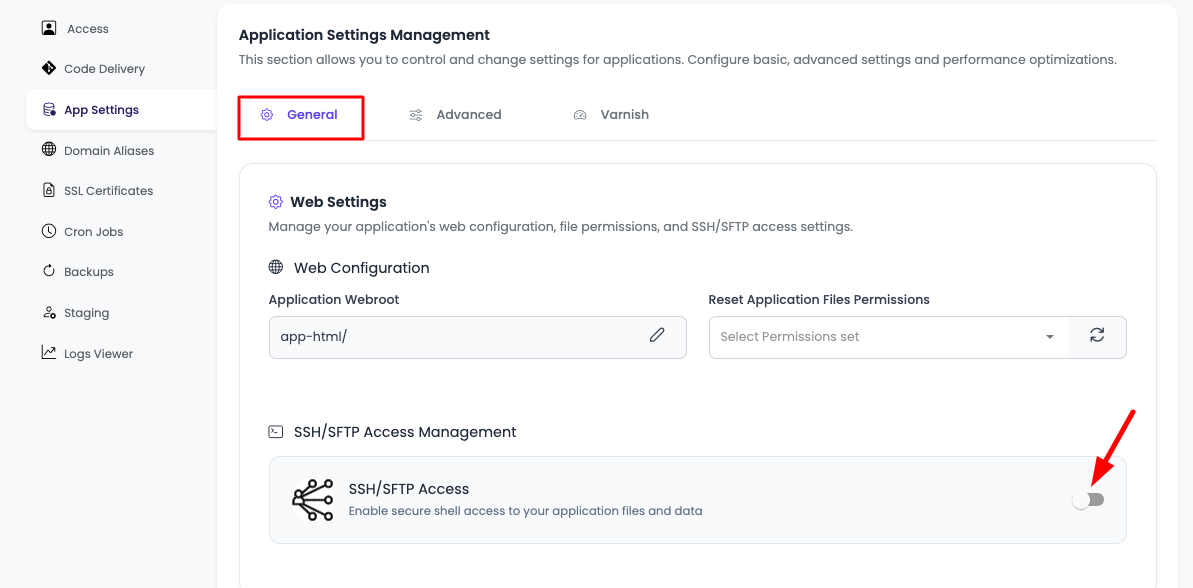
- Enable Access: Click on the toggle switch to turn on application user SFTP access.
- Wait for User Creation: As the isolated application user is being created, it will take a couple of seconds to enable. Please wait until the response comes back from the system.
- User Creation Process: KloudBean will automatically:
- Create a dedicated user account for this specific application
- Generate secure credentials (username and password)
- Configure restricted access permissions
- Set up the application-specific directory access
Step 3: Retrieve Access Credentials
Once the enable process is completed successfully:
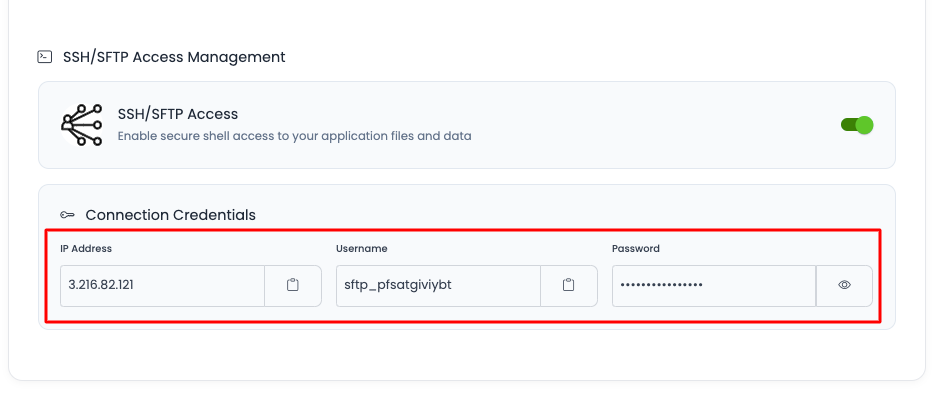
- View Credentials: You will see that the SFTP user has been created along with access credentials for the SSH/SFTP application user.
-
Access Information Displayed:
- Server IP Address: The IP address of your server where the application is hosted
- Username: The automatically generated username for this application user
- Password: The secure password for this application user
-
Save Credentials: Make sure to copy and securely store these credentials, as you'll need them to connect via SSH or SFTP.
Important Security Notes:
- This user has access only to this specific application directory
- The user cannot access other applications on the same server
- The user cannot access server-level configurations or system files
- Keep these credentials secure and share them only with authorized team members
Understanding Isolated Application Users
What is an Isolated Application User?
An isolated application user is a dedicated user account that has access restricted to a single application's directory and files. This user cannot:
- Access other applications on the same server
- Modify server-level configurations
- Access system files or directories outside the application
- Execute system-level commands
- View or modify other users' files
Use Cases for Isolated Application Users
This feature is particularly useful in the following scenarios:
Multiple Developers on Same Server
If you have multiple developers working on different applications which are on the same server, and you want to give restricted SFTP/SSH access to only that particular app, you can enable app-based users from here and let the relevant developer or team member access only their assigned application.
Example Scenario:
- Server hosts: Application A (WordPress), Application B (Laravel), Application C (Node.js)
- Developer 1 needs access to Application A only
- Developer 2 needs access to Application B only
- Developer 3 needs access to Application C only
By enabling isolated application users, each developer gets credentials that only work for their specific application, ensuring security and preventing accidental access to other applications.
Team Collaboration
When working with a team:
- Grant access to specific team members for specific applications
- Maintain security by limiting access scope
- Enable application-specific deployments without full server access
- Track changes per application through user-specific access
Deployment Workflows
Isolated users are ideal for:
- Application-specific deployment processes
- CI/CD pipelines that need application-level access
- Automated deployment scripts
- Version control integration
Connecting via SSH/SFTP
Using SSH Client
To connect using an SSH client:
- Open your SSH client (OpenSSH, PuTTY, etc.)
- Use the provided credentials:
ssh username@server_ip_address - Enter the password when prompted
- Verify Access: Once connected, you'll be in the application's directory
Using SFTP Client
To connect using an SFTP tool (FileZilla, WinSCP, etc.):
- Open your SFTP client
- Enter connection details:
- Host: Server IP address (from credentials)
- Username: Application username (from credentials)
- Password: Application password (from credentials)
- Port: 22 (default SSH port)
- Connect: Click connect to establish the SFTP connection
- Navigate: You'll have access only to the application's directory
Managing Application User Access
Disabling SSH/SFTP Access
If you need to disable SSH/SFTP access for an application user:
- Navigate back to SSH/SFTP Access Management section
- Click the toggle switch to disable access
- The application user will be deactivated, and credentials will no longer work
Regenerating Credentials
If you need to regenerate credentials for security reasons:
- Disable the SSH/SFTP access
- Wait a few seconds for the user to be removed
- Enable the SSH/SFTP access again
- New credentials will be generated automatically
Regenerating credentials will invalidate the old credentials, so make sure to update any scripts or tools that use them.
Security Best Practices
- Share Credentials Securely: Use secure channels (encrypted messaging, password managers) to share credentials with team members
- Regular Credential Rotation: Periodically regenerate credentials to maintain security
- Limit Access: Only enable SSH/SFTP access when needed, and disable it when not in use
- Monitor Access: Regularly check application logs and file changes to monitor access
- Use Strong Passwords: While KloudBean generates secure passwords, ensure team members follow password security best practices
- IP Whitelisting: Consider implementing IP whitelisting at the server level for additional security
- Audit Trail: Keep track of who has access to which application credentials
Troubleshooting
Cannot Enable SSH/SFTP Access
- Wait for Response: Ensure you wait for the system response after clicking the toggle
- Application Status: Verify that your application is active and running
- Account Permissions: Check that you have the necessary permissions to enable SSH access
- Contact Support: If the toggle doesn't respond, contact KloudBean support
Connection Issues
- Verify Credentials: Double-check that you're using the correct username, password, and IP address
- Check Network: Ensure your local machine can reach the server IP address
- Firewall Settings: Verify that port 22 (SSH) is not blocked by your firewall
- Server Status: Confirm that the server is running and accessible
Access Restrictions
- Directory Access: Remember that isolated users can only access the application directory, not the entire server
- Permission Errors: If you encounter permission errors, verify that the user has the correct permissions for the application directory
- File Operations: Some file operations may be restricted based on the application user's permissions
Next Steps
After enabling SSH/SFTP access for application users:
- Learn about Uploading and Managing Files to work with application files
- Explore Security and Performance Settings to configure additional security options
- Review Connecting Git Repository for automated deployment workflows