Managing Files with FileManager
Learn how to access and manage your application files using KloudBean's user-friendly FileManager. This guide covers accessing the FileManager, enabling it if disabled, and performing various file operations including upload, download, edit, and more.
Overview
KloudBean provides flexibility to access and manage your application files using SSH/SFTP as well as a user-friendly FileManager. The FileManager offers a web-based interface that allows you to manage your application files directly from your browser without needing SSH access or FTP clients.
Benefits of Using FileManager
- User-Friendly Interface: Intuitive web-based interface for file management
- No Additional Tools Required: Access files directly from your browser
- Secure Access: SSO authentication ensures secure access
- Comprehensive Operations: Upload, download, edit, delete, and organize files
- Quick Access: Fast access to important paths like logs and source code
Prerequisites
Before accessing and using the FileManager, ensure you have:
- An Active KloudBean Application: Your application must be created and running
- Access to Application Dashboard: You need to be logged in to your KloudBean account
- Appropriate Permissions: You need appropriate permissions to manage files and access the FileManager
Accessing FileManager
Step 1: Navigate to FileManager Section
To access files using the FileManager, you need to access the FileManager first:
- Navigate to Application Administration: Log in to your KloudBean dashboard and open the application administration page for your desired application.
- Go to Code Delivery Tab: Navigate to "Code Delivery" in the application settings menu.
- Access FileManager Tab: Click on the "FileManager" tab within the Code Delivery section.
- View Launch Button: On this tab, you will see there is a button to "Launch File Manager".
Important Paths
There are some important paths which represent where you can get those required files:
- Logs Path: Location where application logs are stored
- App Source Code Path: Location where your application source code is stored
These paths are accessible through the FileManager once you launch it.
Step 2: Enable FileManager (If Disabled)
When you go to the tab to access FileManager, if you have disabled it, you will find FileManager in a disabled state:
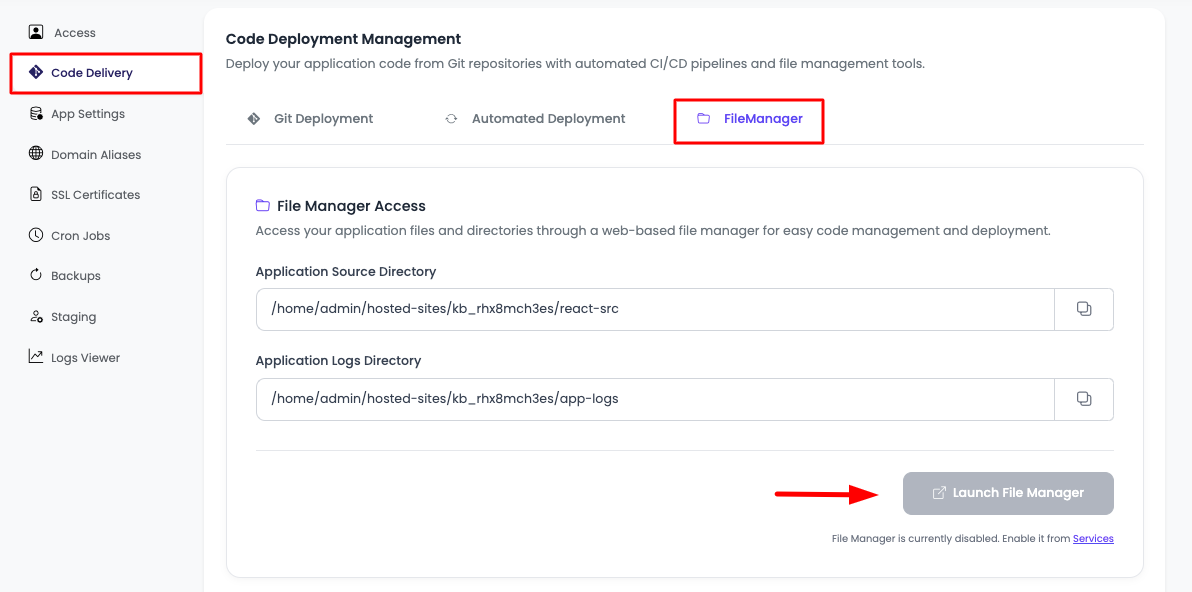
- Button is Disabled: The "Launch File Manager" button will be disabled
- Enable Option: There is an option to navigate to the Services section to go, from where you can enable FileManager
- Enable FileManager: Once you enable FileManager from the Services section, you should now be good to access FileManager
Step 3: Launch FileManager
Once FileManager is enabled:
- Click "Launch File Manager": Click on the "Launch File Manager" button.
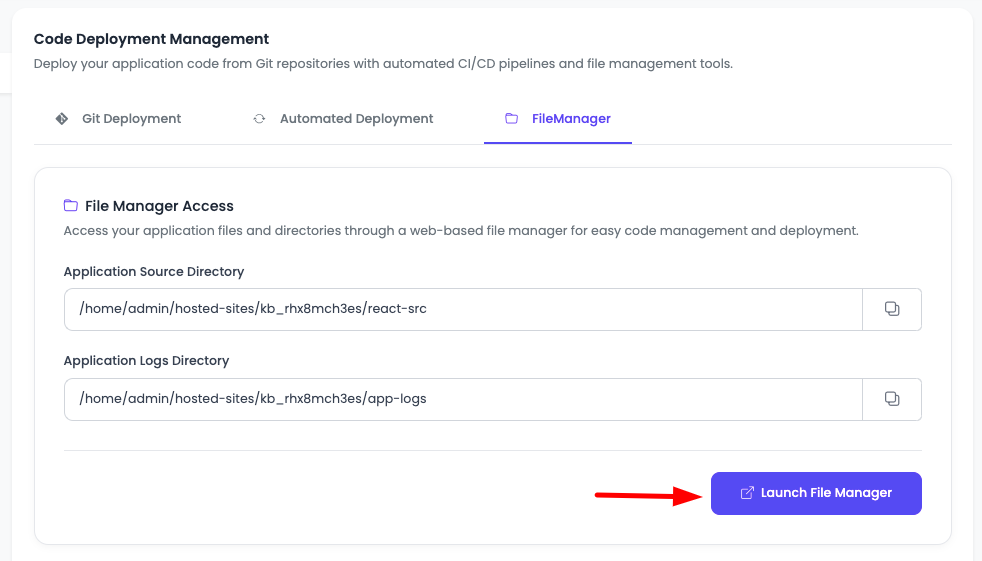
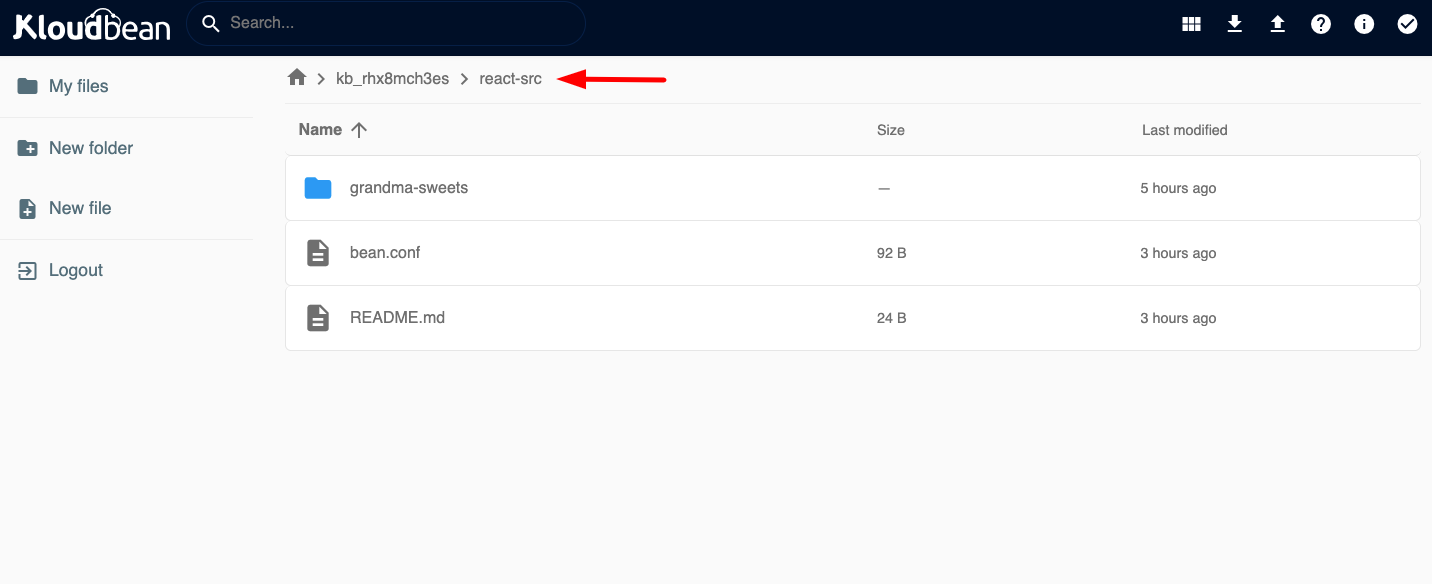
- SSO Authentication: It will make an SSO (Single Sign-On) authentication and redirect you to the FileManager.
- View Application Directory: Where you will see your app webroot or source code folder.
FileManager Operations
Here you are in FileManager, and you can manage and do all of the following operations:
Available Operations
- Add Folder: Create new directories in your application
- Add File: Create new files directly in the FileManager
- Edit File: Modify existing files using the built-in editor
- Rename File/Folder: Change names of files and directories
- Delete File: Remove files and folders from your application
- Read File: View file contents without downloading
- Move File: Relocate files to different directories
- Download File: Download files to your local machine
- Upload File: Upload files from your local machine to the server
Creating and Managing Files
Adding a New File
To create a new file in FileManager:
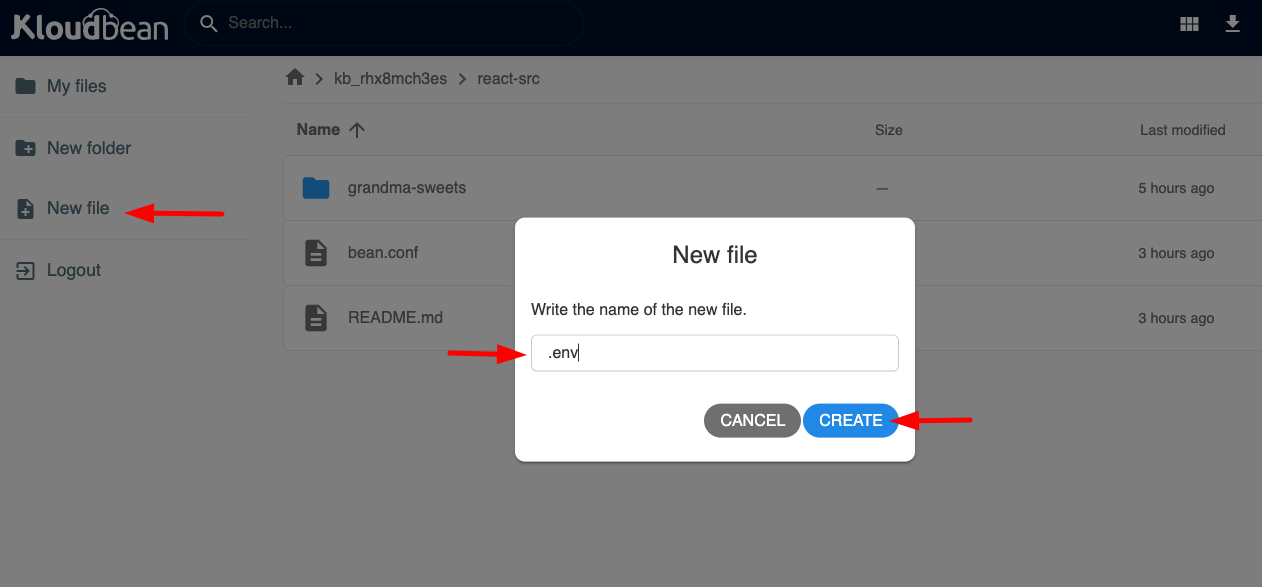
- Navigate to Target Directory: Go to the directory where you want to create the file
- Click "New File": Click on the "New File" button or option
- Enter File Name: Provide a name for your new file
- File Created: The file will be created and ready for editing
Uploading Files
To upload files to your application:
- Navigate to Target Directory: Go to the directory where you want to upload files
- Click "Upload": Click on the "Upload" button or option
- Select Files: Choose files from your local machine to upload
- Monitor Upload: Watch the upload progress
- Files Uploaded: Once complete, files will appear in the FileManager
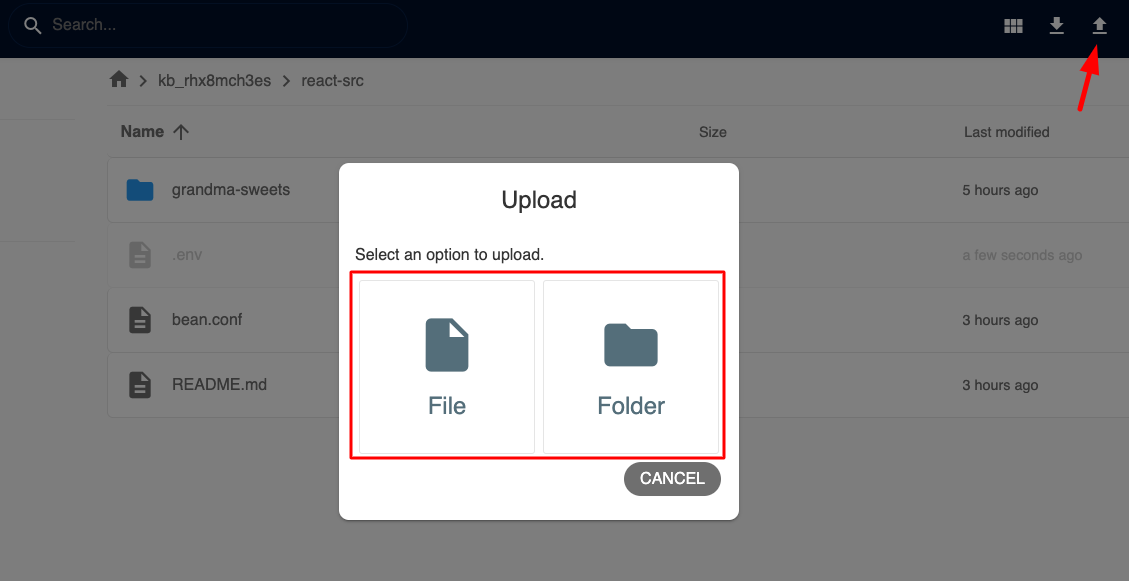
File Upload Size Limit: By default, the maximum file upload size is restricted to 5GB using FileManager. If you want to upload files larger than 5GB, then contact the KloudBean support team for assistance.
Downloading Files
To download files from your application:
- Select File: Click on the file you want to download
- Click "Download": Click on the "Download" button or option
- File Downloaded: The file will be downloaded to your local machine
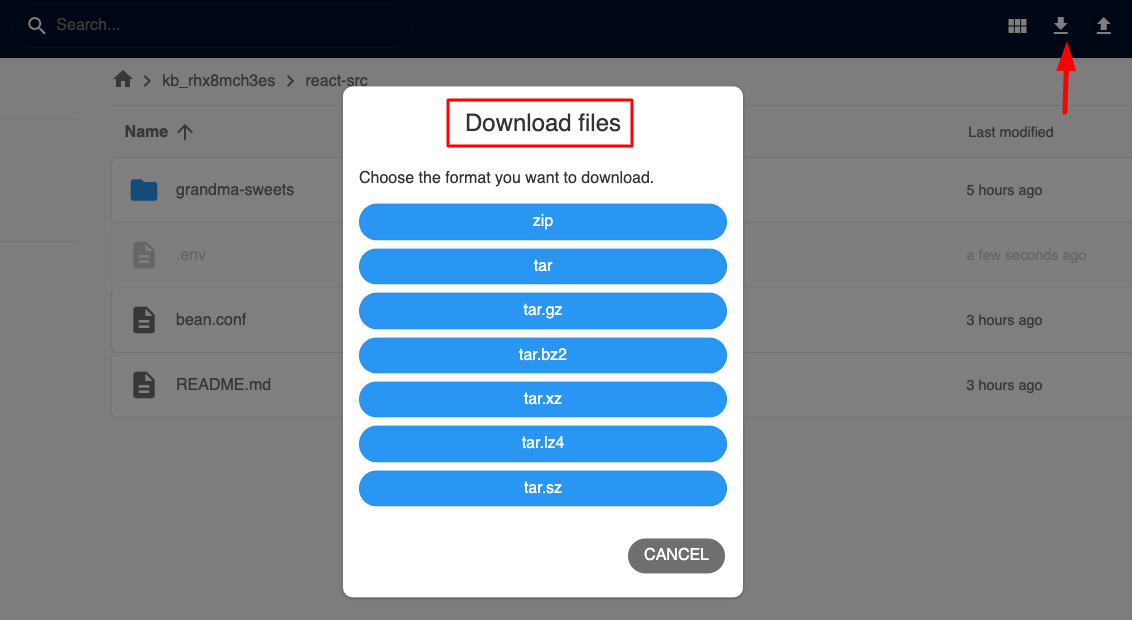
File Operations Guide
Editing Files
- Select File: Click on the file you want to edit
- Click "Edit": Click on the "Edit" button
- Make Changes: Modify the file content in the editor
- Save Changes: Click "Save" to apply your changes
Renaming Files and Folders
- Select Item: Click on the file or folder you want to rename
- Right-Click: Right-click on the item
- Select "Rename": Choose the rename option
- Enter New Name: Type the new name
- Confirm: Press Enter or click confirm to save the new name
Deleting Files
- Select File(s): Click on the file(s) you want to delete
- Click "Delete": Click on the "Delete" button
- Confirm Deletion: Confirm that you want to delete the file(s)
- File Removed: The file(s) will be permanently removed
Warning: Deleted files cannot be recovered from FileManager. Make sure you have backups before deleting important files.
Moving Files
- Select File(s): Click on the file(s) you want to move
- Cut Files: Use the cut option (or Ctrl+X)
- Navigate to Target: Go to the destination directory
- Paste Files: Use the paste option (or Ctrl+V)
- Files Moved: Files will be moved to the new location
Creating Folders
- Navigate to Parent Directory: Go to the directory where you want to create a folder
- Click "New Folder": Click on the "New Folder" button
- Enter Folder Name: Provide a name for the new folder
- Folder Created: The folder will be created in the current directory
Understanding FileManager Structure
Application Webroot
When you launch FileManager, you'll see your application's webroot or source code folder. This is the main directory where your application files are stored.
Important Directories
- Source Code Directory: Contains your application's source code files
- Logs Directory: Contains application log files
- Uploads Directory: Contains user-uploaded files (if applicable)
- Configuration Files: Contains configuration files for your application
FileManager Features
SSO Authentication
- Secure Access: FileManager uses Single Sign-On (SSO) authentication for secure access
- Automatic Login: You're automatically authenticated using your KloudBean credentials
- Session Management: Your session is managed securely
File Type Support
FileManager supports various file types:
- Text Files: .txt, .md, .log, etc.
- Code Files: .php, .js, .css, .html, .py, .java, etc.
- Configuration Files: .json, .xml, .yaml, .env, .ini, etc.
- Media Files: Images, videos, audio files
- Archive Files: .zip, .tar, .gz, etc.
Editor Features
The built-in editor supports:
- Syntax Highlighting: Color-coded syntax for various programming languages
- Line Numbers: Easy navigation with line numbers
- Search and Replace: Find and replace text within files
- Code Folding: Collapse code blocks for better readability
Best Practices
- Organize Files: Keep your files organized in logical directory structures
- Backup Before Changes: Always backup important files before making changes
- Use Descriptive Names: Use clear, descriptive names for files and folders
- Monitor File Sizes: Be aware of file sizes, especially when uploading large files
- Regular Cleanup: Remove unused files and folders regularly
- Secure Sensitive Files: Don't store sensitive information in publicly accessible files
- Test After Changes: Test your application after making file changes
Troubleshooting
FileManager Not Accessible
- Check if Enabled: Verify that FileManager is enabled in the Services section
- Refresh Page: Try refreshing the page if FileManager doesn't load
- Check Permissions: Ensure you have appropriate permissions to access FileManager
- Contact Support: If issues persist, contact KloudBean support
Upload Issues
- File Size Limit: Remember the 5GB limit for file uploads via FileManager
- Large Files: For files larger than 5GB, contact KloudBean support
- Network Issues: Check your internet connection if uploads fail
- Disk Space: Ensure your server has sufficient disk space
Edit Issues
- File Permissions: Verify that you have write permissions for the file
- File Locked: Check if the file is locked by another process
- Browser Issues: Try a different browser if editing doesn't work
- Refresh: Refresh the FileManager if changes aren't saving
Download Issues
- File Size: Large files may take time to download
- Browser Settings: Check browser download settings if downloads fail
- Network: Ensure stable internet connection for large downloads
File Upload Size Limitations
Default Limit
- Maximum Upload Size: 5GB per file using FileManager
- Standard Use: This limit covers most file upload scenarios
Uploading Larger Files
If you need to upload files larger than 5GB:
- Contact Support: Reach out to the KloudBean support team
- Alternative Methods: Consider using SSH/SFTP for very large files
- File Compression: Compress files before uploading to reduce size
- Split Files: Split large files into smaller parts if possible
Alternative File Access Methods
While FileManager is convenient, KloudBean also supports:
- SSH Access: Direct server access via SSH for advanced file operations
- SFTP Access: Secure file transfer protocol for file management
- Git Integration: Version control and file management through Git
For more information, see:
- Enabling SSH Access for SSH/SFTP access
- Connecting Git Repository for Git-based file management
Next Steps
After successfully managing files with FileManager:
- Learn about Updating File Permissions to configure file access
- Explore Accessing Application Database to manage your database
- Review Managing Application Backups to protect your files