Updating Server Stack Settings
Learn how to update and configure server stack settings on KloudBean. KloudBean provides an easy UI to update key configurations according to your application needs.
Overview
KloudBean deployed default stack consists of many components, and the configuration is already optimized. However, KloudBean provides an easy UI to update some of the key configuration according to application needs. These configurations allow you to fine-tune your server's performance, security, and functionality to match your specific requirements.
Important Note: Server-Level Configurations
These configurations are server-level configurations. Changing them is applicable to all apps on this server. This means any changes you make will affect all applications running on the server, so consider the impact on all your applications before making changes.
Accessing Stack Settings
Step 1: Navigate to Configurations
In order to access these configurations:
- Log in to your KloudBean dashboard
- Navigate to Server Administration: Open the server administration page for your desired server
- Go to "Configurations" Tab: Click on the "Configurations" tab in the server settings menu
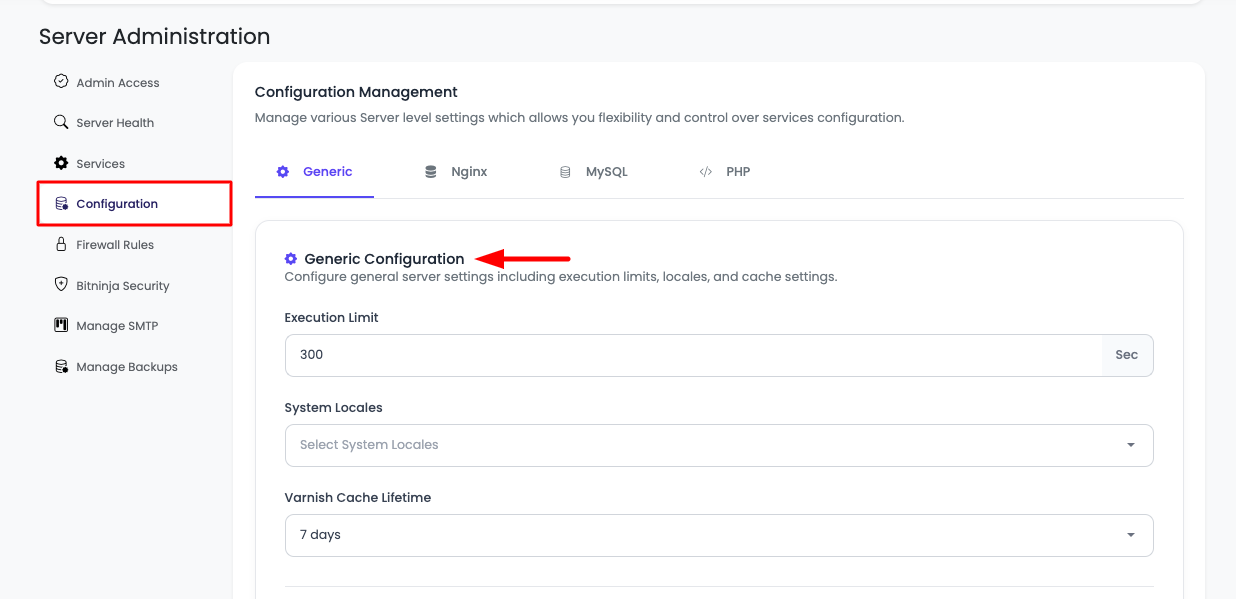
Available Configurable Settings
Let's review all the available configurable settings one by one:
General Settings
Navigate to the General tab for Generic Configuration.
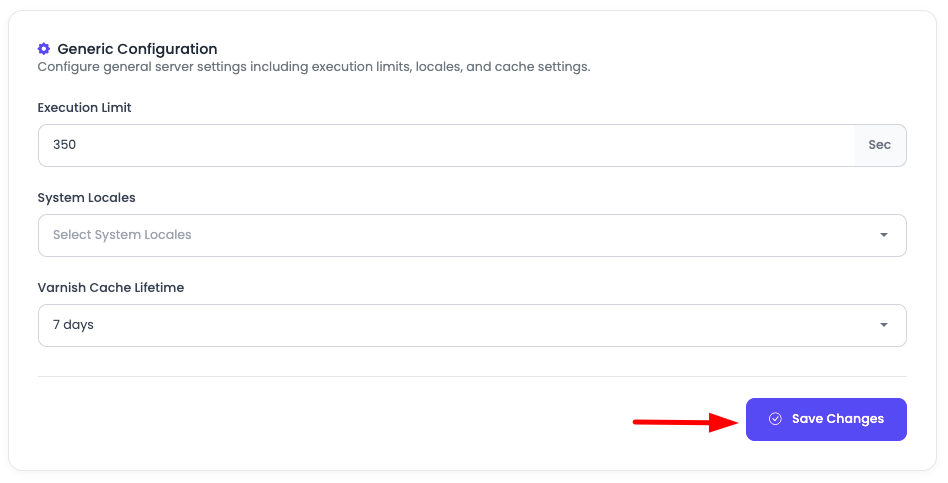
Execution Limit
What It Is: Execution Limit controls the maximum execution time for web/API requests at both the web server level and PHP level (if your application is PHP-based).
Default Value: 300 seconds (5 minutes)
Purpose:
- Prevents scripts from running indefinitely
- Protects against resource exhaustion
- Ensures timely response to users
- Prevents hanging processes
When to Adjust:
- Increase: If you have long-running scripts (data processing, large file operations, complex calculations)
- Decrease: For better resource management and faster timeout detection
- Application-Specific: Adjust based on your application's typical execution time
Considerations:
- Higher values allow longer-running processes but consume more resources
- Lower values may cause legitimate long-running scripts to timeout
- Balance between functionality and resource protection
System Locales
What It Is: System locales define the language, region, and character encoding settings for your server.
Purpose:
- Determines date/time formats
- Sets number and currency formats
- Defines character encoding
- Sets language for system messages
When to Change:
- Regional Requirements: Match your target audience's locale
- Application Needs: If your application requires specific locale settings
- Compliance: Meet regional compliance requirements
- Character Encoding: Ensure proper handling of special characters
Common Locales:
en_US.UTF-8- English (United States)en_GB.UTF-8- English (United Kingdom)de_DE.UTF-8- Germanfr_FR.UTF-8- Frenchja_JP.UTF-8- Japanese
Varnish Cache Lifetime
What It Is: Varnish Cache Lifetime (TTL - Time To Live) determines how long cached content is stored before being refreshed.
Default Value: 7 days
Purpose:
- Controls cache duration for static and dynamic content
- Balances between freshness and performance
- Reduces server load by serving cached content
- Improves response times for users
When to Adjust:
- Increase: For content that changes infrequently (static assets, rarely updated pages)
- Decrease: For frequently changing content (news sites, real-time data)
- Application Type: E-commerce sites may need shorter cache times for pricing
- Content Strategy: Balance between performance and content freshness
Considerations:
- Longer cache times = better performance but potentially stale content
- Shorter cache times = fresher content but more server load
- Consider cache invalidation strategies for dynamic content
Nginx Settings
Navigate to the Nginx tab for Nginx Configuration.
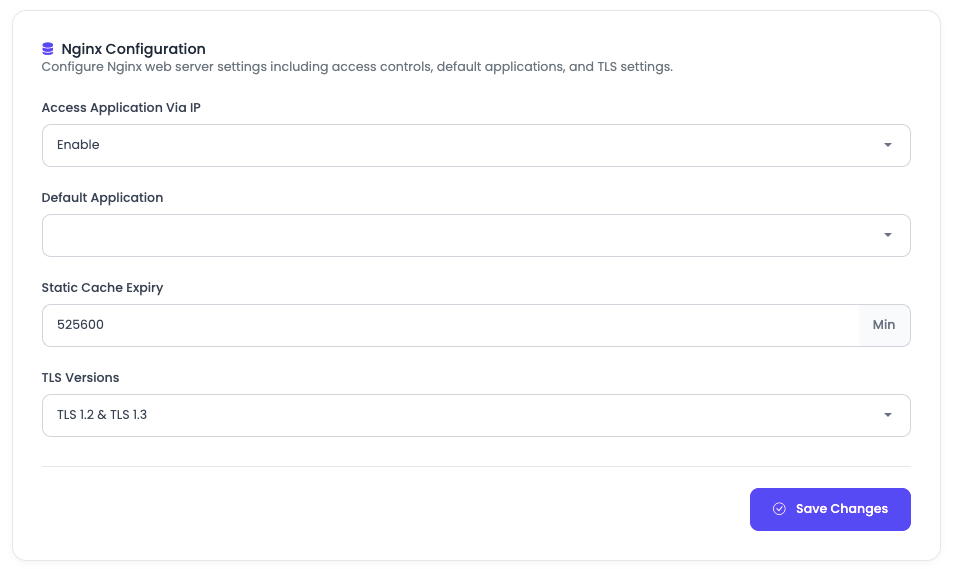
Access Application Via IP
What It Is: This setting controls whether applications on your server can be accessed directly via the server's IP address.
Default State: Disabled by default
Purpose:
- Security: Prevents direct IP access (forces domain usage)
- Multi-Application Management: Helps manage which app responds to IP access
- Best Practice: Using domains is preferred over IP access
When to Enable:
- Development/Testing: Quick access during development
- Temporary Access: For testing before DNS is configured
- Direct Access Needed: When you need IP-based access for specific use cases
How It Works:
- When disabled: Accessing the server IP directly will not serve any application
- When enabled: You must select which application should respond to IP access
- Multiple apps: If you have multiple apps on your server, you need to choose the default one
Security Considerations:
- IP access bypasses domain-based security measures
- Less professional than domain-based access
- Consider keeping disabled for production environments
Default Application
What It Is: When "Access Application Via IP" is enabled, this setting determines which application is served when users access the server via IP address (e.g., http://192.0.120.21).
Default State: No app is selected by default
Purpose:
- Determines which application responds to IP-based requests
- Essential when multiple applications are on the same server
- Provides control over IP access routing
How to Configure:
- Enable IP Access: First, enable "Access Application Via IP"
- Select Application: Choose the application from the dropdown list
- Save Changes: Apply the configuration
Use Cases:
- Primary Application: Select your main application as default
- Landing Page: Use a landing page or redirect application
- Development App: Use a development/staging application for testing
Important Notes:
- Only one application can be set as default for IP access
- This only affects IP-based access, not domain-based access
- Each application can still be accessed via its own domain
Static Cache Expiry
What It Is: Static Cache Expiry determines how long static files (images, CSS, JavaScript, fonts) are cached by browsers and CDNs.
Default Value: 525600 minutes (1 year)
Purpose:
- Reduces bandwidth usage by serving cached static assets
- Improves page load times significantly
- Reduces server load for static file requests
- Optimizes user experience with faster content delivery
How It Works:
- Sets cache headers for static files
- Browsers store files locally for the specified duration
- Subsequent visits load files from cache instead of server
- CDNs also respect these cache settings
When to Adjust:
- Long Cache (Default): Best for production - static assets rarely change
- Shorter Cache: If you frequently update static assets and need immediate updates
- Development: Use shorter cache times during development
- Versioning: If using file versioning (e.g.,
style.css?v=2), longer cache is safe
Best Practices:
- Keep long cache times for truly static assets (images, fonts)
- Use file versioning or hashing for cache busting when needed
- Consider shorter cache for frequently updated assets
- Balance between performance and update flexibility
TLS Versions
What It Is: TLS (Transport Layer Security) versions determine which encryption protocols are allowed for HTTPS connections.
Default Setting: Only TLS 1.2 and greater is allowed by default
Available Options:
- TLS 1.2 and greater (Default): Allows TLS 1.2 and TLS 1.3
- TLS 1.3 only: Restricts to only the latest TLS version
- TLS 1.2 only: Allows only TLS 1.2 (not recommended)
Purpose:
- Security: Ensures secure encrypted connections
- Compatibility: Balances security with client compatibility
- Performance: TLS 1.3 offers better performance than TLS 1.2
- Compliance: Meets security compliance requirements
TLS 1.2:
- Widely supported by all modern browsers and clients
- Secure and proven encryption standard
- Good balance of security and compatibility
TLS 1.3:
- Latest TLS version with improved security
- Better performance (faster handshake)
- Reduced latency compared to TLS 1.2
- May have limited support on older clients
When to Change:
- TLS 1.3 Only: If you want maximum security and all clients support it
- Keep Default (1.2+): Best for maximum compatibility
- On-Demand Basis: Change based on specific security requirements
Recommendations:
- Production: Keep default (TLS 1.2+) for maximum compatibility
- High Security: Use TLS 1.3 only if all clients support it
- Testing: Test TLS 1.3 only in staging before production
MySQL Settings
Navigate to the MySQL tab for MySQL Configuration.
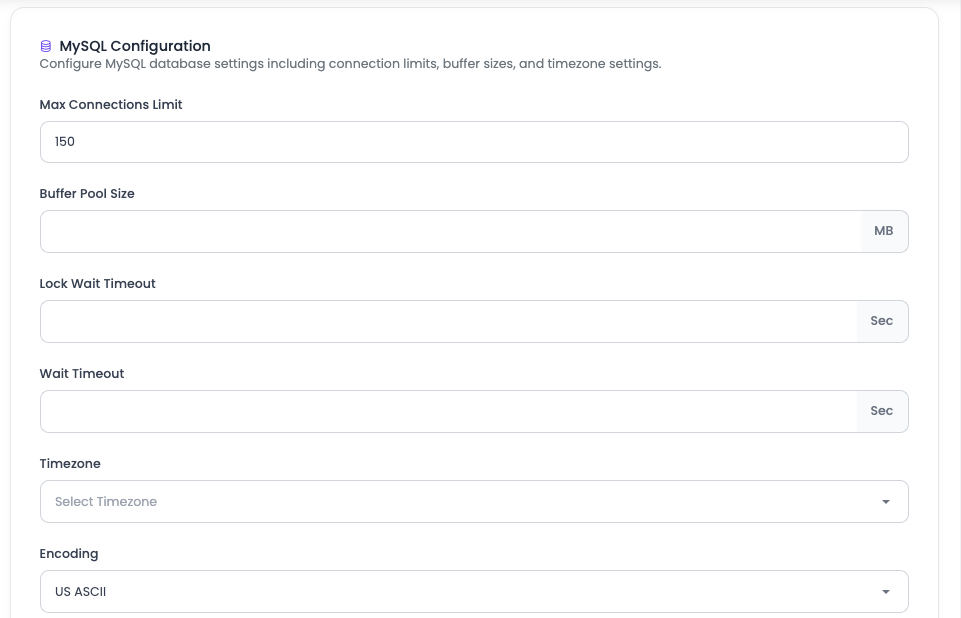
Max Connections Limit
What It Is: Maximum number of simultaneous connections that MySQL can accept.
Default Value: 150 connections
Purpose:
- Controls database connection pool size
- Prevents database overload from too many connections
- Manages server resources efficiently
- Ensures database stability
When to Adjust:
- Increase: If you have high-traffic applications with many concurrent users
- Decrease: For smaller applications to conserve resources
- Application Needs: Based on expected concurrent database connections
- Resource Limits: Consider available server resources
Considerations:
- Each connection consumes memory
- Too many connections can degrade performance
- Monitor actual connection usage before increasing
- Balance between capacity and resource usage
Buffer Pool Size
What It Is: Buffer Pool Size (InnoDB Buffer Pool) is the amount of memory MySQL uses to cache data and indexes.
Default Value: Set to default optimized value
Purpose:
- Caches frequently accessed data in memory
- Reduces disk I/O operations significantly
- Improves query performance dramatically
- Stores table and index data in RAM
When to Update:
- High Database Usage: Increase for databases with heavy read operations
- Large Datasets: Larger buffer pool for bigger databases
- Performance Optimization: Tune based on database size and usage patterns
- Available RAM: Adjust based on server's available memory
Best Practices:
- Typically set to 50-70% of available RAM
- Leave memory for operating system and other services
- Monitor buffer pool hit ratio (should be >99%)
- Adjust gradually and monitor performance
Lock Wait Timeout
What It Is: Lock Wait Timeout determines how long a transaction will wait to acquire a lock before timing out.
Purpose:
- Prevents transactions from waiting indefinitely for locks
- Detects deadlock situations
- Ensures application responsiveness
- Prevents resource exhaustion
How It Works:
- When a transaction needs a locked resource, it waits
- If lock isn't acquired within timeout, transaction fails
- Helps identify locking issues and deadlocks
- Protects against hung transactions
When to Adjust:
- Increase: For complex transactions that legitimately need longer lock times
- Decrease: To detect locking issues faster
- Application Needs: Based on transaction complexity
- Troubleshooting: Adjust when experiencing lock timeout errors
Wait Timeout
What It Is: Wait Timeout is the number of seconds the server waits for activity on a non-interactive connection before closing it.
Purpose:
- Closes idle database connections
- Frees up connection resources
- Prevents connection pool exhaustion
- Manages database resources efficiently
How It Works:
- Timer starts when connection becomes idle
- Connection closes if no activity within timeout period
- Helps manage connection pool effectively
- Prevents abandoned connections from consuming resources
When to Adjust:
- Increase: For applications with long idle periods between queries
- Decrease: To free up connections faster
- Connection Pooling: Adjust based on connection pooling strategy
- Application Behavior: Match timeout to application usage patterns
Timezone
What It Is: MySQL timezone setting determines how date and time values are stored and interpreted.
Purpose:
- Ensures consistent date/time handling across applications
- Prevents timezone-related data inconsistencies
- Matches application timezone requirements
- Ensures accurate timestamp storage and retrieval
Common Timezones:
UTC- Coordinated Universal Time (recommended for servers)America/New_York- Eastern TimeEurope/London- British TimeAsia/Tokyo- Japan Standard Time
When to Change:
- Application Requirements: Match your application's timezone needs
- Regional Compliance: Meet regional timezone requirements
- Data Consistency: Ensure consistent timezone across all applications
- Best Practice: Use UTC for servers, convert in application layer
Recommendations:
- Production: Use UTC for consistency
- Application Layer: Handle timezone conversion in application code
- Database: Store timestamps in UTC
- Display: Convert to user's timezone in frontend
Encoding
What It Is: Character encoding determines how text data is stored and interpreted in the database.
Purpose:
- Ensures proper storage of international characters
- Prevents character corruption
- Supports multiple languages
- Ensures data integrity
Common Encodings:
utf8mb4- Full UTF-8 support (recommended)utf8- Basic UTF-8 (limited)latin1- Western European characters
When to Change:
- International Support: Use utf8mb4 for full international character support
- Legacy Systems: May need specific encodings for compatibility
- Application Requirements: Match application's encoding needs
- Best Practice: Always use utf8mb4 for new databases
Recommendations:
- Default: Use utf8mb4 for maximum compatibility
- International: Essential for non-English content
- Emoji Support: utf8mb4 required for emoji storage
- Migration: Convert existing databases to utf8mb4 when possible
PHP Settings
Navigate to the PHP tab for PHP Configuration.
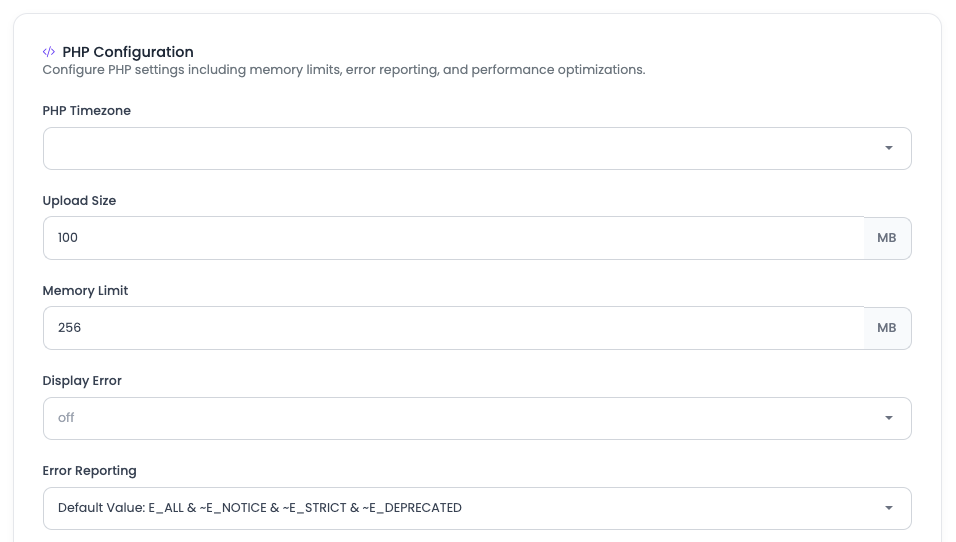
PHP Timezone
What It Is: PHP timezone setting determines the default timezone used by PHP date/time functions.
Purpose:
- Sets default timezone for PHP applications
- Ensures consistent date/time handling
- Matches server or application timezone requirements
- Prevents timezone-related errors
Common Timezones:
UTC- Coordinated Universal TimeAmerica/New_York- Eastern TimeEurope/London- British TimeAsia/Dubai- Gulf Standard Time
When to Change:
- Application Requirements: Match your application's timezone
- Regional Compliance: Meet regional requirements
- Consistency: Ensure consistency with MySQL timezone
- Best Practice: Use UTC, handle conversion in application
Upload Size
What It Is: Maximum size of files that can be uploaded through PHP applications.
Default Value: 100MB
Purpose:
- Controls file upload limits
- Prevents server overload from large uploads
- Protects against resource exhaustion
- Ensures reasonable upload constraints
When to Adjust:
- Large Files: Increase for applications that need to upload large files (videos, images, documents)
- Security: Decrease for tighter security and resource control
- Application Needs: Based on your application's file upload requirements
- Server Resources: Consider available disk space and bandwidth
Considerations:
- Also check
post_max_size(should be >= upload_max_filesize) - Consider server disk space and bandwidth
- Balance between functionality and resource protection
- Monitor actual upload sizes in your application
Memory Limit
What It Is: Maximum amount of memory a PHP script can consume during execution.
Default Value: 256MB
Purpose:
- Prevents scripts from consuming excessive memory
- Protects server from memory exhaustion
- Ensures fair resource allocation
- Prevents application crashes from memory issues
When to Adjust:
- Memory-Intensive Operations: Increase for image processing, data manipulation, large array operations
- Resource Optimization: Decrease for better resource management
- Application Needs: Based on your application's memory requirements
- Server Resources: Consider available server RAM
Common Values:
128M- Light applications256M- Default, suitable for most applications512M- Memory-intensive applications1024M- Very memory-intensive applications
Considerations:
- Higher values allow more complex operations but consume more RAM
- Monitor actual memory usage before increasing
- Balance between functionality and resource usage
- Consider optimizing code before increasing limits
Display Error
What It Is: Controls whether PHP errors are displayed directly in the browser output.
Default State: Off by default
Purpose:
- Security: Hides error details from end users (prevents information disclosure)
- User Experience: Prevents confusing error messages for users
- Debugging: Can be enabled for development
- Professional Appearance: Keeps error details in logs, not visible to users
When to Enable:
- Development: Enable during development for easier debugging
- Staging: Can be enabled in staging environments
- Troubleshooting: Temporarily enable to diagnose issues
When to Keep Disabled:
- Production: Always keep disabled in production
- Security: Prevents exposing system information
- Professional: Maintains professional appearance
Best Practices:
- Production: Always OFF
- Development: Can be ON for debugging
- Log Errors: Always log errors regardless of display setting
- Error Handling: Implement proper error handling in application code
Error Reporting
What It Is: Controls which PHP errors are reported and logged.
Default Value: E_ALL & ~E_NOTICE & ~E_STRICT & ~E_DEPRECATED
Purpose:
- Controls error reporting level
- Balances between comprehensive reporting and noise
- Helps identify issues without overwhelming logs
- Configures what gets logged and displayed
Available Values:
Default Value (Recommended for Production):
E_ALL & ~E_NOTICE & ~E_STRICT & ~E_DEPRECATED
- Reports all errors except notices, strict standards, and deprecation warnings
- Good balance for production environments
- Catches important errors without noise
Development Value:
E_ALL
- Reports absolutely all errors, warnings, and notices
- Maximum visibility for debugging
- Use only in development environments
- Can be very verbose
Production Value:
E_ALL & ~E_DEPRECATED & ~E_STRICT
- Reports all errors except deprecation and strict warnings
- Slightly more verbose than default
- Good for production with some debugging needs
When to Use:
- Production: Use Default Value
- Development: Use Development Value (E_ALL)
- Staging: Use Production Value or Default Value
- Debugging: Temporarily use E_ALL to identify issues
Max Input Time
What It Is: Maximum time in seconds a script can spend parsing input data (POST, GET, file uploads).
Default Value: 60 seconds
Purpose:
- Prevents scripts from hanging on input parsing
- Protects against slow or malicious input
- Ensures timely processing
- Prevents resource exhaustion
When to Adjust:
- Large Forms: Increase for forms with many fields or large data
- File Uploads: May need increase for large file uploads
- Complex Input: Increase for complex input parsing
- Security: Decrease to prevent slow input attacks
Considerations:
- Related to
max_execution_timebut specifically for input parsing - Large file uploads may need higher values
- Balance between functionality and security
- Monitor for timeout issues
OPCache Memory
What It Is: Amount of memory allocated to PHP's OPcache for storing precompiled script bytecode.
Default Value: 128MB
Purpose:
- Caches compiled PHP scripts in memory
- Dramatically improves PHP performance
- Reduces server load by avoiding recompilation
- Speeds up application execution
How It Works:
- PHP compiles scripts to bytecode
- OPcache stores bytecode in memory
- Subsequent requests use cached bytecode
- Eliminates need to recompile on every request
When to Adjust:
- Large Applications: Increase for applications with many PHP files
- Performance Optimization: Higher values can improve performance
- Available Memory: Adjust based on available server RAM
- Application Size: Based on total size of PHP files
Common Values:
64M- Small applications128M- Default, suitable for most applications256M- Large applications with many files512M- Very large applications
Best Practices:
- Monitor OPcache hit ratio (should be >90%)
- Increase if hit ratio is low
- Balance with available server memory
- Essential for production performance
Short Open Tag
What It Is: Controls whether PHP's short open tags (<? instead of <?php) are allowed.
Default State: Off by default
Purpose:
- Compatibility: Short tags can conflict with XML declarations
- Portability: Ensures code works across different PHP configurations
- Best Practice: Using full
<?phptags is recommended - Standards: Many coding standards require full tags
When to Enable:
- Legacy Code: If you have old code using short tags
- Convenience: Some developers prefer shorter syntax
- Specific Requirements: If your application specifically needs it
When to Keep Disabled:
- Best Practice: Recommended to keep disabled
- Portability: Ensures code works everywhere
- XML Compatibility: Prevents conflicts with XML
- Standards Compliance: Meets PHP coding standards
Recommendations:
- Default: Keep disabled (OFF)
- New Code: Always use
<?phpinstead of<? - Legacy: Only enable if absolutely necessary for legacy code
- Migration: Migrate code to use full tags when possible
XDebug
What It Is: XDebug is a PHP extension that provides debugging and profiling capabilities.
Default State: Disabled by default
Purpose:
- Debugging: Provides detailed error information and stack traces
- Profiling: Analyzes code performance and execution
- Code Coverage: Tracks which code is executed during tests
- Development Tool: Essential for development and debugging
Important Performance Note: If enabled, it reduces performance too much as it looks into each function. In production, keep it disabled.
When to Enable:
- Development: Essential for development environments
- Debugging: When debugging complex issues
- Profiling: For performance analysis and optimization
- Testing: For code coverage analysis
When to Keep Disabled:
- Production: ALWAYS keep disabled in production
- Performance: Significantly impacts performance
- Resource Usage: Consumes significant server resources
- Security: Can expose sensitive debugging information
Performance Impact:
- Significant Slowdown: Can slow down applications by 2-10x
- Memory Usage: Increases memory consumption
- CPU Usage: Higher CPU usage due to function tracing
- Production Impact: Never use in production environments
Best Practices:
- Development Only: Enable only in development/staging
- Production: Always disabled in production
- Selective Use: Enable temporarily for specific debugging tasks
- Profiling: Use for performance profiling, then disable
Configuration Best Practices
Before Making Changes
- Understand Impact: Remember these are server-level changes affecting all applications
- Backup Configuration: Note current settings before changing
- Test in Staging: Test changes in staging environment first
- Document Changes: Keep track of what you changed and why
General Guidelines
- Start with Defaults: Default values are optimized, change only when needed
- Monitor After Changes: Watch server performance after making changes
- Incremental Changes: Make changes incrementally and test
- Consult Documentation: Understand what each setting does before changing
Production Considerations
- Conservative Changes: Be conservative with production changes
- Test First: Always test in staging before production
- Monitor Closely: Watch for issues after changes
- Have Rollback Plan: Know how to revert changes if needed
Troubleshooting Configuration Issues
Settings Not Taking Effect
- Restart Services: Some changes require service restarts
- Clear Caches: Clear application and server caches
- Check Syntax: Verify configuration syntax is correct
- Review Logs: Check error logs for configuration issues
Performance Issues After Changes
- Revert Changes: Roll back to previous settings
- Monitor Resources: Check resource usage after changes
- Gradual Changes: Make one change at a time to identify issues
- Review Defaults: Consider reverting to default optimized values
Next Steps
After configuring your server stack settings:
- Learn about Monitoring Server Health to track resource usage
- Explore Enabling Server SMTP to configure email functionality
- Review Managing Server Backups to protect your server data