Enabling BitNinja Security
Learn how to enable BitNinja security on your KloudBean server. KloudBean provides app layer web security using BitNinja, making it super easy to protect your server and applications from various cyber threats.
Overview
KloudBean provides app layer web security using BitNinja. It is super easy to enable BitNinja on your server for the following features, providing comprehensive protection against a wide range of cyber threats.
BitNinja Security Features
BitNinja offers advanced security features to protect your server and applications:
- Web Application Firewall (WAF): Protects your web applications from common threats like XSS (Cross-Site Scripting) and SQL injection attacks
- Malware Detection and Removal: Utilizes AI-powered scanning to detect and eliminate malware in real-time
- DDoS Protection: Identifies and mitigates Distributed Denial of Service attacks to maintain server availability
- Intrusion Detection and Prevention: Monitors and blocks unauthorized access attempts to your server
- Log Analysis: Analyzes server logs to detect and respond to suspicious activities
- IP Reputation Management: Blocks known malicious IPs based on global threat intelligence
- Automated Threat Response: Automatically responds to detected threats without manual intervention
- Real-Time Monitoring: Continuous monitoring of server security status
Prerequisites
- An active KloudBean server
- Access to server administration settings
- Admin permissions to enable security features
Accessing BitNinja Settings
Step 1: Navigate to BitNinja Security
In order to enable BitNinja:
- Log in to your KloudBean dashboard
- Navigate to Server Administration: Open the server administration page for your desired server
- Go to "BitNinja Security" Tab: Click on the "BitNinja Security" tab in the server settings menu
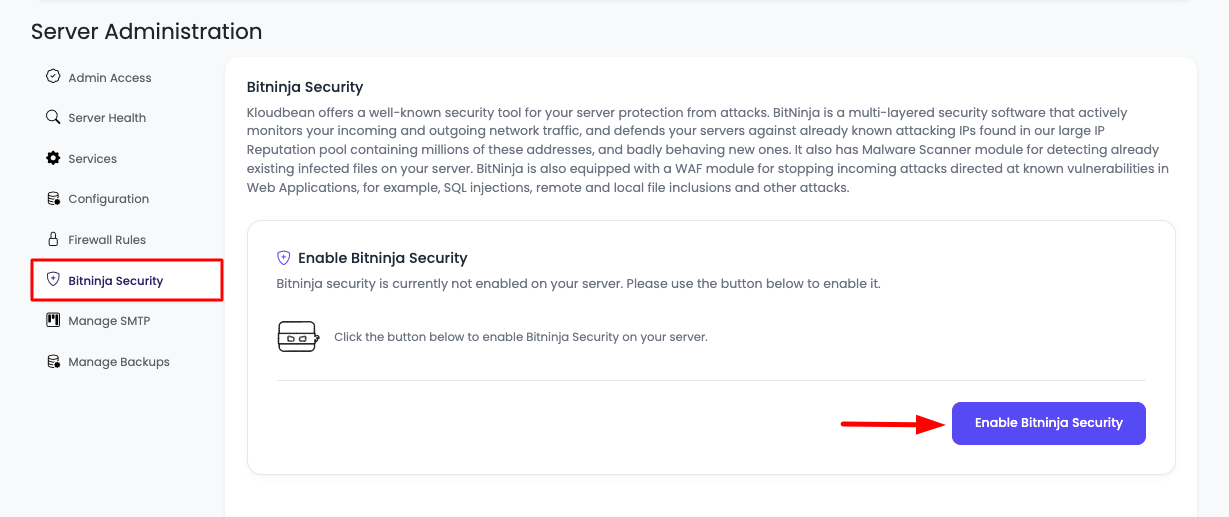
Here you will see an option to enable BitNinja on your server.
Enabling BitNinja Security
Step 2: Enable BitNinja
Click on "Enable BitNinja Security" to enable this option.
What Happens When You Enable BitNinja:
This action will automatically:
- Install BitNinja on Your Server: The BitNinja agent and components are installed automatically
- Fetch a New License: A new BitNinja license is fetched and activated for your server
- Bind License with Server: The license is bound to your specific server
- Apply Configuration: BitNinja security rules and configurations are applied to your server
- Start BitNinja Agent: The BitNinja agent service is started and begins monitoring
Installation Process:
- The installation is automated and typically takes a few minutes
- You don't need to manually configure anything
- KloudBean handles all the complex setup
- The service starts automatically after installation
Step 3: Access BitNinja Dashboard
Once your BitNinja is installed, you now have an option to visit the BitNinja dashboard where you can explicitly see server-related stats and details.
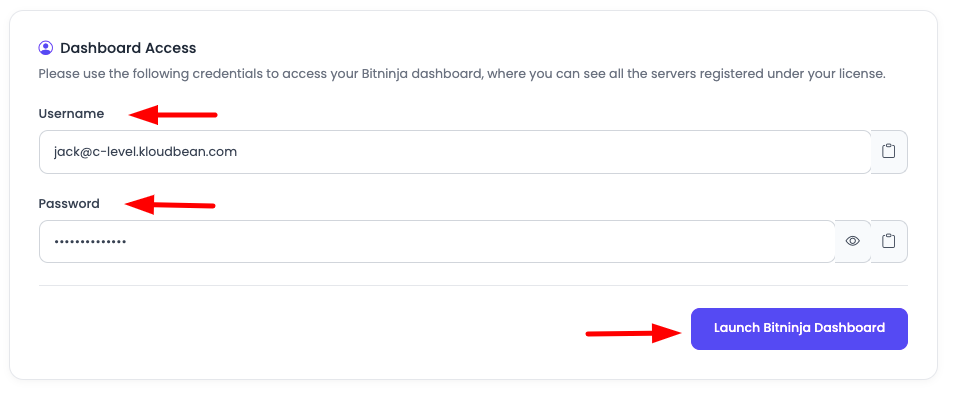
- Click "Launch BitNinja Dashboard" Button: Click on the "Launch BitNinja Dashboard" button
- Redirect to Dashboard: It will redirect you to the BitNinja dashboard
- Login with Credentials: Add credentials that are just created and login
Dashboard Credentials:
- Credentials are automatically generated when BitNinja is enabled
- You can find the credentials in the KloudBean dashboard
- Use these credentials to access the BitNinja dashboard
- Keep credentials secure for future access
BitNinja Dashboard Overview
The BitNinja dashboard provides comprehensive insights into your server's security status. Here's where you can find important server-related details:
Security Overview
- Threat Statistics: View total blocked attacks, detected threats, and security events
- Real-Time Status: Monitor current security status and active protections
- Attack Timeline: See chronological view of security events and attacks
- Protection Effectiveness: Review how well BitNinja is protecting your server
Server Security Details
- Blocked IPs: List of IP addresses that have been blocked due to malicious activity
- Attack Types: Breakdown of different types of attacks detected (DDoS, SQL injection, XSS, etc.)
- Geographic Data: View attack origins by country and region
- Top Attackers: Most frequent attacking IPs and their threat levels
Web Application Firewall (WAF) Status
- WAF Rules: View active WAF rules protecting your applications
- Blocked Requests: See requests blocked by WAF rules
- Allowed Requests: Monitor legitimate traffic passing through
- Rule Effectiveness: Review which rules are most effective
Malware Detection
- Scanned Files: Total number of files scanned for malware
- Detected Threats: List of malware detected and removed
- Quarantined Files: Files isolated for security review
- Cleanup History: Record of malware cleanup actions
DDoS Protection Metrics
- Attack Attempts: Number of DDoS attacks detected and mitigated
- Traffic Volume: Amount of malicious traffic blocked
- Attack Duration: How long attacks lasted before mitigation
- Protection Status: Current DDoS protection level and effectiveness
Intrusion Detection
- Unauthorized Access Attempts: Failed login attempts and intrusion attempts
- Suspicious Activities: Unusual patterns detected on your server
- Blocked Intrusions: Successful blocks of intrusion attempts
- Security Events: Timeline of security-related events
Log Analysis
- Analyzed Logs: Server logs analyzed for security threats
- Threat Patterns: Patterns identified in log analysis
- Anomaly Detection: Unusual activities detected through log analysis
- Actionable Insights: Recommendations based on log analysis
Configuration Management
- Security Settings: View and manage BitNinja security settings
- Firewall Rules: Configure and manage firewall rules
- Whitelist/Blacklist: Manage IP whitelist and blacklist
- Notification Settings: Configure email alerts and notifications
Importance of BitNinja with KloudBean from Security Perspective
Comprehensive Security Layer
BitNinja provides a critical security layer for your KloudBean server, offering protection that goes beyond basic server security:
Application-Level Protection:
- Protects web applications from common vulnerabilities (XSS, SQL injection, CSRF)
- Monitors application behavior for suspicious patterns
- Blocks malicious requests before they reach your applications
- Provides real-time threat detection and response
Server-Level Protection:
- Protects the entire server infrastructure
- Monitors all server activities and processes
- Detects and prevents unauthorized access attempts
- Provides comprehensive security coverage
Why BitNinja is Essential
Proactive Threat Prevention:
- Before Attacks: BitNinja prevents attacks before they can cause damage
- Real-Time Response: Immediate response to detected threats
- Automated Protection: No manual intervention needed for most threats
- Continuous Monitoring: 24/7 security monitoring and protection
Advanced Threat Detection:
- AI-Powered Analysis: Uses artificial intelligence to detect sophisticated threats
- Behavioral Analysis: Identifies threats based on behavior patterns
- Global Threat Intelligence: Leverages worldwide threat data
- Zero-Day Protection: Protects against unknown vulnerabilities
Compliance and Best Practices:
- Security Standards: Helps meet security compliance requirements
- Best Practices: Implements industry security best practices
- Audit Trail: Provides detailed security logs for audits
- Reporting: Comprehensive security reporting and analytics
KloudBean and BitNinja Partnership
Exclusive Partnership Benefits:
- Seamless Integration: BitNinja is pre-configured and optimized for KloudBean servers
- Easy Management: Manage BitNinja directly from KloudBean dashboard
- Dedicated Support: KloudBean provides exclusive support for BitNinja issues
- Optimized Performance: BitNinja is tuned for KloudBean's infrastructure
Why This Partnership Matters:
- Simplified Setup: No complex configuration needed
- Reliable Support: Direct access to BitNinja expertise through KloudBean
- Proven Solution: BitNinja is a trusted security solution
- Continuous Updates: Regular security updates and improvements
Server Load and Resource Considerations
Important: BitNinja Resource Consumption
BitNinja is a basic security tool, but make sure you have a bigger size server as BitNinja consumes a lot of resources and you might face server degradation and server slowness.
Resource Impact
Memory (RAM) Consumption:
- BitNinja requires significant RAM to operate effectively
- Typical consumption: 500MB - 2GB depending on server size and traffic
- Higher traffic = more memory usage
- Monitor memory usage after enabling BitNinja
CPU Usage:
- BitNinja performs real-time analysis which requires CPU resources
- Typical consumption: 5-15% of CPU capacity
- During attacks, CPU usage may spike higher
- Continuous monitoring and analysis consume CPU cycles
Disk I/O:
- Log analysis and file scanning require disk I/O
- Malware scanning reads many files
- Log storage requires disk space
- Monitor disk I/O performance
Server Size Recommendations
Minimum Server Size:
- 2GB RAM: Minimum recommended for BitNinja
- 4GB RAM: Recommended for better performance
- 8GB+ RAM: Ideal for production servers with BitNinja
Why Larger Servers Are Better:
- Performance: More resources = better performance
- Stability: Prevents resource exhaustion
- User Experience: Maintains application performance
- Security Effectiveness: Better security with adequate resources
Monitoring Resource Usage
Keep an Eye on Memory and CPU Utilization:
-
Before Enabling BitNinja:
- Check current resource usage
- Ensure you have adequate headroom
- Plan for resource increase if needed
-
After Enabling BitNinja:
- Monitor memory usage (should not exceed 80-85%)
- Monitor CPU usage (should not consistently exceed 80%)
- Watch for performance degradation
- Check application response times
-
Ongoing Monitoring:
- Use KloudBean's server health monitoring
- Review BitNinja dashboard for resource metrics
- Monitor application performance
- Watch for resource-related alerts
When to Scale Up
If BitNinja is Necessary, Then Scale Up Your Server:
Signs You Need to Scale:
- High Memory Usage: Memory consistently above 85%
- High CPU Usage: CPU consistently above 80%
- Slow Application Response: Applications becoming slow
- Resource Warnings: KloudBean alerts about resource limits
- Server Degradation: Overall server performance declining
Scaling Options:
- Upgrade Server Size: Increase RAM and CPU
- Optimize Applications: Reduce application resource usage
- Contact KloudBean: Get assistance with scaling decisions
- Balance Resources: Find optimal balance between security and performance
Best Practices:
- Plan Ahead: Enable BitNinja on appropriately sized servers
- Monitor Closely: Watch resources after enabling
- Scale Proactively: Don't wait for performance issues
- Optimize First: Try optimization before scaling if possible
Performance Optimization Tips
If Experiencing Performance Issues:
- Review BitNinja Settings: Adjust protection levels if needed
- Optimize Applications: Reduce application resource usage
- Monitor Traffic: High traffic increases BitNinja resource usage
- Contact Support: KloudBean can help optimize BitNinja configuration
- Consider Scaling: If optimization doesn't help, scale up server
Managing BitNinja
Enabling/Disabling BitNinja
You can enable/disable BitNinja anytime using the option from the KloudBean dashboard.
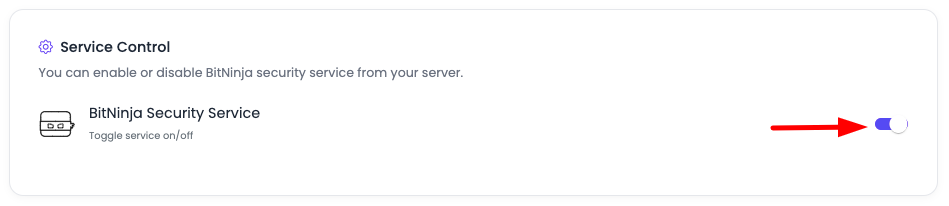
To Disable BitNinja:
- Navigate to Server Administration → BitNinja Security
- Click "Disable BitNinja Security"
- Confirm the action
- BitNinja will be disabled and agent stopped
To Re-enable BitNinja:
- Navigate to Server Administration → BitNinja Security
- Click "Enable BitNinja Security"
- BitNinja will be re-enabled with previous configuration
Important Notes:
- Disabling BitNinja removes security protection
- Re-enabling is quick and preserves previous settings
- License remains active when disabled
- You can toggle anytime based on your needs
Getting Support
KloudBean Support for BitNinja
If you face any trouble with BitNinja, contact KloudBean support. They will get exclusive support from BitNinja as we are close partner with BitNinja.
Support Channels
24/7 Support Available:
- Live Chat: Available in KloudBean dashboard
- Email Support: Contact support team via email
- Ticket System: Submit support tickets for complex issues
What KloudBean Support Can Help With
Installation Issues:
- BitNinja installation problems
- License activation issues
- Configuration problems
- Service startup issues
Performance Issues:
- Resource consumption problems
- Server performance degradation
- Optimization recommendations
- Scaling advice
Configuration Help:
- Setting up BitNinja rules
- Whitelisting/blacklisting IPs
- Custom security configurations
- Integration with applications
Troubleshooting:
- False positive issues
- Blocked legitimate traffic
- Security event analysis
- Dashboard access problems
Exclusive BitNinja Support
Partnership Benefits:
- Direct Access: KloudBean has direct access to BitNinja support team
- Priority Support: Faster response times for BitNinja issues
- Expert Assistance: BitNinja experts available through KloudBean
- Comprehensive Help: Full support for all BitNinja features
Why This Matters:
- Faster Resolution: Issues resolved more quickly
- Expert Knowledge: Access to BitNinja specialists
- Better Experience: Seamless support experience
- Reliable Help: Trusted support channel
Best Practices
Security Best Practices
- Keep BitNinja Enabled: Maintain continuous protection
- Regular Monitoring: Review security dashboard regularly
- Update Rules: Keep security rules updated
- Review Logs: Periodically review security logs
Performance Best Practices
- Monitor Resources: Keep an eye on memory and CPU usage
- Scale When Needed: Upgrade server if resources are constrained
- Optimize Applications: Reduce application resource usage
- Balance Security and Performance: Find optimal configuration
Configuration Best Practices
- Start with Defaults: Use default settings initially
- Adjust Gradually: Make configuration changes incrementally
- Test Changes: Test configuration changes before applying
- Document Settings: Keep track of custom configurations
Troubleshooting
Common Issues
BitNinja Not Installing:
- Check server resources (ensure adequate RAM/CPU)
- Verify server connectivity
- Contact KloudBean support
Performance Issues:
- Monitor resource usage
- Consider scaling up server
- Optimize BitNinja settings
- Contact support for optimization help
False Positives:
- Review blocked IPs in dashboard
- Whitelist legitimate IPs
- Adjust security rules if needed
- Contact support for rule tuning
Dashboard Access Issues:
- Verify credentials are correct
- Check if BitNinja is enabled
- Clear browser cache
- Contact support if issues persist
Next Steps
After enabling BitNinja security:
- Learn about Managing Server Backups to protect your server data
- Explore Monitoring Server Health to track resource usage
- Review Server SSH Access Control for additional security