Managing Object Permissions
Learn how to manage permissions for individual objects and folders within your S3-compatible storage buckets on KloudBean. Object permissions provide more granular access control than bucket-level permissions.
Overview
Granular Access Control
Object permissions are more granular access to the objects within the bucket. While bucket permissions control access to the entire bucket, object permissions allow you to grant or restrict access to specific files or folders for individual team members.
This is particularly useful when:
- Restricted Bucket Access: Team members have "Restricted" permission at the bucket level
- Specific File Access: You need to grant access to specific files or folders
- Fine-Grained Control: Different team members need access to different objects
- Project-Based Access: Grant access to project-specific files and folders
Prerequisites
- An existing S3 bucket with objects or folders
- Access to object management with permission control
- Team members added to your KloudBean account
- Understanding of which objects/folders need specific access
Accessing Object Permissions
Step 1: Navigate to Objects
In order to manage object permissions, navigate to "Object Storage Administration" → "Object".
Here you will see all the objects and folders in your bucket.
Step 2: Access Object Permissions
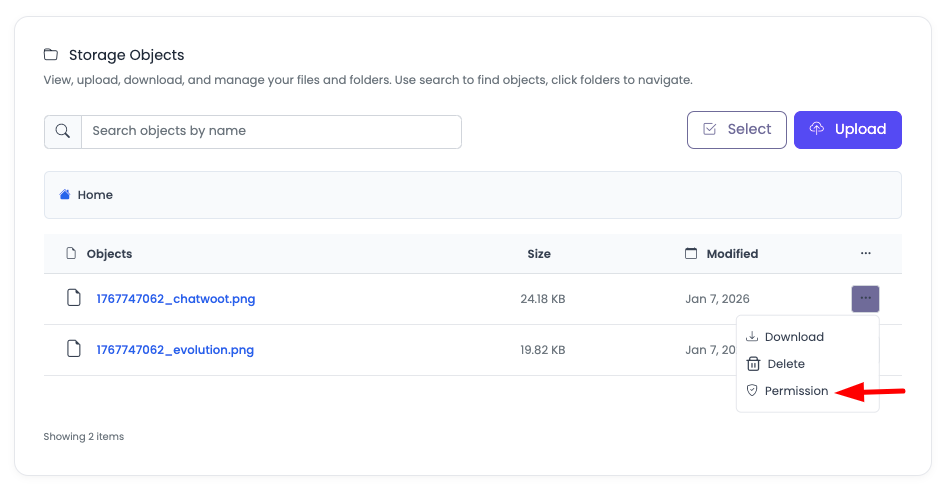
On the required object or folder, click on the three-dotted menu and select the option "Permission".
Step 3: View Permission Settings
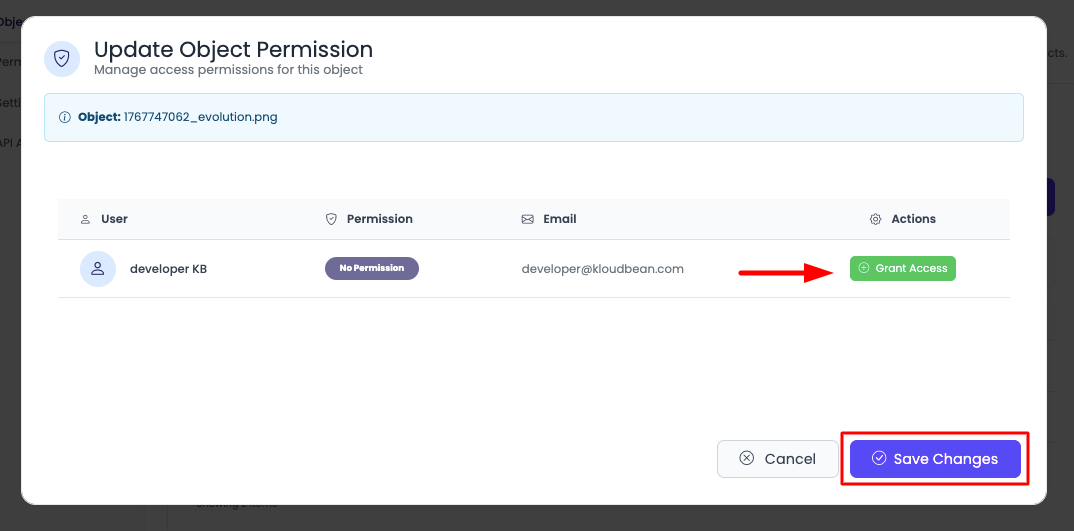
Once you click on it, it will open that particular object (file) or folder permissions set.
Managing Object Permissions
Granting Access
To grant access to a team member:
- Click "Grant access": Click on the "Grant access" button
- Select User: Choose the team member from the user list
- Select Permission Scope: Select the permission scope:
- Read: User can view and download the object/folder
- Write: User can modify, upload, and delete objects in the folder
- Read/Write: User has both read and write access
- Save Changes: Click "Save changes" to apply the permissions
Revoking Access
If a user already has access and you need to revoke it:
- Find User: Locate the user in the permissions list
- Click "Revoke access": Click on the "Revoke access" button for that user
- Confirm: Confirm the revocation
- Save Changes: Click "Save changes" to apply
The user will immediately lose access to that specific object or folder.
Permission Scopes
Read Permission
- View Access: User can view the object/folder
- Download Access: User can download files
- List Contents: User can list folder contents (for folders)
- No Modifications: User cannot modify, upload, or delete
- Use Case: For team members who need to view/download but not modify
Write Permission
- Modify Access: User can modify existing objects
- Upload Access: User can upload new objects to the folder
- Delete Access: User can delete objects
- No View Restriction: Typically includes read access
- Use Case: For team members who need to manage objects in specific folders
Read/Write Permission
- Full Access: User has both read and write access
- Complete Control: User can view, download, modify, upload, and delete
- Use Case: For team members who need full control over specific objects/folders
Folder vs File Permissions
File Permissions
When setting permissions on a file:
- Applies to File Only: Permissions apply only to that specific file
- Direct Access: User gets direct access to the file
- No Inheritance: Permissions don't apply to other files
Folder Permissions
When setting permissions on a folder:
- Applies to Folder Contents: Permissions apply to all objects within the folder
- Recursive Access: User can access all files and subfolders (depending on scope)
- Organized Access: Easier to manage access for multiple files
Use Cases
Scenario 1: Restricted Bucket Access
- Bucket Level: Team member has "Restricted" permission at bucket level
- Object Level: Grant specific access to required objects/folders
- Result: User can only access explicitly granted objects
Scenario 2: Project-Specific Access
- Project A Files: Grant access to
/project-a/folder for Developer A - Project B Files: Grant access to
/project-b/folder for Developer B - Shared Files: Grant read access to
/shared/folder for both developers
Scenario 3: Role-Based Object Access
- Designers: Read access to
/design-assets/folder - Developers: Read/Write access to
/code-assets/folder - Content Team: Read access to
/content/folder
Best Practices
Permission Management
- Principle of Least Privilege: Grant minimum necessary access
- Regular Reviews: Periodically review object-level permissions
- Document Access: Keep records of who has access to which objects
- Remove Unused Access: Revoke access when no longer needed
- Organize by Access: Group objects by access requirements
Folder Organization
- Logical Structure: Organize folders logically for easier permission management
- Project-Based: Use project-based folder structure
- Role-Based: Organize by team roles when applicable
- Clear Naming: Use clear, descriptive folder names
Security Recommendations
- Sensitive Data: Keep sensitive objects private or restrict access
- Public Objects: Only make necessary objects public
- Regular Audits: Conduct regular audits of object permissions
- Monitor Access: Monitor access to restricted objects
- Document Changes: Document permission changes for compliance
Troubleshooting
User Cannot Access Object
- Check Object Permissions: Verify user has been granted access to the object/folder
- Check Bucket Permissions: Ensure user has appropriate bucket-level permissions
- Permission Scope: Verify the permission scope (read/write) is correct
- Folder vs File: Check if permissions are set on the correct object/folder
- Save Changes: Confirm that changes were saved successfully
Permission Changes Not Applied
- Save Changes: Ensure you clicked "Save changes" after modifying permissions
- Wait a Moment: Allow a few seconds for changes to propagate
- Refresh Page: Refresh the page to see updated permissions
- Check User List: Verify user appears in the object permissions list
Cannot Grant Access
- Bucket Permissions: Ensure user has appropriate bucket-level permissions
- User Exists: Verify the user is added to your KloudBean account
- Admin Access: Ensure you have Administrator access to manage permissions
- Contact Support: If issues persist, contact support
Folder Permissions Not Working
- Check Folder Structure: Verify the folder structure is correct
- Recursive Access: Check if folder permissions apply recursively
- Subfolder Access: Verify subfolder permissions if needed
- Path Configuration: Ensure correct paths are configured
Next Steps
- Learn about Managing Bucket Permissions for bucket-level access control
- Explore Accessing and Downloading Objects to understand object access
- Review Uploading Objects for uploading files to your bucket