Accessing and Downloading Objects
Learn how to access and download objects from your S3-compatible storage buckets on KloudBean. Once you have uploaded objects, you can easily access and view them through the web dashboard.
Overview
If you have uploaded objects, you can access them and view them directly from the KloudBean dashboard. The dashboard provides a simple interface to browse objects, view their details, and access them via URLs for viewing or downloading.
Prerequisites
- An existing S3 bucket with uploaded objects
- Access to the bucket through KloudBean dashboard
- Appropriate permissions to view objects
Accessing Objects
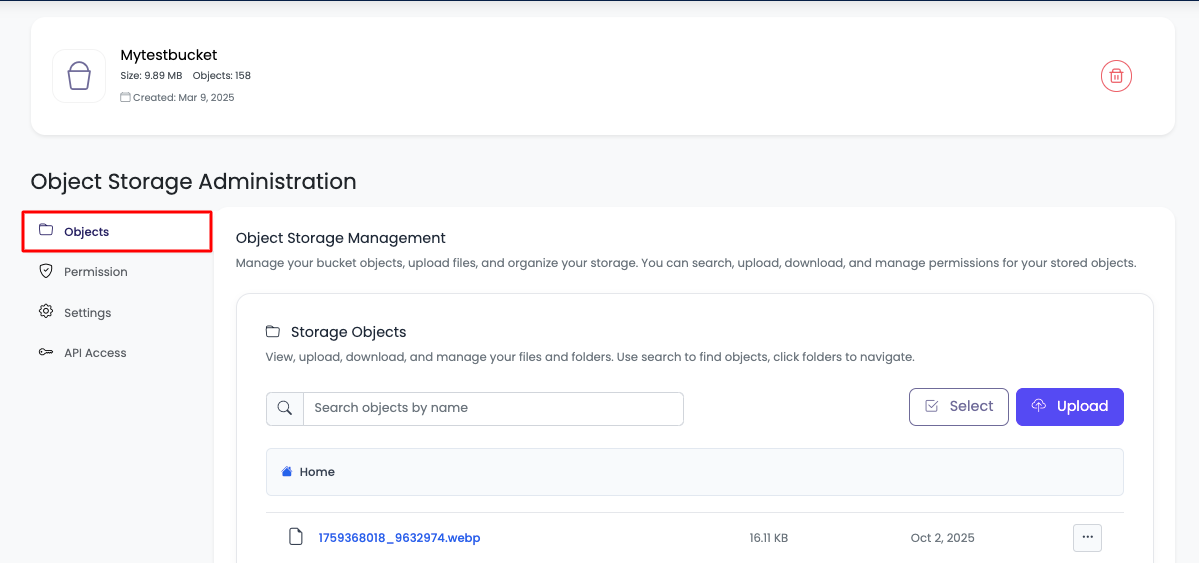
Step 1: Navigate to Objects
Navigate to "Object Storage Administration" → "Objects".
Step 2: View Object List
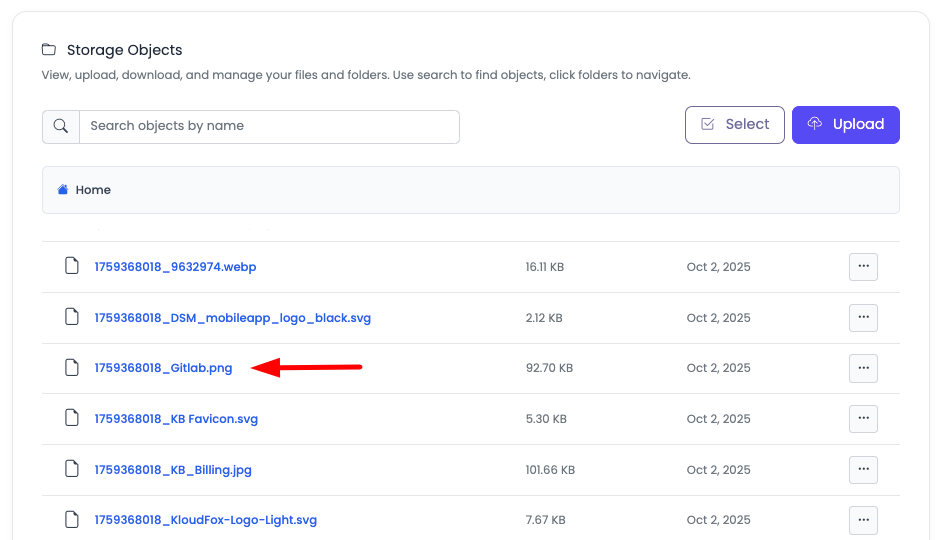
On this tab, you will see all the objects in the bucket. Click on the object to view it.
Step 3: View Object Details
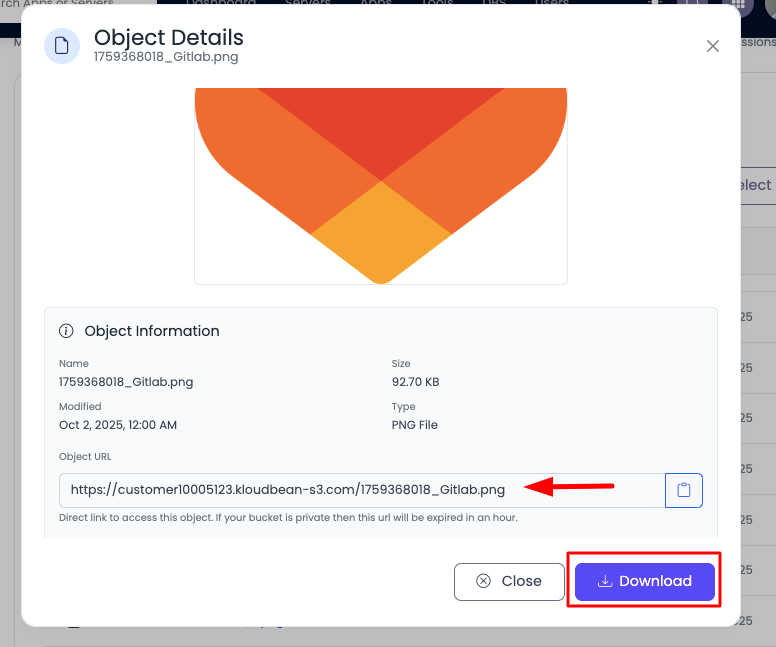
Once you click on an object, a prompt will open with the following information:
- Preview: Preview of that object (if supported by file type)
- Name: Object/file name
- Size: File size
- Modified Date: Last modification date
- Type: File type/content type
- Object URL: Direct URL to access the object
Understanding Object URLs
Public Bucket URLs
If the bucket is public, the Object URL will be a public URL. This means:
- Permanent Access: The URL does not expire
- Public Access: Anyone with the URL can access the object
- Direct Link: Can be shared and used directly
- Format: Typically follows the pattern
https://your-bucket-domain.kloudbean.com/object-path
Private Bucket URLs (Temporary)
If the bucket is not public, then a temporary URL will be given. This means:
- Temporary Access: The URL will expire in the next 30 minutes
- Secure Access: Only accessible during the validity period
- Time-Limited: After expiration, a new URL must be generated
- Use Case: For secure, time-limited access to private objects
Using Object URLs
Accessing Objects via URL
You can copy the Object URL and paste it in your browser to access it. From there, you can also easily download it:
- Copy URL: Click on the Object URL or copy it from the object details
- Paste in Browser: Paste the URL in your browser's address bar
- View Object: The browser will display or download the object
- Download: If the browser displays the object, you can use the browser's download option (right-click → Save As, or browser download button)
Downloading Objects
Method 1: Direct Download from URL
- Copy Object URL: Copy the URL from object details
- Open in Browser: Paste URL in browser
- Download: Use browser's download functionality
- Save File: Save the file to your desired location
Method 2: Download from Dashboard
- View Object Details: Click on object to view details
- Download Button: Look for download button (if available)
- Save File: Save the file to your computer
Object Preview
Supported File Types
The preview feature supports various file types:
- Images: JPEG, PNG, GIF, WebP, etc.
- Documents: PDF (may show preview or download option)
- Text Files: Plain text files
- Videos: Some video formats may show preview
- Other Types: May show file information or download option
Preview Limitations
- File Size: Very large files may not show preview
- Browser Support: Preview depends on browser capabilities
- File Type: Not all file types support preview
- Private Objects: Preview may be limited for private objects
Best Practices
Accessing Objects
- Use Public URLs: For public content, use permanent public URLs
- Temporary URLs: For private content, use temporary URLs and regenerate when needed
- Bookmark URLs: For frequently accessed public objects, bookmark the URLs
- Share URLs: Share public URLs with team members or clients as needed
Downloading Objects
- Check File Size: Be aware of file sizes before downloading
- Network Connection: Ensure stable connection for large files
- Verify Downloads: Verify downloaded files are complete
- Organize Downloads: Organize downloaded files appropriately
Security Considerations
- Private Objects: Keep private object URLs secure and don't share them
- URL Expiration: Be aware of temporary URL expiration times
- Access Control: Use appropriate bucket and object permissions
- Monitor Access: Monitor access to sensitive objects
Troubleshooting
Cannot View Object
- Check Permissions: Verify you have permission to view the object
- Bucket Access: Ensure bucket is accessible (public or you have access)
- Object Exists: Verify the object exists in the bucket
- Refresh Page: Try refreshing the page
URL Not Working
- Public Bucket: If bucket is public, URL should work permanently
- Private Bucket: If bucket is private, check if URL has expired (regenerate if needed)
- URL Format: Verify the URL is copied correctly
- Browser Issues: Try a different browser or clear cache
Temporary URL Expired
- Regenerate URL: Click on the object again to get a new temporary URL
- 30-Minute Limit: Remember that temporary URLs expire after 30 minutes
- Plan Access: Plan your access within the 30-minute window
- Use API: For programmatic access, use API keys for persistent access
Cannot Download Object
- Check Permissions: Verify download permissions
- Browser Settings: Check browser download settings
- File Size: Very large files may require different download methods
- Network Issues: Check network connectivity
Preview Not Showing
- File Type: Not all file types support preview
- Browser Support: Check if your browser supports the file type
- File Size: Very large files may not show preview
- Use Download: If preview doesn't work, use the download option
Understanding Access Types
Public Access
When a bucket is public:
- Permanent URLs: Object URLs are permanent and don't expire
- No Authentication: No authentication required to access
- Shareable: URLs can be shared publicly
- CDN Access: Objects are accessible via CDN
Private Access
When a bucket is private:
- Temporary URLs: Object URLs expire after 30 minutes
- Secure Access: Access is time-limited for security
- Regeneration: Need to regenerate URLs when they expire
- Authentication: May require authentication for API access
Next Steps
- Learn about Uploading Objects to your bucket
- Explore Managing Object Permissions for access control
- Review Configuring Bucket Public Access to understand public vs private access