Managing Bucket Permissions
Learn how to manage bucket permissions for team members on KloudBean. Grant access to team members working on different applications and buckets, and control their access levels.
Overview
Team Member Access
Access to the bucket means giving access to team members of your account. For example, multiple developers are working on different apps and have different buckets to work on. You can add them as team members in users and assign required bucket permissions to them.
This allows you to:
- Collaborate Securely: Share bucket access with team members
- Control Access Levels: Assign appropriate permissions based on roles
- Manage Multiple Projects: Different developers can work on different buckets
- Granular Control: Set specific permissions for each team member
Prerequisites
- An existing S3 bucket on KloudBean
- Admin access to the bucket
- Team members added to your KloudBean account
Accessing Permission Settings
Step 1: Navigate to Permissions
In order to manage bucket permissions, navigate to the "Object Storage Administration" page of the bucket → "Permission".
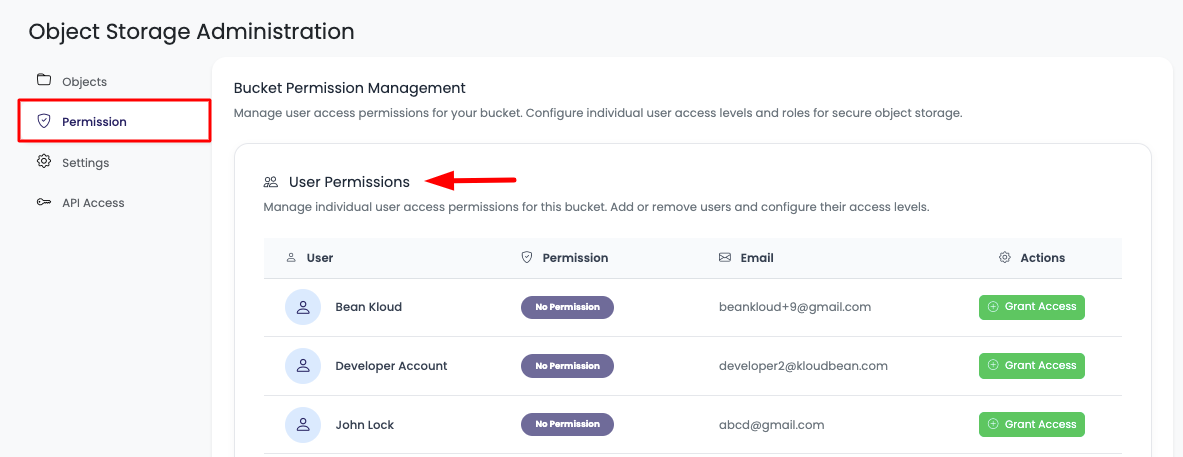
Here you will see the list of users and permission details.
Understanding Permission List
Permission Information Displayed
The following information will be displayed for each user:
- User: The username or name of the team member
- Permissions: Current permission level assigned to the user
- Email: Email address of the team member
- Action: Actions available for managing user access
Permission Status
Permissions will be either:
- "No permission": User has no access to the bucket
- "Admin": User has administrative access (or other permission levels)
Granting Access
Step 2: Grant Access to User
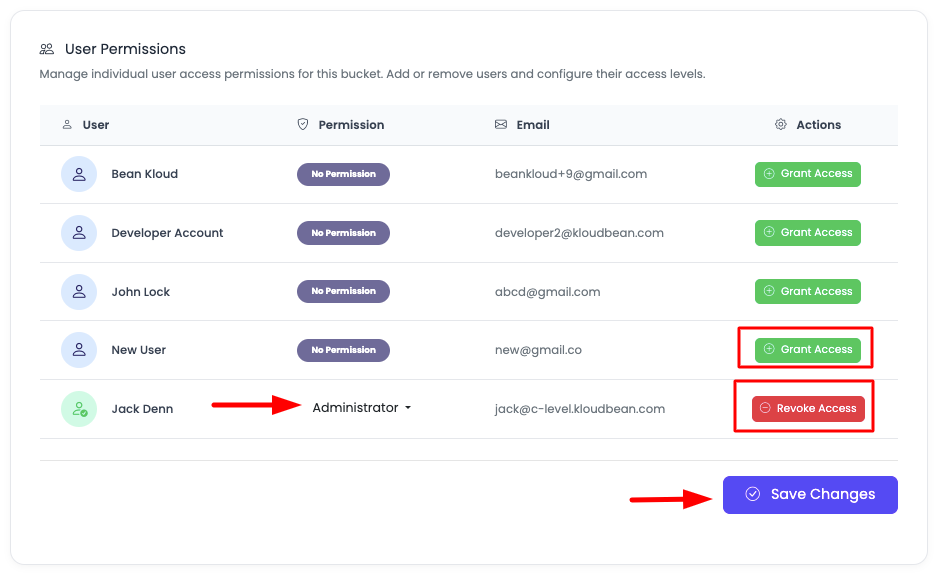
In order to grant permission, in the Action column, click on "Grant access".
By default, "Administration" access will be selected in the permissions column. From the dropdown, you can change the permission type to one of the following:
Permission Types
Administrator
- Full Access: Complete control over the bucket
- All Actions: Can upload, download, delete, and manage objects
- Permission Management: Can manage permissions for other users
- Settings Access: Can modify bucket settings
- Use Case: For team leads, project managers, or trusted developers
ReadOnly
- Read Access: Can view and download objects
- No Modifications: Cannot upload, delete, or modify objects
- No Settings: Cannot change bucket settings or permissions
- Use Case: For team members who need to view/download files but not modify them
Restricted
- Limited Access: Will get access to only those objects or folders which are explicitly given access to this user
- Granular Control: Access is limited to specific paths or objects
- Custom Permissions: Permissions are set per object or folder
- Use Case: For team members who should only access specific files or directories
Step 3: Apply Permissions
Select the required permission set and click "Save changes" to apply it.
The permissions will be applied immediately, and the user will be able to access the bucket according to the assigned permission level.
Managing Existing Permissions
Updating Permissions
Any time you need to update a user's access:
- Navigate to "Object Storage Administration" → "Permission"
- Find the user in the list
- Click on the Action button for that user
- Select the new permission level from the dropdown
- Click "Save changes" to apply the update
Revoking Access
To revoke access of any user:
- Navigate to "Object Storage Administration" → "Permission"
- Find the user in the list
- Click on the Action button for that user
- Change the permission to "No permission"
- Click "Save changes" to revoke access
The user will immediately lose access to the bucket.
Permission Management Best Practices
Security Recommendations
- Principle of Least Privilege: Grant minimum necessary permissions
- Regular Reviews: Periodically review who has access to your buckets
- Remove Unused Access: Revoke access for team members who no longer need it
- Document Access: Keep records of who has access and why
- Role-Based Access: Assign permissions based on job roles and responsibilities
Permission Strategy
- Start with ReadOnly: Grant ReadOnly access initially, upgrade as needed
- Use Restricted for Specific Needs: Use Restricted permission for users who only need specific files
- Administrator Sparingly: Only grant Administrator access to trusted team members
- Regular Audits: Conduct regular permission audits to ensure appropriate access
- Project-Based Access: Assign bucket access based on project needs
Team Collaboration
- Project Buckets: Assign developers to buckets relevant to their projects
- Clear Roles: Define clear roles and corresponding permission levels
- Access Documentation: Document why each team member has specific permissions
- Onboarding: Set up permissions as part of team member onboarding
- Offboarding: Revoke access when team members leave projects
Use Cases
Scenario 1: Multiple Developers on Different Apps
- Developer A: Working on App 1 → Grant Administrator access to Bucket A
- Developer B: Working on App 2 → Grant Administrator access to Bucket B
- Developer C: Needs to view files from both → Grant ReadOnly access to both buckets
Scenario 2: Content Team and Developers
- Developers: Administrator access to manage application assets
- Content Team: ReadOnly access to download and review assets
- Designers: Restricted access to specific design asset folders
Scenario 3: Client Access
- Client: ReadOnly access to view deliverables
- Project Manager: Administrator access to manage all project files
- Team Members: Appropriate access based on their role
Troubleshooting
User Cannot Access Bucket
- Check Permissions: Verify user has been granted appropriate permissions
- Permission Level: Ensure permission level allows the required actions
- Save Changes: Confirm that changes were saved successfully
- Refresh: Ask user to refresh or log out and log back in
- Contact Admin: If issues persist, contact bucket administrator
Permission Changes Not Applied
- Save Changes: Ensure you clicked "Save changes" after modifying permissions
- Wait a Moment: Allow a few seconds for changes to propagate
- Refresh Page: Refresh the page to see updated permissions
- Check User List: Verify user appears in the permission list
Cannot Grant Access
- Admin Access: Ensure you have Administrator access to the bucket
- User Exists: Verify the user is added to your KloudBean account
- Bucket Access: Confirm you have access to manage bucket permissions
- Contact Support: If issues persist, contact support
Restricted Permission Not Working
- Explicit Access: Ensure specific objects/folders have been granted access
- Path Configuration: Verify the correct paths are configured for restricted access
- Permission Level: Confirm Restricted permission is properly set
- Review Settings: Check object-level permissions for restricted users
Next Steps
- Learn about Updating Object Permissions for object-level access control
- Explore Generating Access API Keys for programmatic access
- Review Uploading Objects to understand upload capabilities