Controlling Database Access
Learn how to control and manage access to your database on KloudBean. KloudBean provides a very straightforward and simple way to manage your database access.
Overview
Controlling database access is crucial for maintaining security and ensuring that only authorized users and applications can connect to your database. KloudBean provides a straightforward and simple way to manage your database access.
Important: Any access to your database is disabled by default. You have to enable access as per your requirement.
Why Access Control Matters:
- Security: Protects your database from unauthorized access
- Data Protection: Prevents data breaches and unauthorized data access
- Compliance: Meets security and compliance requirements
- Access Management: Control who can access your database and from where
- Risk Mitigation: Reduces the risk of security incidents
Prerequisites
- An active database instance on KloudBean
- Admin access to your KloudBean account
- Understanding of your access requirements
- IP addresses that need access to your database
Accessing Database Firewall Settings
Step 1: Navigate to Firewall Section
In order to update your database access, navigate to database administration → Firewall.
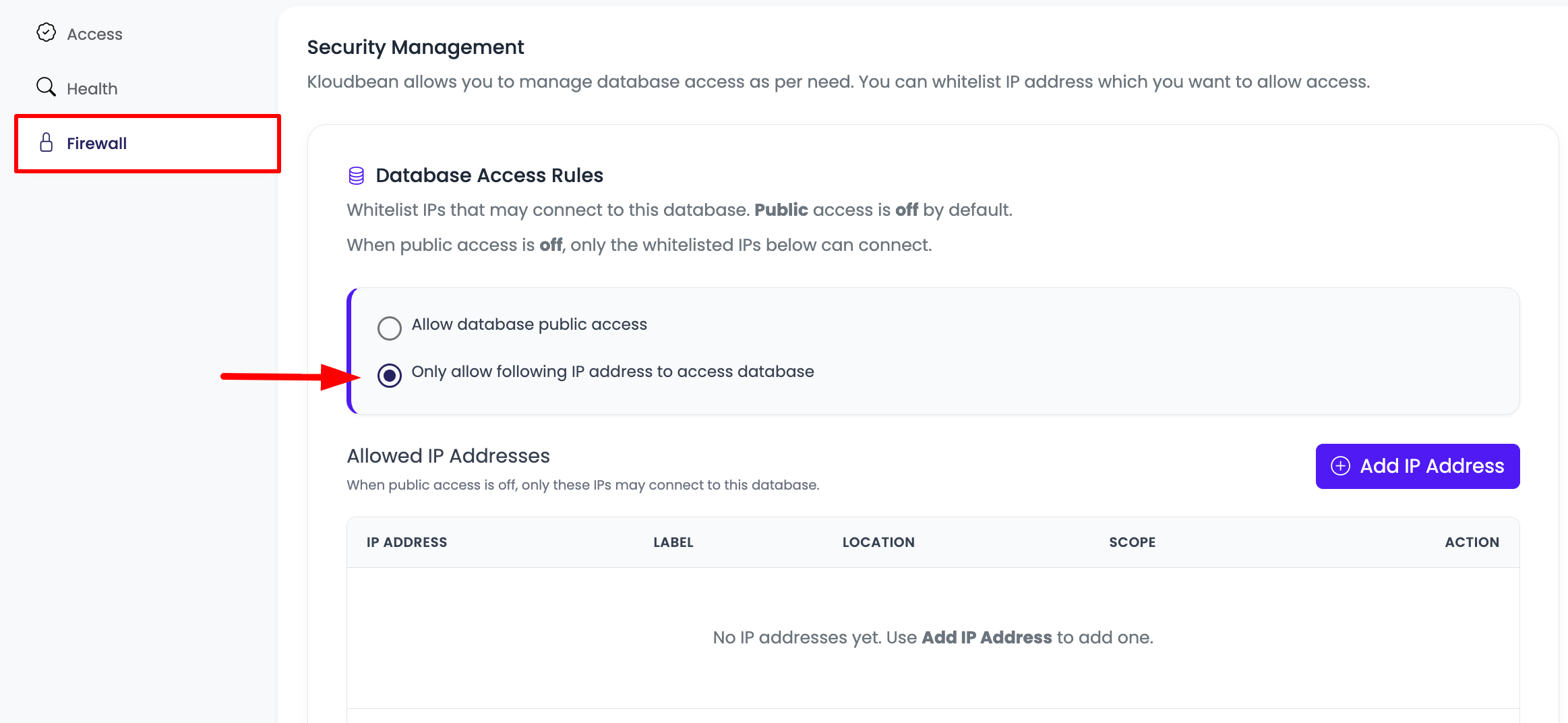
Steps:
- Log in to your KloudBean dashboard
- Navigate to Databases: Go to the Databases section
- Select Your Database: Click on your database instance
- Go to Firewall: Navigate to "Firewall" tab in database administration
On this section you will see following 2 options:
- Allow database public access
- Only allow following IP address to access database
Option 1: Allow Database Public Access
Overview
If you intend to allow public access, then select first option and click save changes. Now you will be able to access database from anywhere.
Understanding Public Access Risks
However, this is a risky approach.
Security Risks of Public Access:
- Exposure to Internet: Your database becomes accessible from anywhere on the internet
- Attack Surface: Significantly increases your attack surface
- Brute Force Attacks: Exposes your database to brute force password attacks
- Unauthorized Access: Anyone with your credentials can access your database
- Data Breaches: Higher risk of data breaches and unauthorized data access
- Compliance Issues: May violate data protection regulations (GDPR, CCPA, etc.)
- No IP Control: You cannot control which IP addresses can access
- Monitoring Challenges: Harder to monitor and track access
When Public Access Might Be Acceptable:
- Development/Testing: Only for non-production environments
- Temporary Access: For specific, time-limited tasks
- With Additional Security: Combined with:
- Very strong passwords
- SSL/TLS encryption (mandatory)
- Regular security audits
- Monitoring and alerting
- Rate limiting
Recommendations:
- Avoid in Production: Never use public access for production databases
- Use IP Whitelisting: Always prefer IP whitelisting over public access
- Strong Security: If you must use public access, implement additional security measures
- Regular Monitoring: Monitor access logs regularly for suspicious activity
- Quick Disable: Be ready to disable public access immediately if needed
Best Practice: The best option is to go with the second one (IP Whitelisting).
Option 2: Only Allow Following IP Address to Access Database (Recommended)
Overview
If you select this option, you will see there is option to add IP addresses. You can add as many IP addresses as you want.
This is the recommended and secure approach for database access control.
Benefits of IP Whitelisting
Security Benefits:
- Controlled Access: Only specific, trusted IP addresses can access
- Reduced Attack Surface: Significantly reduces exposure to attacks
- Better Security: Much more secure than public access
- Access Control: You have complete control over who can access
- Compliance: Meets security and compliance requirements
- Monitoring: Easier to monitor and track access from known IPs
Operational Benefits:
- Flexible: Add or remove IP addresses as needed
- Multiple IPs: Support for multiple IP addresses
- Easy Management: Simple interface to manage IP whitelist
- Quick Updates: Add or remove access quickly
Step 1: Add IP Addresses
Add IP address in "Add IP address to whitelist" field and click add button. Start adding all the required IP addresses.
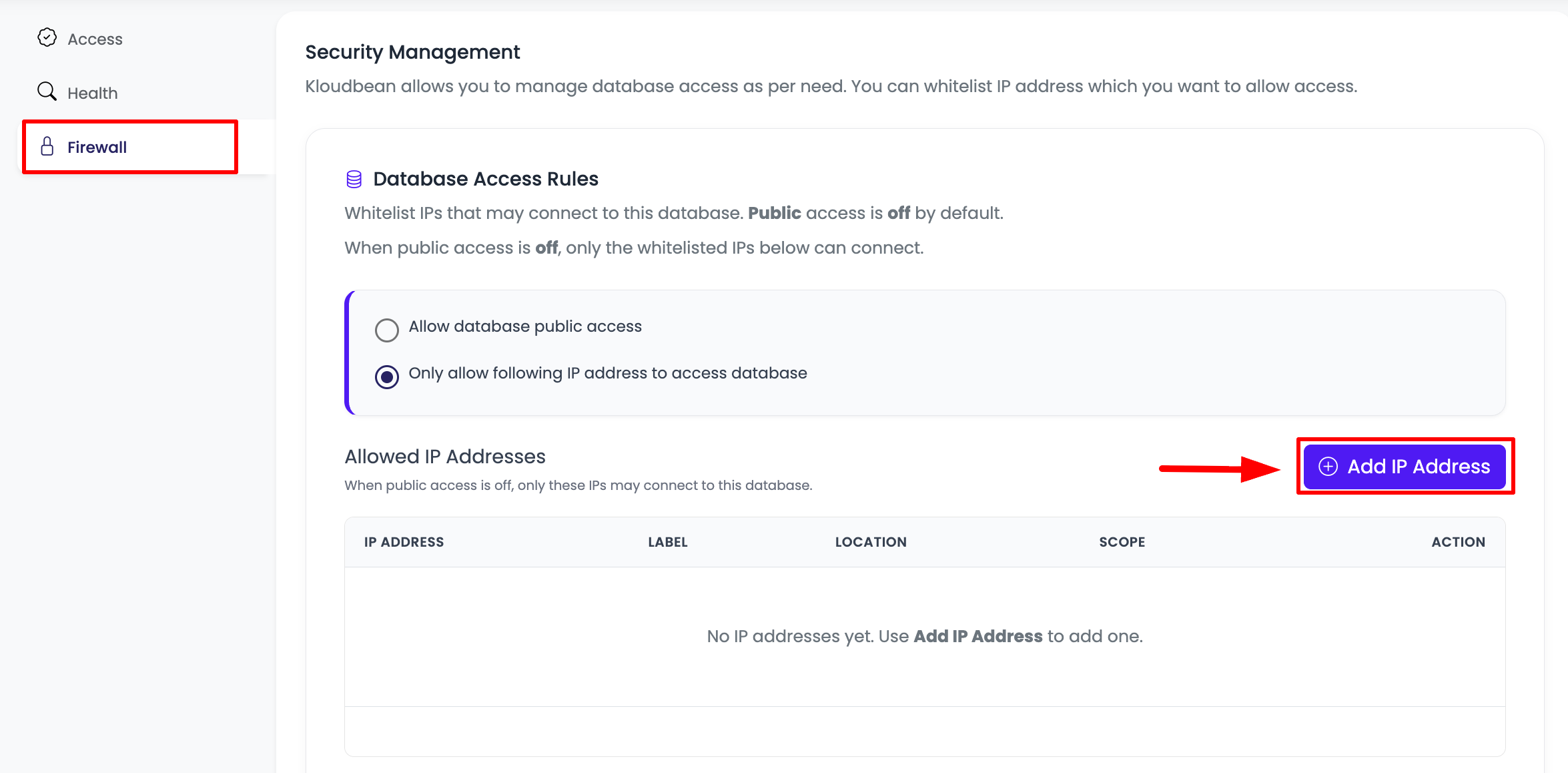
Adding IP Addresses:
- Enter IP Address: Type the IP address in the "Add IP address to whitelist" field
- Single IP: Enter exact IP address (e.g.,
192.168.1.100)
- Single IP: Enter exact IP address (e.g.,
- Click Add Button: Click the "Add" button to add the IP address
- Repeat: Continue adding all required IP addresses
- Multiple IPs: You can add as many IP addresses as needed
Common IP Addresses to Whitelist:
- Application Server IP: IP address of your application server
- Development Machine IP: Your local development machine IP
- Office Network IP: Office network IP address (if accessing from office)
- VPN IP: VPN server IP address (if using VPN)
- CI/CD Server IP: Continuous integration/deployment server IP
- Monitoring Tools IP: IP addresses of monitoring and management tools
Important Notes:
- Dynamic IPs: If your IP address changes frequently, you may need to update it regularly
- IP Verification: Verify IP addresses are correct before adding
- Documentation: Keep track of which IP addresses are whitelisted and why
Step 2: Save Changes
Once added, click on "Save changes" button, and your IP addresses will be whitelisted.
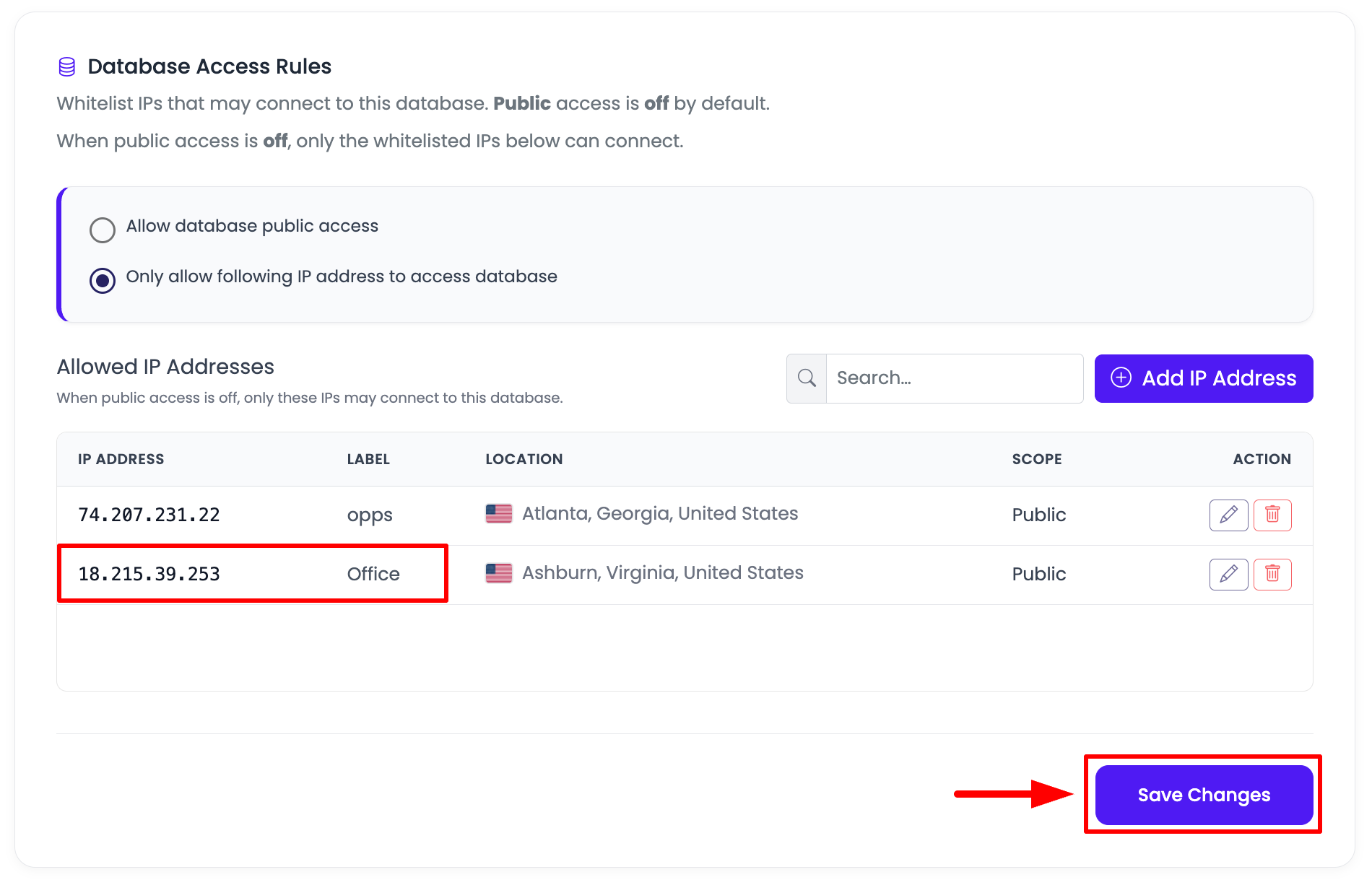
After Saving:
- Immediate Effect: Changes take effect immediately
- Access Enabled: Whitelisted IP addresses can now access the database
- Verification: Test database connection from whitelisted IPs
- Confirmation: Verify that access is working correctly
Removing IP Addresses:
- Remove Access: To remove an IP address, simply remove it from the list
- Save Changes: Click "Save changes" to apply the removal
- Immediate Effect: Access is revoked immediately after saving
Access Management Best Practices
Importance of Access Management
Access management is crucial for database security and should be taken seriously.
Why Access Management Matters:
- Security First: Database access is a critical security control point
- Data Protection: Proper access control protects your sensitive data
- Compliance: Required for meeting security and compliance standards
- Risk Reduction: Reduces the risk of unauthorized access and data breaches
- Audit Trail: Helps maintain audit trails for security compliance
Keeping Database Credentials Hidden
Don't share database credentials with anyone.
Credential Security Best Practices:
- Never Share: Never share database credentials via email, chat, or insecure channels
- Use Environment Variables: Store credentials in environment variables, not in code
- Access Control: Only share credentials with authorized team members who need access
- Secure Storage: Store credentials in secure password managers
- Rotation: Regularly rotate database passwords
- Principle of Least Privilege: Only grant access to those who absolutely need it
Where to Store Credentials:
- Environment Variables: Use
.envfiles or environment variables in your application - Secret Management: Use secret management tools (AWS Secrets Manager, HashiCorp Vault, etc.)
- Secure Config Files: Store in secure configuration files with proper permissions
- Never in Code: Never hardcode credentials in source code
- Version Control: Never commit credentials to version control (Git, SVN, etc.)
Credential Sharing Guidelines:
- Authorized Personnel Only: Only share with authorized team members
- Secure Channels: Use secure channels for sharing (encrypted messages, secure file sharing)
- Temporary Access: Consider providing temporary access when possible
- Documentation: Document who has access and why
- Regular Review: Regularly review who has access to credentials
What to Do If Access Is Compromised
If you see any password leaked or any access breaks, immediately reach out to KloudBean support team.
Immediate Actions:
- Contact Support: Immediately contact KloudBean support team
- Change Password: Change database password immediately (if you have access)
- Review Access: Review and remove any unauthorized IP addresses
- Disable Public Access: If public access is enabled, disable it immediately
- Audit Logs: Review access logs for suspicious activity
- Notify Team: Notify your team about the security incident
KloudBean Support Will:
- Investigate: Investigate the security incident
- Assist with Recovery: Help you secure your database
- Change Credentials: Help change database credentials if needed
- Review Access: Review and update access controls
- Security Recommendations: Provide security recommendations
Prevention:
- Regular Password Changes: Change passwords regularly
- Monitor Access: Regularly monitor database access logs
- Review Whitelist: Periodically review IP whitelist
- Security Audits: Conduct regular security audits
- Team Training: Train team on security best practices
Security Best Practices
General Security
- IP Whitelisting: Always use IP whitelisting instead of public access
- Strong Passwords: Use strong, unique passwords for database users
- SSL/TLS: Enable SSL/TLS encryption for all database connections
- Regular Updates: Keep database software updated
- Access Reviews: Regularly review and audit access controls
Access Control
- Principle of Least Privilege: Grant minimum necessary access
- Remove Unused Access: Remove IP addresses that are no longer needed
- Document Access: Keep records of who has access and why
- Regular Audits: Conduct regular access audits
- Monitor Access: Monitor database access logs regularly
Credential Management
- Secure Storage: Store credentials securely
- Never Share: Don't share credentials unnecessarily
- Rotation: Rotate passwords regularly
- Environment Variables: Use environment variables for credentials
- Secret Management: Use secret management tools when possible
Troubleshooting
Cannot Connect to Database
If you cannot connect to your database:
- Check IP Whitelist: Verify your IP address is whitelisted
- Check IP Address: Verify you're using the correct IP address
- Dynamic IP: If your IP changes, update the whitelist
- Firewall Settings: Verify firewall settings are saved correctly
- Test Connection: Test connection from whitelisted IP
Common Issues:
- IP Not Whitelisted: Your IP address is not in the whitelist
- IP Changed: Your IP address has changed (dynamic IP)
- Wrong IP: You're using the wrong IP address
- Settings Not Saved: Firewall settings were not saved properly
Access Denied Errors
If you get access denied errors:
- Verify IP: Check that your IP is whitelisted
- Check Credentials: Verify database credentials are correct
- Review Firewall: Check firewall settings
- Contact Support: Reach out to KloudBean support if issues persist
Public Access Issues
If public access is enabled but you still can't connect:
- Verify Settings: Check that public access is actually enabled
- Check Credentials: Verify database credentials
- Network Issues: Check network connectivity
- Contact Support: Contact KloudBean support for assistance
Next Steps
After configuring database access:
- Learn about Monitoring Database Server Health to track database performance
- Review Launching MySQL for database setup guides
- Explore other database management guides for optimization tips