Configuring URL Redirects and Rewrites
Learn how to route requests from one path to another using KloudBean's Redirect Rules. You can send visitors to a new URL with a permanent (301) or temporary (302) redirect, or quietly rewrite a request server-side without changing the address in the browser. Rules are applied at the web-server (nginx) level, so they run fast and work for every application type.
Overview
Redirects tell the browser (or the server) that a request for one path should be served from another. KloudBean supports three types:
- Permanent (301): Tells browsers and search engines the move is permanent. The browser is sent to the new URL and the change is cached aggressively. Best for permanently moved pages and for preserving SEO.
- Temporary (302): Tells browsers the move is temporary and should not be cached. The browser is sent to the new URL. Best for short-term redirects, maintenance pages, or while you are testing.
- Internal (rewrite): Serves a different resource server-side without changing the URL in the address bar. The visitor stays on the original path but receives content from the destination.
Common use cases include moving a page to a new location, consolidating old URLs after a redesign, pointing a marketing path at a campaign page, or serving a subpath from a different location transparently.
Prerequisites
Before adding redirect rules, ensure you have:
- An Active KloudBean Application: Your application must be created and running.
- Access to the Application Dashboard: You need to be logged in to your KloudBean account.
- The Source and Destination Paths: Know which path you want to redirect and where it should go.
Accessing Redirect Rules
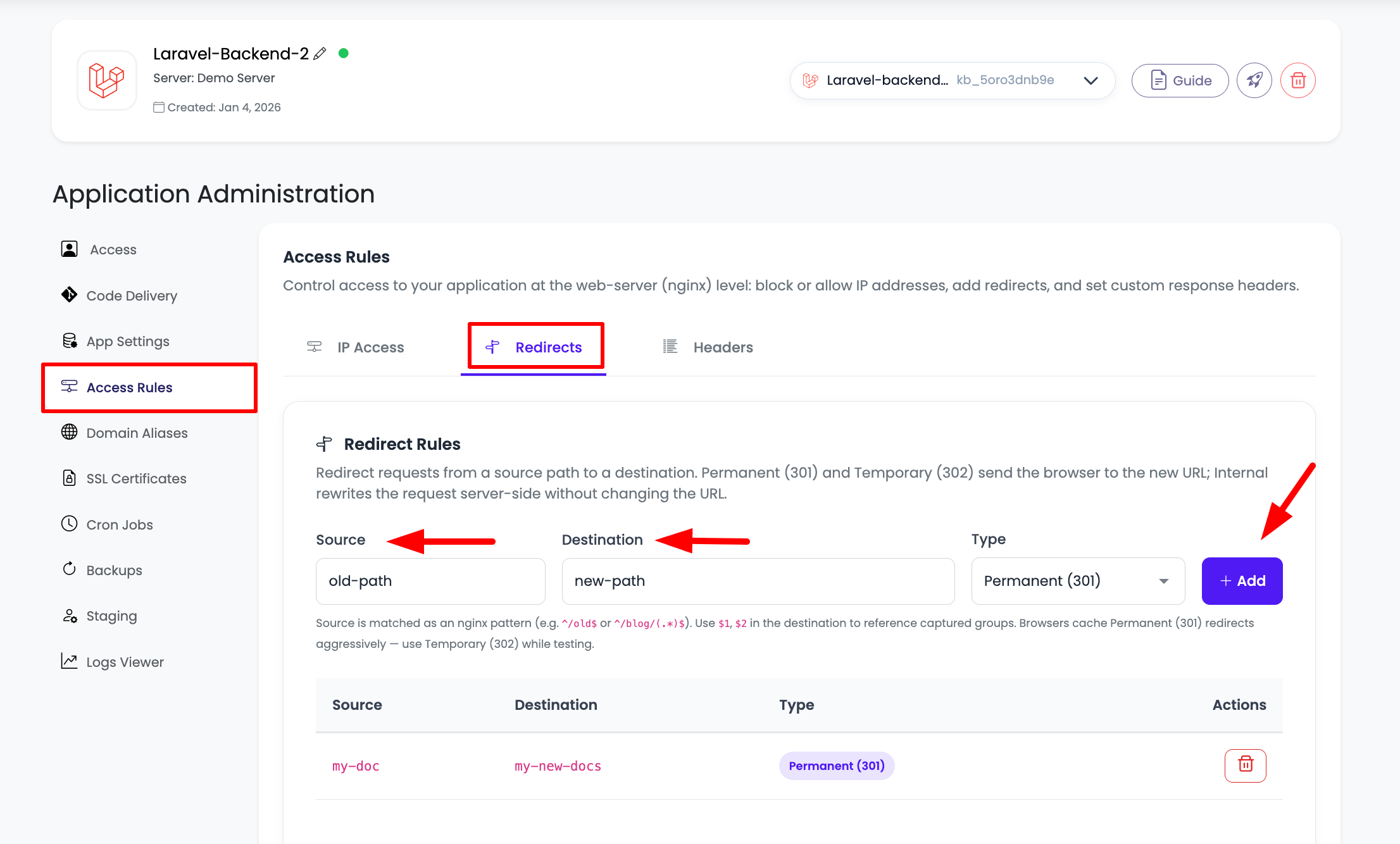
- Navigate to Application Administration: Log in to your KloudBean dashboard and open the application administration page for your desired application.
- Open Access Rules: In the left-hand menu, click "Access Rules".
- Select the Redirects Tab: At the top of the Access Rules panel, click the "Redirects" tab.
Adding a Redirect Rule
The Redirects tab gives you three inputs — Source, Destination, and Type — plus an Add button.
- Enter the Source: The path or pattern to match, for example
^/old-path$. - Enter the Destination: Where the request should go, for example
/new-pathor a full URL likehttps://example.com/new. - Choose the Type: Select Permanent (301), Temporary (302), or Internal from the dropdown.
- Click "Add": The rule is added to the table below the form. Both source and destination are required.
- Click "Save Changes": The rule only takes effect once you save. KloudBean applies it at the nginx level within a few seconds.
Adding a rule to the list is not enough — you must click "Save Changes" to activate it. You can queue up several rules and save them together.
Understanding Source Patterns
The Source is matched as an nginx pattern, which gives you flexibility beyond exact paths.
- Exact match:
^/old-page$matches only/old-page. - Prefix match:
^/blogmatches any path starting with/blog. - Capture groups:
^/blog/(.*)$captures whatever follows/blog/.
Using Capture Groups
When your source pattern contains groups in parentheses, you can reference them in the destination with $1, $2, and so on. This lets you preserve part of the original path.
Example — move an entire blog section to a new prefix:
- Source:
^/blog/(.*)$ - Destination:
/news/$1 - Type: Permanent (301)
A request for /blog/my-first-post is redirected to /news/my-first-post.
Avoid catch-all sources such as /, .*, or ^/.*$. A pattern that matches every request would redirect your entire site and can make it unreachable. KloudBean blocks obvious catch-all patterns, but you should always target a specific path. Source and destination also cannot contain characters like ;, {, }, ", or line breaks.
Choosing the Right Type
| Type | What the visitor sees | Cached by browser | Best for |
|---|---|---|---|
| Permanent (301) | Address bar changes to the destination | Yes, aggressively | Pages that moved for good; SEO-friendly moves |
| Temporary (302) | Address bar changes to the destination | No | Short-term redirects, maintenance, testing |
| Internal | Address bar stays the same | N/A | Serving content from another path transparently |
Browsers cache Permanent (301) redirects aggressively, so a wrong 301 can be hard to undo in a visitor's browser. Use Temporary (302) while you are testing a redirect, then switch it to 301 once you have confirmed it behaves correctly.
Managing Existing Rules
All saved rules appear in a table showing the Source, Destination, and Type.
- Review: Confirm each rule points where you expect.
- Delete: Click the trash icon in the Actions column to remove a rule.
- Save after changes: After adding or removing rules, click "Save Changes" to apply the updated set.
Example Scenarios
Redirect a Single Moved Page (Permanent)
- Source:
^/pricing-old$ - Destination:
/pricing - Type: Permanent (301)
Send a Section to a New Location While Keeping Sub-paths
- Source:
^/docs/(.*)$ - Destination:
/help/$1 - Type: Permanent (301)
Temporarily Route Traffic During Maintenance
- Source:
^/checkout$ - Destination:
/maintenance - Type: Temporary (302)
Serve a Path Transparently (Internal Rewrite)
- Source:
^/promo$ - Destination:
/campaigns/summer-sale - Type: Internal
Visitors stay on /promo in the address bar but receive the campaign page content.
Troubleshooting
- Redirect did not apply: Confirm you clicked "Save Changes" after adding the rule.
- Old redirect still happening after you changed it: The browser cached a Permanent (301) redirect. Clear your browser cache or test in a private/incognito window. Use 302 during testing to avoid this.
- Rule rejected when adding: Your source may be a blocked catch-all pattern, or the source/destination contains invalid characters (
;,{,},", or newlines). Use a specific path and try again. - Redirect loop: Make sure the destination does not itself match the source pattern, which would cause the request to redirect endlessly.
- Capture groups not working: Confirm the source pattern actually contains a group in parentheses, and that the destination references it with
$1,$2, in order.
Best Practices
- Be specific with source patterns to avoid unintentionally matching more than you intend.
- Test with 302 first, then promote to 301 once confirmed.
- Anchor your patterns with
^and$to match precisely. - Preserve SEO by using 301 for permanent moves so search engines transfer ranking to the new URL.
- Keep the list tidy: Remove rules you no longer need to keep the configuration easy to follow.
Next Steps
After configuring redirects, continue managing your application's access and responses:
- Set up IP-based access rules to control who can reach the site.
- Add Custom and Security Response Headers to harden your application.
- Review Managing Application Domains and Aliases to configure the domains these rules apply to.