VPN Access
KloudBean Enterprise gives your team secure, controlled access to your private infrastructure through a fully managed VPN. Instead of exposing servers to the public internet, access is delivered over a Zero Trust network: each developer installs a lightweight VPN client, signs in with KloudBean's own identity provider (protected by multi-factor authentication), and can then reach only the servers they've been granted.
VPN access is part of the VPN and Fully Secured Environment capability included with the Enterprise plan. See What's Included in the Enterprise Plan for the full feature set, and Upgrading to the Enterprise Plan to get started.
Overview
Access is built on the Cloudflare WARP client combined with KloudBean's own identity provider:
- KloudBean provides and operates its own identity provider — you sign in with your KloudBean credentials, not a third-party login.
- Your servers have no public access — they are reachable only from inside the VPN.
- Every connection is authenticated and protected with MFA.
- Access is scoped — developers can reach only the servers assigned to their team.
Keep these handy — you'll use the team name during enrollment and sign in through KloudBean's identity provider:
- Identity provider: https://idp.kloudbean.net
- Team name:
kloudbean - WARP login URL: https://kloudbean.cloudflareaccess.com/warp
Before You Begin
Make sure you have:
- KloudBean identity provider credentials (email and password), provided during onboarding.
- An authenticator app for MFA — Google Authenticator, Microsoft Authenticator, Authy, or 1Password.
- Your server details — private IP address, SSH username, and SSH key (or password).
Step 1 — Install the Cloudflare WARP Client
macOS / Windows
- Download Cloudflare WARP from https://1.1.1.1/.
- Run the installer and accept the defaults.
- Launch Cloudflare WARP — a cloud icon appears in your menu bar (macOS) or system tray (Windows).
Linux
Install from Cloudflare's package repository by following the official WARP for Linux instructions.
iOS / Android
Install the Cloudflare One Agent app from the App Store or Google Play.
Step 2 — Enroll Your Device with Your Team
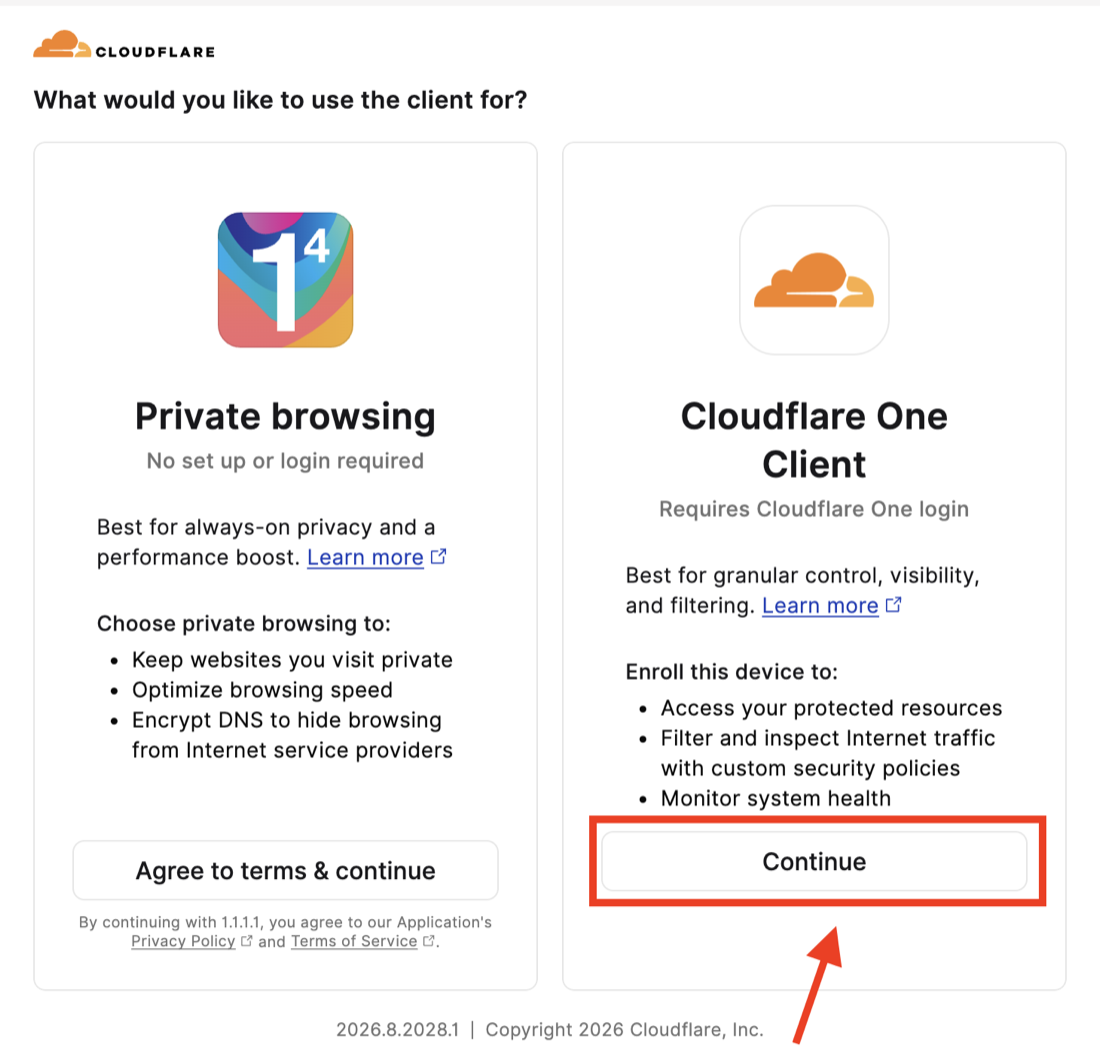
When WARP first opens, it asks how you want to use the client.
- Choose Cloudflare One Client and click Continue.
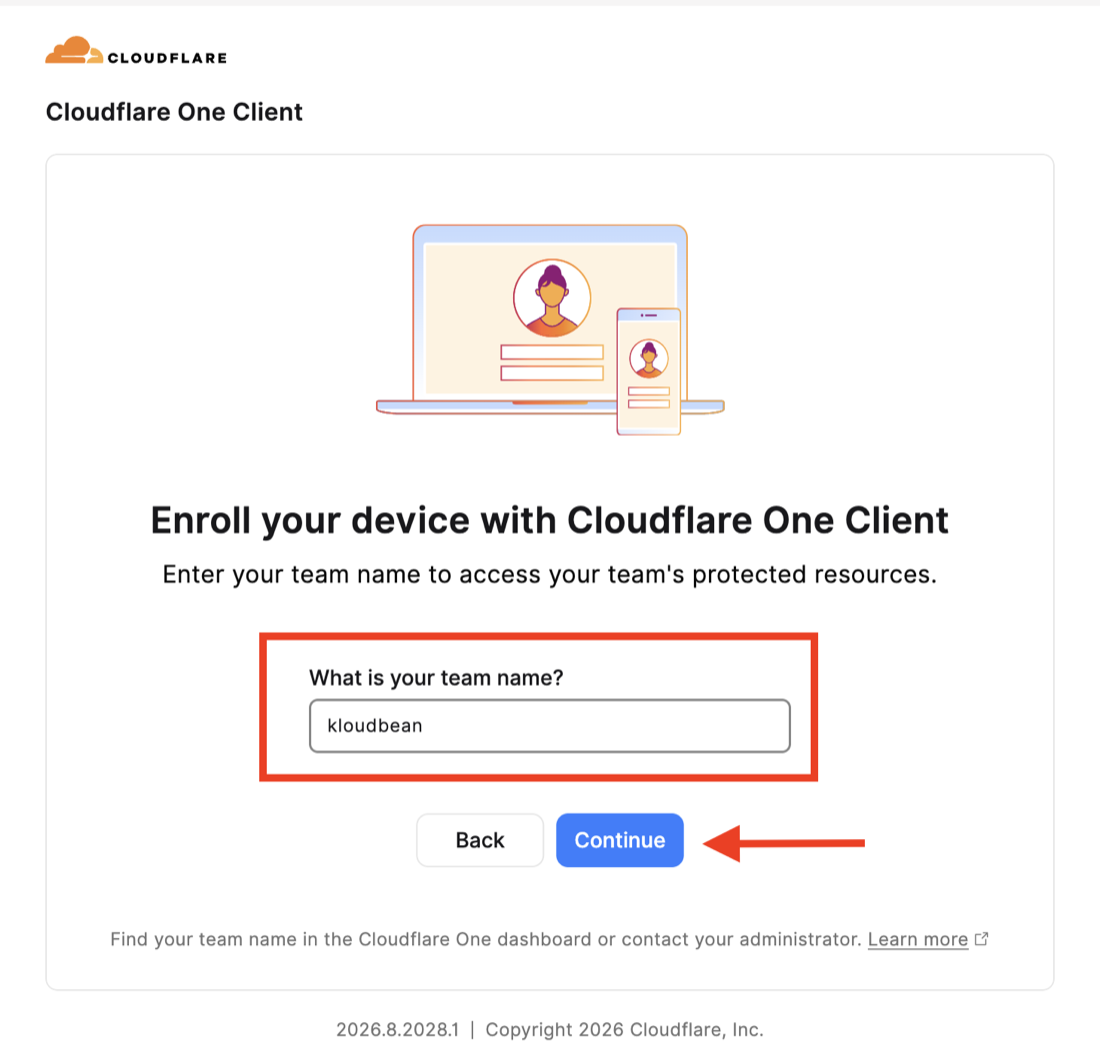
- Enter your team name — it is
kloudbean— and click Continue.
You can also start enrollment from your browser by opening the WARP login URL: https://kloudbean.cloudflareaccess.com/warp
Step 3 — Sign In with KloudBean and Set Up MFA
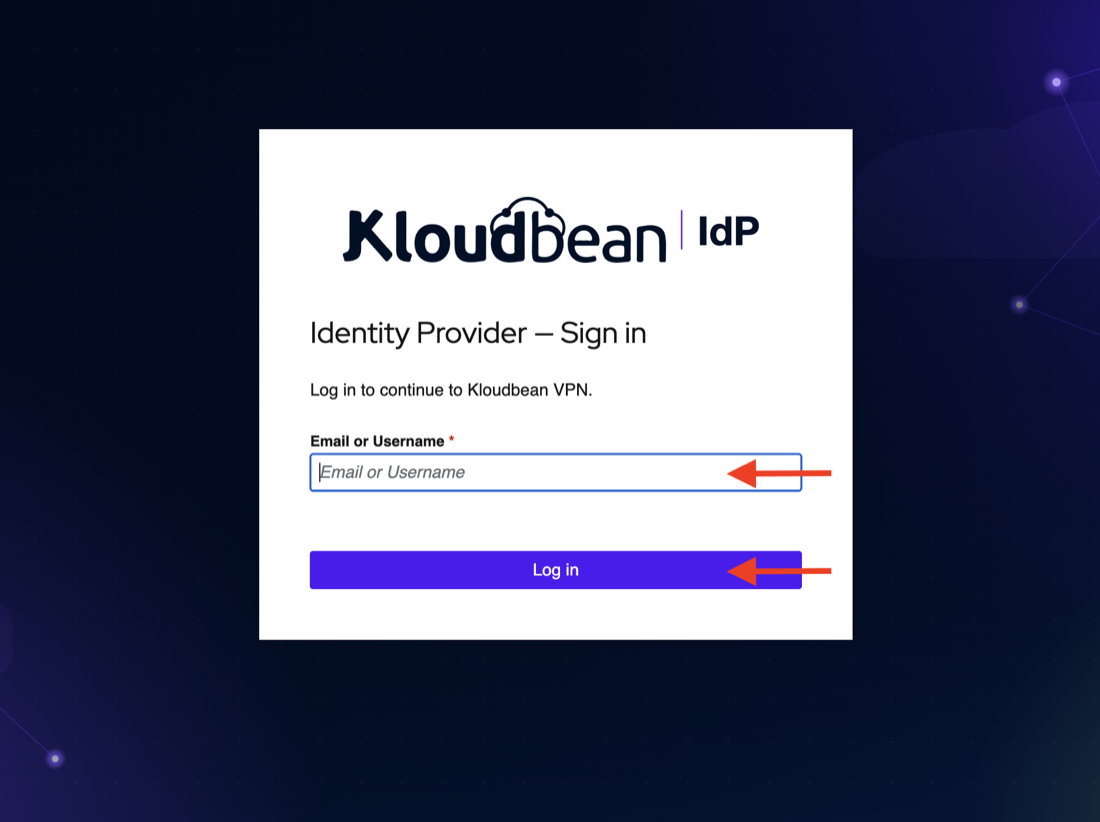
Your browser opens KloudBean's identity provider at https://idp.kloudbean.net.
- Enter your KloudBean email, click Log in, then enter your password.
- First time only — set up MFA: scan the QR code with your authenticator app, enter the 6-digit code to confirm, and store any backup codes safely. On later sign-ins, just enter the current 6-digit code.
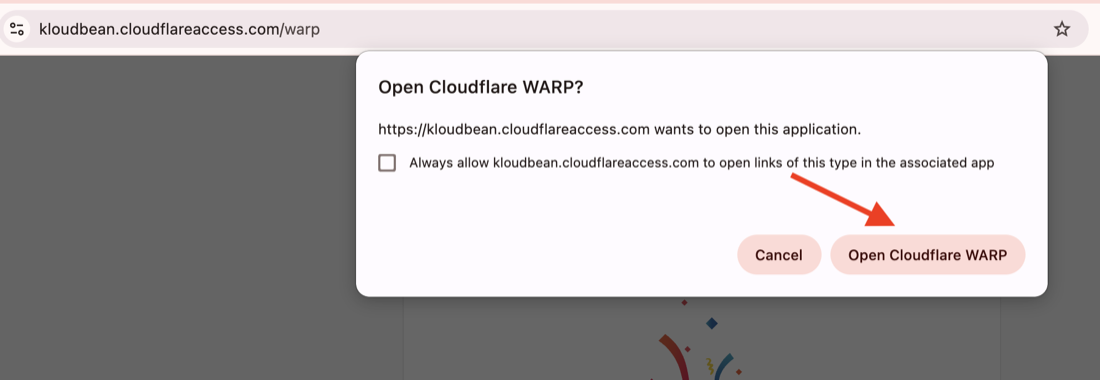
- When authentication succeeds, your browser asks to reopen the app. Click Open Cloudflare WARP.
Step 4 — Connect to the Network
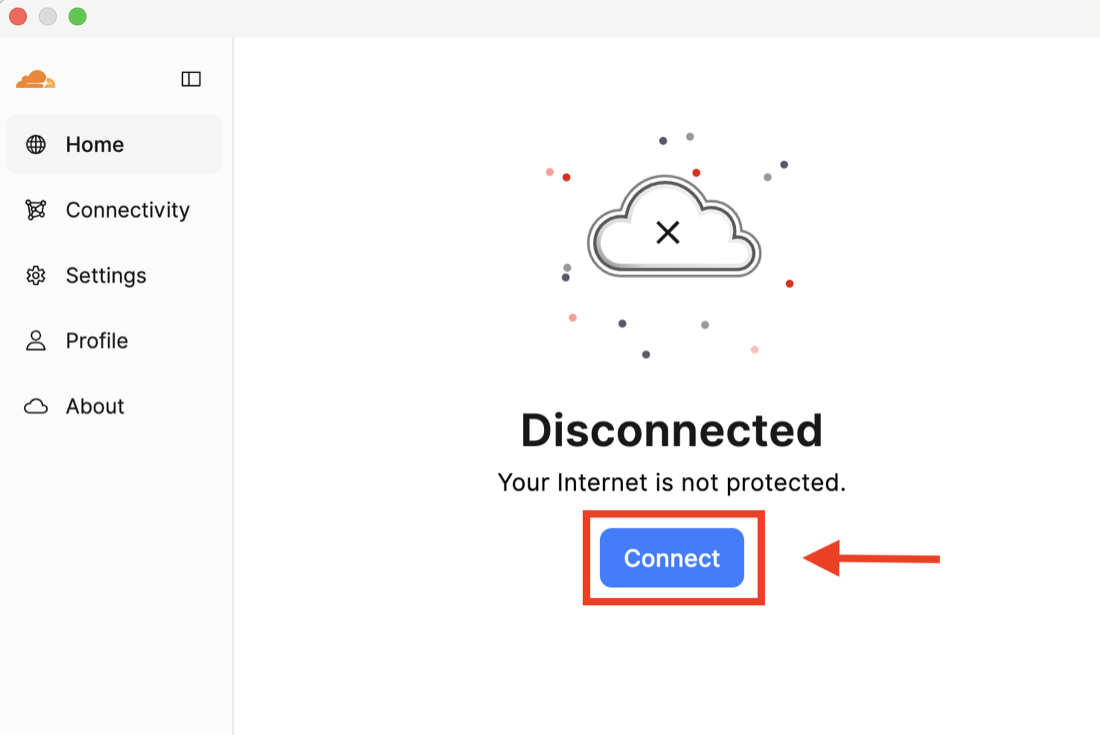
Back in the WARP app, you'll see a Disconnected state.
- Toggle/click Connect.
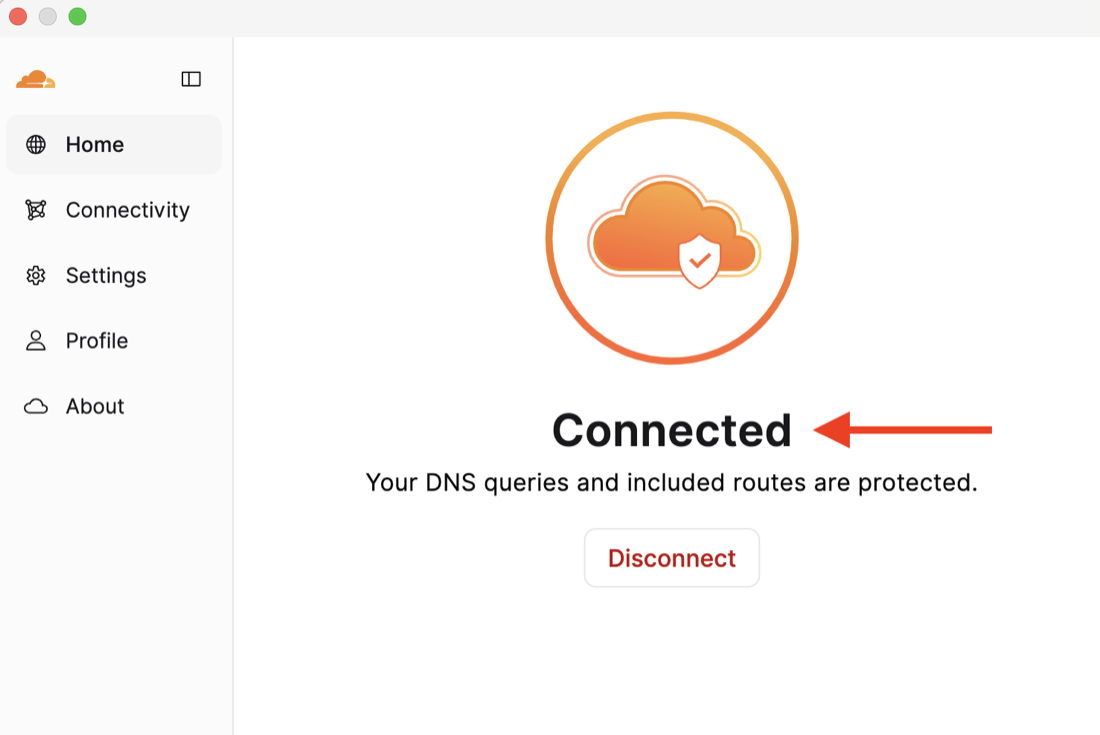
- The client switches to Connected — you're now on the secure network.
Step 5 — Verify Your Connection
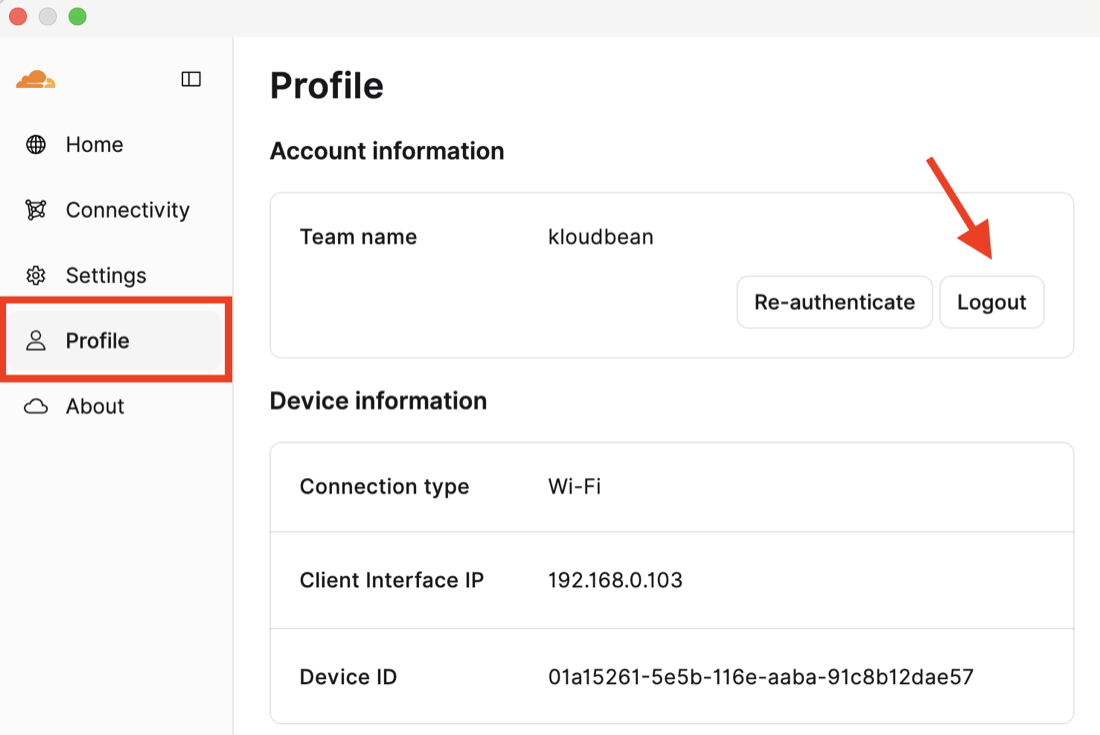
Open the Profile tab in WARP to confirm you're enrolled under the correct team. You'll see your team name (kloudbean), and options to Re-authenticate (sign in again as a different user) or Logout.
Step 6 — Access Your Servers over SSH
With WARP connected, connect to your assigned server using the details provided to you:
ssh <your-ssh-username>@<server-private-ip>
- Use the private IP exactly as provided — these servers are not publicly reachable.
- Authenticate with your issued SSH key (or password).
If SSH times out, the most common cause is that WARP is not connected. Confirm the client shows Connected (Step 4) before trying again.
Enabling MFA or Updating Your Password
You can manage your two-factor authentication (2FA/MFA) devices and change your password at any time from your KloudBean identity provider account.
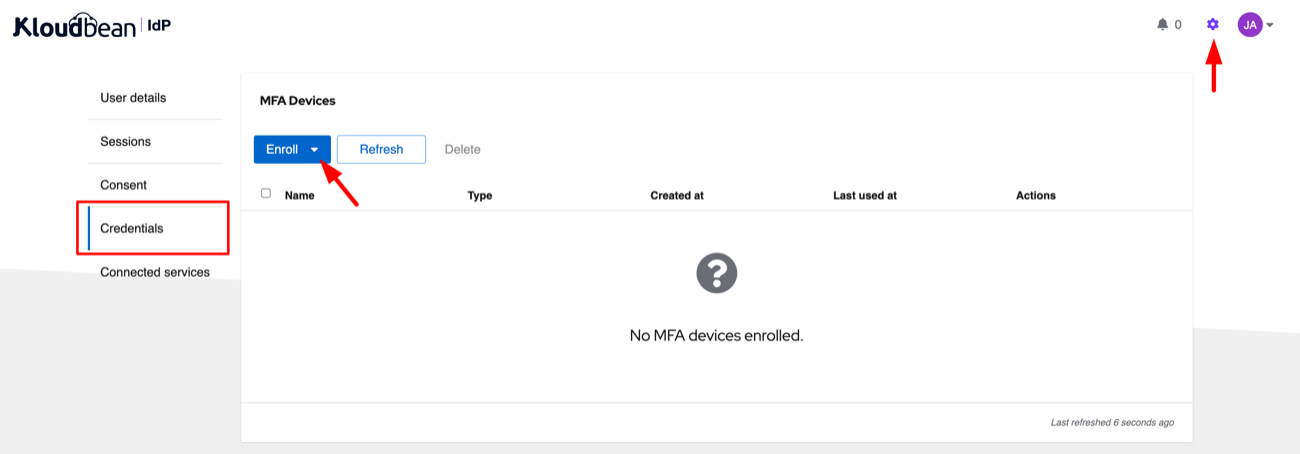
- Open https://idp.kloudbean.net and log in with your KloudBean credentials.
- Click the gear (settings) icon in the top-right corner.
- Open the Credentials tab.
- In the MFA Devices section, click Enroll and choose a supported method:
- TOTP (authenticator app) — scan the QR code with Google Authenticator, Authy, Microsoft Authenticator, or 1Password, then enter the 6-digit code.
- WebAuthn / Passkey — a security key, Touch ID, or Windows Hello.
- Static tokens — one-time backup codes; store them somewhere safe.
To update your password, use the change-password option in the same account settings area.
If you were prompted to set up MFA during your first sign-in, you're already protected — use this page to add a second device or replace a lost one.
Troubleshooting
| Symptom | What to check |
|---|---|
| SSH times out / can't reach server | Confirm WARP shows Connected; verify you're using the correct private IP; disconnect and reconnect WARP. |
| "Login failed" / sent back to sign-in | Re-check your KloudBean email and password; ensure the 6-digit MFA code is current (codes rotate every 30 seconds). |
| Need to switch accounts | In WARP, open Profile → Re-authenticate and sign in again. |
| Can't enroll / wrong team | Re-check that the team name is entered exactly as kloudbean. |
Getting Help
If you're unable to connect, contact your KloudBean account manager or support with:
- Your KloudBean sign-in email
- A screenshot of the error
- Your WARP Device ID (WARP → Profile → Device ID)
Next Steps
- Review What's Included in the Enterprise Plan.
- Learn about Secret Manager for managing application secrets on your servers.
- See Compliance Support for audit-ready controls across your environment.