Managed Secret Manager for Application Secrets
With KloudBean's enterprise-grade infrastructure, you get a fully managed Secret Manager for storing your application's sensitive configuration. Instead of hardcoding database passwords, API keys, and tokens into your code or plain .env files, you store them in a secure, managed vault and read them safely at runtime.
Overview
Secret Manager lets you securely store and manage the sensitive environment variables your application needs — such as database credentials, third-party API keys, and signing tokens — and use them safely in your application. It is backed by Google Cloud Secret Manager, so your secrets get enterprise-grade encryption, versioning, and access control.
A key characteristic of KloudBean's Secret Manager is that it is scoped to each server:
- Every server has its own associated Secret Manager. Secrets you create for one server belong only to that server.
- Secrets cannot be used on another server. A server can only read its own secrets — they are isolated and readable only by that server.
- Secrets are stored in your server's region, keeping data close to your workload and aligned with residency needs.
This per-server isolation means a compromise or misconfiguration on one server cannot expose the secrets of another.
Secret Manager is an enterprise-grade capability that is enabled per server on request. See Upgrading to the Enterprise Plan if your account is not yet on Enterprise.
Where to Find It
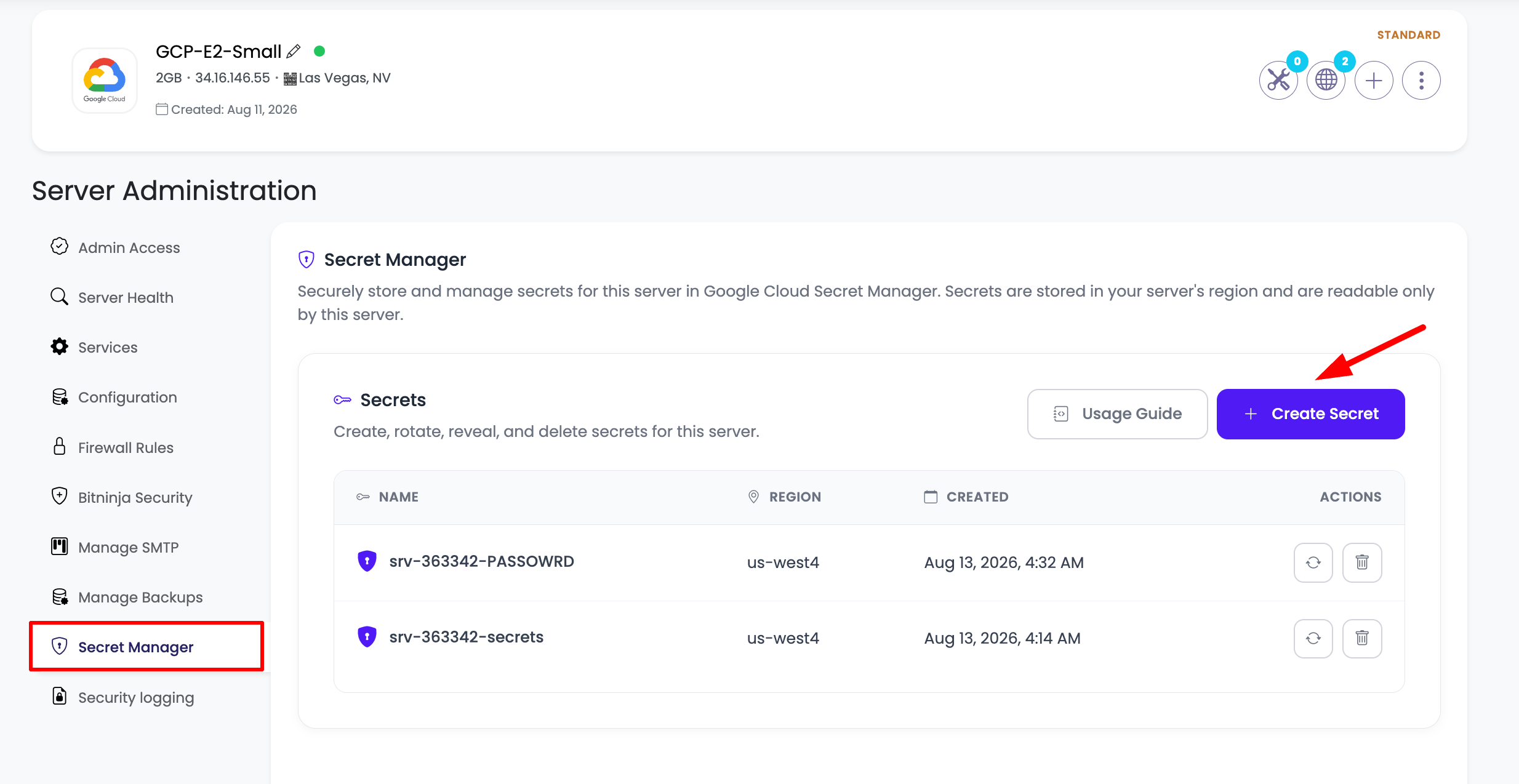
Secret Manager appears as its own tab in your server's management area:
- Open Your Server: Log in to KloudBean and open the server you want to manage.
- Go to the Secret Manager Tab: Select the Secret Manager tab.
Requesting Access
Secret Manager is disabled by default. Enabling it is a simple request-and-review flow.
Step 1: Request to Enable
When the feature is disabled, the Secret Manager tab shows that it is not yet active for the server, along with a "Request to Enable" button.
- Click "Request to Enable": This submits a request to the KloudBean team for that specific server.
- Request Received: The tab updates to a "Requested" state, confirming your request was submitted.
Step 2: KloudBean Enables It
After you submit the request:
- We Review and Enable: The KloudBean team reviews the request and enables Secret Manager for that server.
- Ready to Use: Once enabled, the tab displays your secrets and the tools to manage them.
Because Secret Manager is provisioned per server, you request it individually for each server that needs it. Enabling it on one server does not enable it on others.
Managing Secrets
Once Secret Manager is enabled for a server, you can create, view, rotate, and delete secrets directly from the tab.
Creating a Secret
- Click "Create Secret".
- Enter a Secret Name: Use letters, numbers, hyphens, and underscores only (for example,
db-password). - Enter the Secret Value: Paste or type the sensitive value.
- Save: Click "Create Secret".
KloudBean stores the secret under a server-scoped identifier (shown as a preview while you type, in the form srv-<server-id>-<name>), which is what keeps each server's secrets isolated. You only ever work with the simple name you chose.
Viewing Secret Details
Click any secret in the list to open its details, where you can see:
- Region: The region the secret is stored in.
- Created date.
- Resource path: The full path your application uses to read the secret (for example,
projects/PROJECT_ID/secrets/SECRET_NAME/versions/latest). Use the copy button to grab it. - Version selector: Choose among versions; each shows its state (
ENABLED,DISABLED, orDESTROYED). - Reveal value: Click "Reveal" to display the value for an enabled version. You can copy it or hide it again. Disabled or destroyed versions cannot be read.
Rotating a Secret (Add a New Version)
To rotate a secret without changing where your app reads it:
- Open the secret (or use the rotate action in the list).
- Click "Add Version" and enter the new value.
- Save: The new value becomes the latest version. Older versions remain until removed by policy.
Because your application reads the .../versions/latest path, rotation takes effect without any code change.
Deleting a Secret
Use the delete action to permanently remove a secret. This deletes the secret and all its versions, and cannot be undone — so make sure nothing depends on it first.
Using Secrets in Your Application
Your application reads secrets at runtime through the server's attached service account — authentication happens automatically, so you don't manage extra credentials on the server.
The built-in Usage Guide (the "Usage Guide" button, or "How to use" from a secret's details) gives you copy-ready snippets. The general steps are:
- Install the client library for your language:
- Node.js:
npm install @google-cloud/secret-manager - Python:
pip install google-cloud-secret-manager - PHP:
composer require google/cloud-secret-manager
- Node.js:
- Read the secret using its resource path (
projects/PROJECT_ID/secrets/SECRET_NAME/versions/latest).
For example, in Node.js:
const { SecretManagerServiceClient } = require('@google-cloud/secret-manager');
const client = new SecretManagerServiceClient();

async function getSecret() {
  const [version] = await client.accessSecretVersion({
    name: 'projects/PROJECT_ID/secrets/SECRET_NAME/versions/latest',
  });
  console.log('Secret:', version.payload.data.toString('utf8'));
}

getSecret().catch((err) => {
  console.error('ERROR:', err.message);
  process.exit(1);
});
Reading versions/latest means your app always picks up the current value, so rotating a secret requires no code change. The in-app Usage Guide provides equivalent Python and PHP examples pre-filled with the exact path for your secret.
Reference secrets by their latest version in application code so rotations apply automatically. Reserve pinning to a specific version number for cases where you need a fixed, known value.
Benefits and Use Cases
- Keep secrets out of code: No more credentials in source control or plain configuration files.
- Per-server isolation: Each server reads only its own secrets.
- Effortless rotation: Add a new version and your app picks it up automatically.
- Versioned and auditable: Every change is a new version with its own state.
- Automatic authentication: Apps read secrets via the server's attached service account.
Typical secrets to store include database passwords, API keys and tokens, SMTP credentials, encryption keys, and other sensitive environment variables.
Best Practices
- One secret per sensitive value with a clear, descriptive name (for example,
stripe-api-key). - Rotate regularly by adding new versions, and remove versions that are no longer needed.
- Read
latestin application code so rotations take effect without redeploys. - Never log secret values or echo them into build output.
- Delete unused secrets to keep the store clean, but confirm nothing depends on them first.
Next Steps
- Review the full Enterprise plan to see what else is included.
- Explore the SIEM & Security Logging Plan for security event logging and monitoring.
- Learn about Compliance Support for encryption and data-protection controls.
- Not on Enterprise yet? See Upgrading to the Enterprise Plan.